Accessing the connector
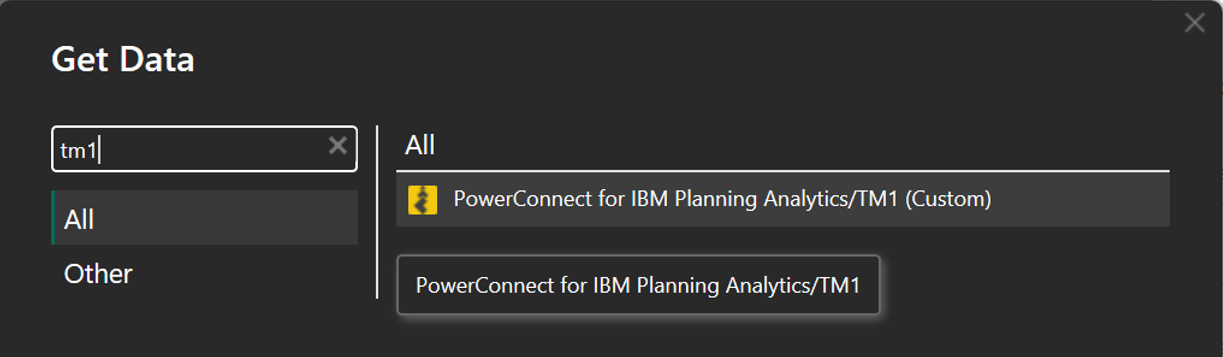
To ensure a successful installation, open the “Get Data” dialog in Microsoft Power BI Desktop and search for “PowerConnect”. The following data source will appear:
The PowerConnect connector will prompt the user to sign in with Azure Active Directory credentials via your organization’s login screen. 2FA (two factor authentication) will be adhered to.
If the user is already signed into other Microsoft Apps with their Azure Active Directory credentials, a brief popup will be displayed, and the user will not be prompted for credentials.
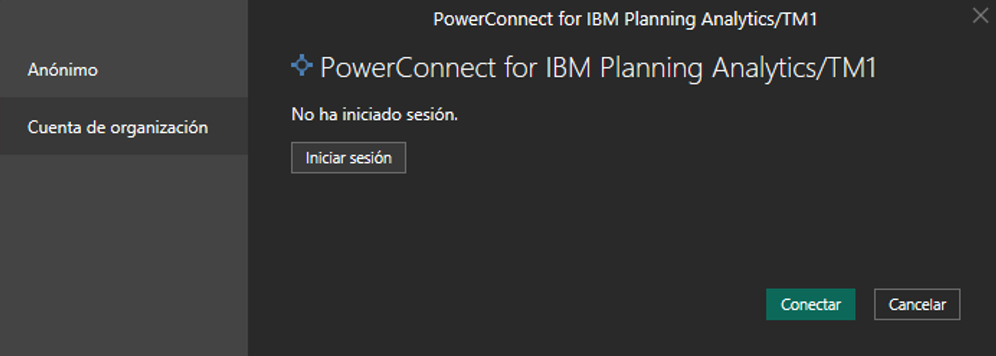
The connector will allow you to try to connect to the server using either an Anonymous connection or using an Organizational Account. The server will block Anonymous connections by default. It will only allow Anonymous connections if the ensure_secure_connections is set to False (this is recommended only for testing purposes). Using an anonymous connection will directly use the admin user set in the Admin Platform.
In versions 1.2.0 and before, this was separate in two versions. The OAuth version was the equivalent of having ensure_secure_connections: true, the NonOAuth version the equivalent of having ensure_secure_connections: false
After logging in successfully, a list with the configured environments and connections (IBM Planning Analytics instances) is shown:
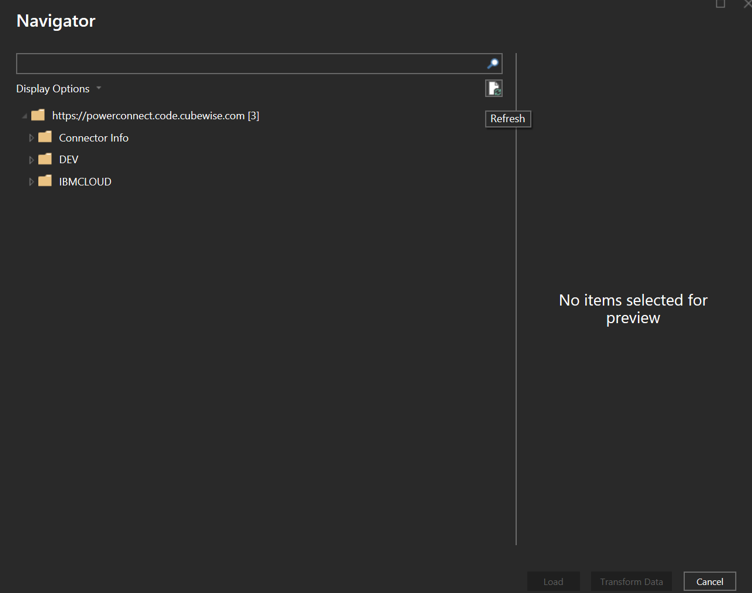
Upon expanding a connection, a list of cubes will be shown:
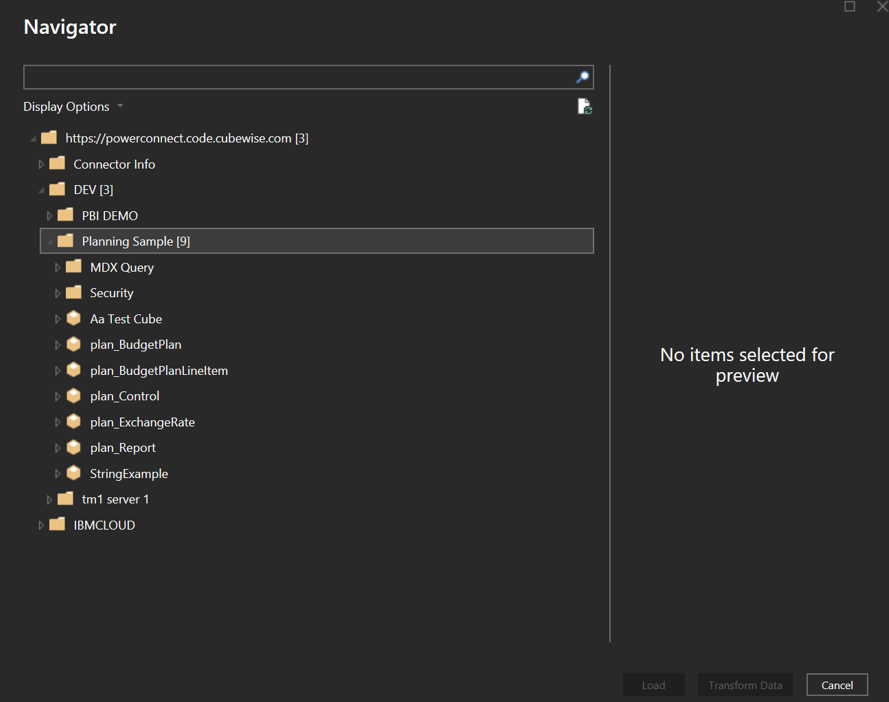
Displaying a list of cubes indicates a successful connection to IBM Planning Analytics has been established.
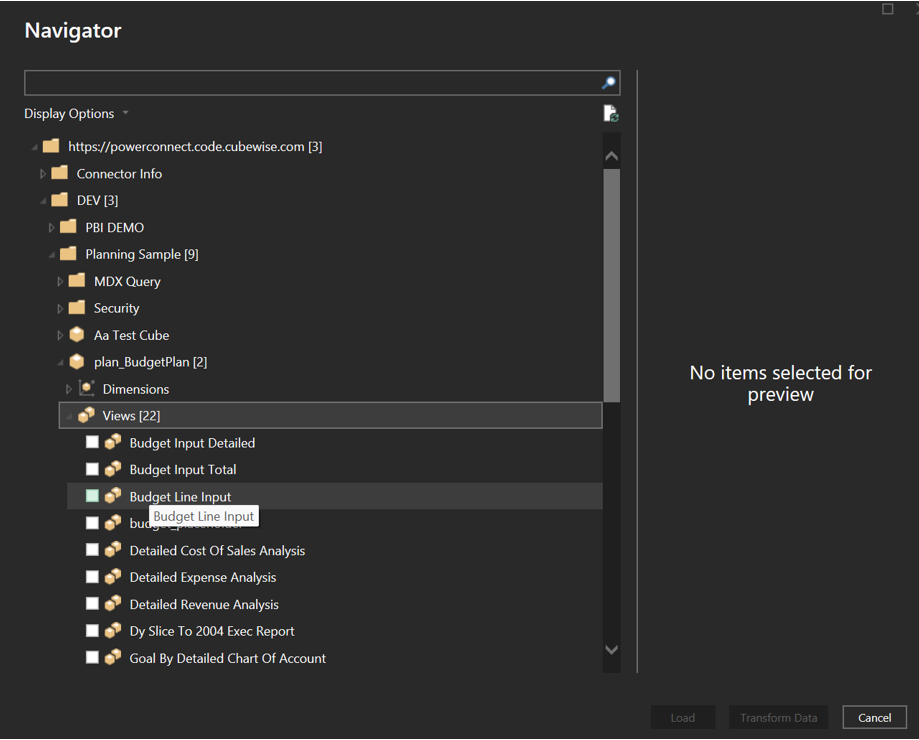
IBM Planning Analytics data can be accessed by navigating to a view in the Views node underneath the cube node: