The Slice Toolbar
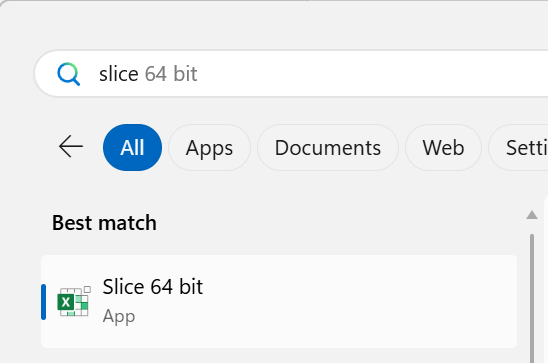
To launch Slice, just search for Slice in the Windows Start Menu:
Once Excel opened, go to the Slice tab to see the Slice toolbar and each button’s feature:

Server Explorer: Opens the Slice Explorer.
Refresh Servers: Refresh TM1 Servers.
Upload Report: Upload the workbook to the TM1 Server’s application folder.
Refresh Sheet: Calculate the Sheet (Shortcut = SHIFT+F9).
Rebuild Sheet: Rebuild an Active Form / Dynamic report (Shortcut = ALT+F9).
Refresh Book: Calculate all Sheets (Shortcut = F9).
Rebuild Book: Rebuild all Active Forms in the workbook.
Report Burster: Burst the Excel report to a single or multiple Excel or PDF files by cycling through a subset.
Paste Range: Copy a set of values and paste over DBRW/DBR formulas to upload the data to TM1.
DBS Send: Refresh DBS formulas that send data to the TM1 server.
Convert TM1 functions Remove TM1 functions and converting to values, leaving only Excel functions Delete Active Form rows (sheet/workbook).
Toggle Active Form Format: Toggle an Active Form format area.
Add Button: Add an Action Button to calculate the workbook, execute a process or open a workbook from the TM1 application folder.
All Buttons: Edit an Action Button.
Convert Button: Upgrade Perspectives action buttons to be used in IBM Planning Analytics for Excel.
Copy Button: Copies an existing selected button.
Sandbox: Select a sandbox, create / delete / reset a sandbox or commit data from a sandbox to the base.
Audit: Statistics on the file like the number of TM1 formulas in the workbook.
Settings: Set the connection to the TM1 Server and other features like setting manual / auto calculation.
Logs: A log on all the action taken by Slice.
About: The version of slice.
Community/Business: Licence Type.