Loading data and metadata
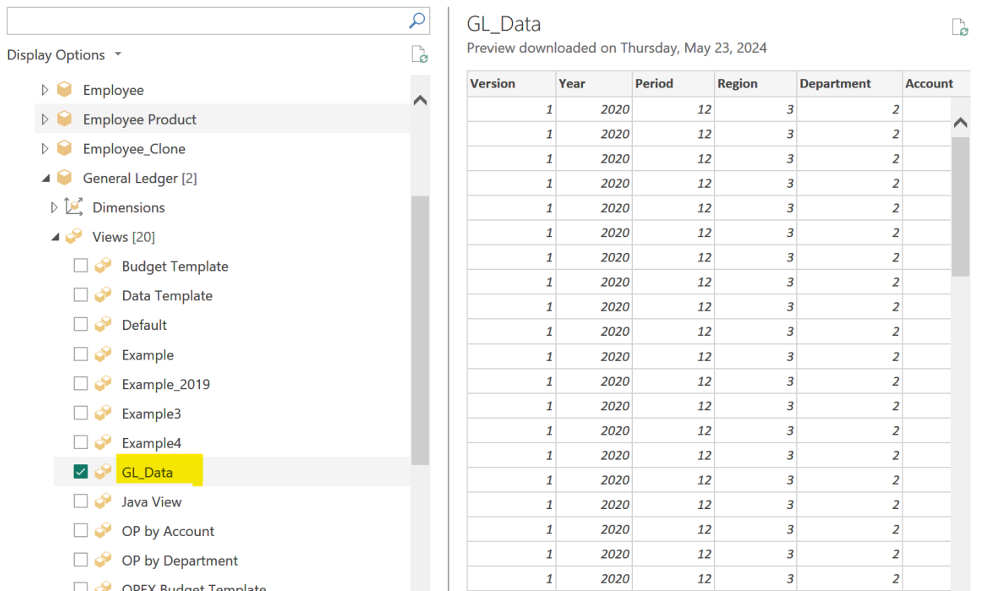
Expand the tree for the General Ledger and under views select the view called “GL_Data” and click “Load”.
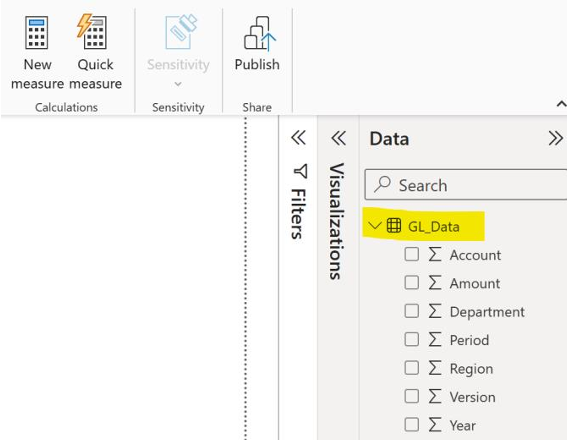
You will see the data loaded under the “Data” section on the right-hand side of your Power Bi Desktop session.
You now need to load the elements of the dimensions that are part of the GL data cube.
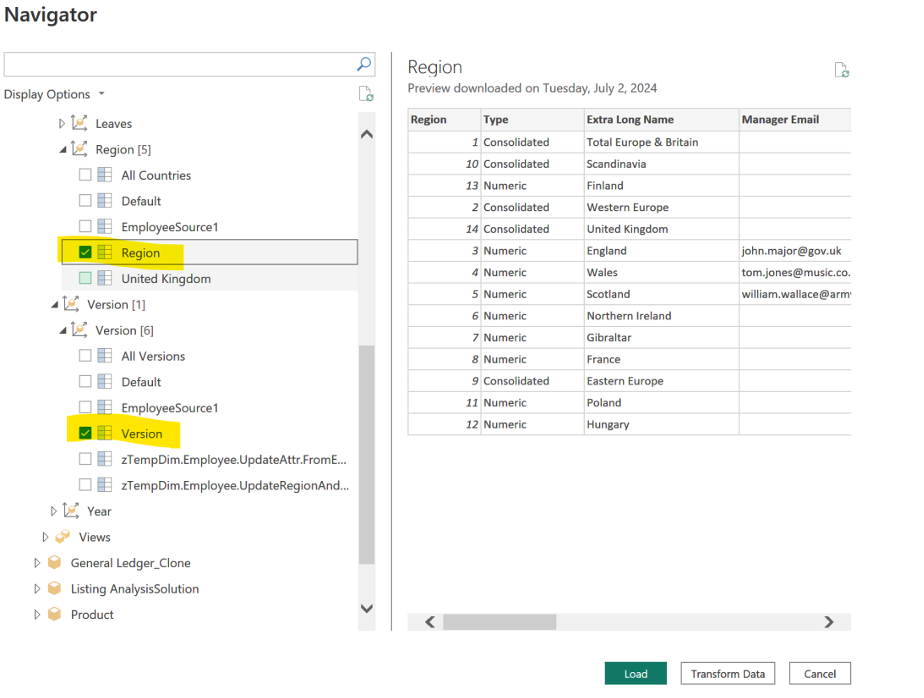
Go to the “Get Data” section, select Cubewise PowerConnect and the navigation tree for the General Ledger→Dimensions→ Account→ select the Expenses subset and click “Load” as shown below.
By following the same steps as above, you need to select the next dimension subsets, please note that in this sample TM1 model, the dimension and subsets have the same name.
Dim: Version – Sub: Version
Dim: Period – Sub: Period
Dim: Department – Sub: Department
Dim: Region – Sub: Region
You can do this one by one or you can also select all the subsets and load them in one go.
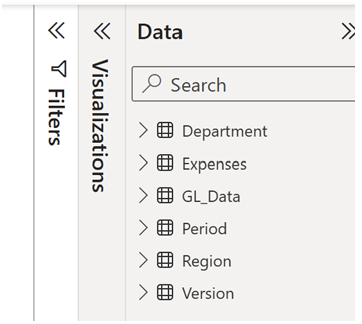
You should have the following data and metadata loaded in your Power Bi Desktop session.