Leveraging Hierarchies with DAX
Note: this page shows the legacy DAX-based approach to building TM1 hierarchies, kept as part of this hands-on training walkthrough. For your own models we recommend the Power Query method instead — it scales with hierarchy depth, handles ragged hierarchies, and avoids double-counted totals. See Working with TM1 Hierarchies in Power BI.
Note: this page shows the legacy DAX-based approach to building TM1 hierarchies, kept as part of this hands-on training walkthrough. For your own models we recommend the Power Query method instead — it scales with hierarchy depth, handles ragged hierarchies, and avoids double-counted totals. See Working with TM1 Hierarchies in Power BI.
Managing complex hierarchies in data is essential for in-depth analysis, especially in tools like IBM Planning Analytics (TM1). PowerConnect helps users sync these hierarchies in Power BI, enabling multi-level drill-downs and interactive visualizations. As we have briefly covered in this hands-on guide, you can import TM1 subsets into Power BI and create relationships between columns to visualize hierarchical data as we did with the period dimension. This streamlined integration facilitates dynamic reporting, ensuring that TM1 data is always up to date in Power BI. Read more about syncing TM1 hierarchies here.
Enabling and Recreating Hierarchies
For our last visualization which will be a dynamic bar chart, we need to recreate the hierarchies in the region dimension/metadata set. Go to the “Table View” and create 3 more new columns and rename them as, DescLevel000, DescLevel001, DescLevel002 respectively.
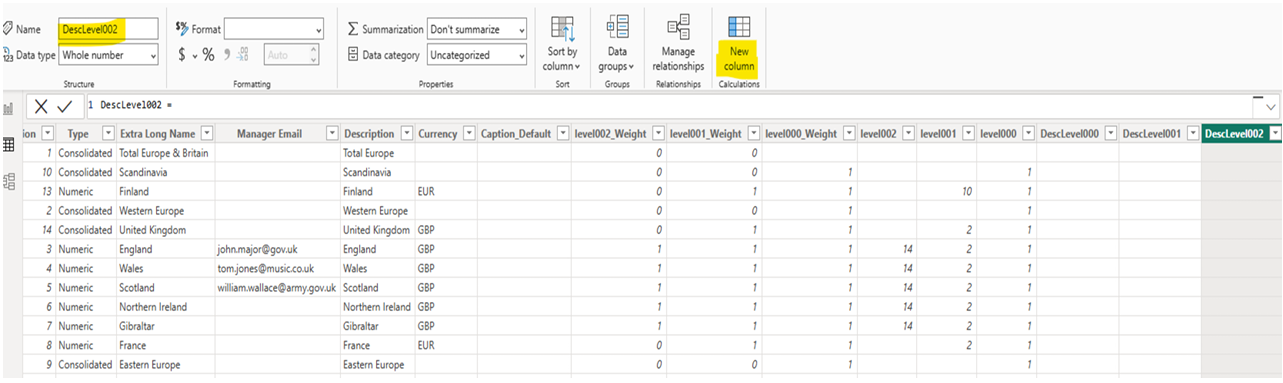
For each new column insert the following lookup value formula so we get the right descriptions for each level in the hierarchy.
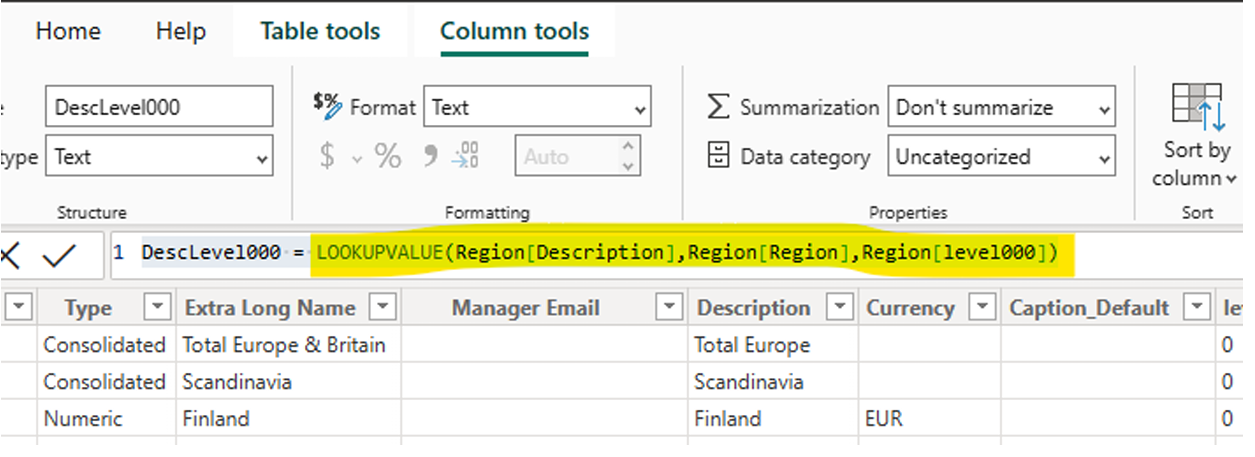
“DAX comparison operations do not support comparing values of type Integer with values of type Text. Consider using the VALUE or FORMAT function to convert one of the values.”
You will need to either adjust the formula with the suggested functions or change the data type from integer to text for the corresponding columns, in this case you’ll need to do so for the columns named Region, level000, level001 and level002.
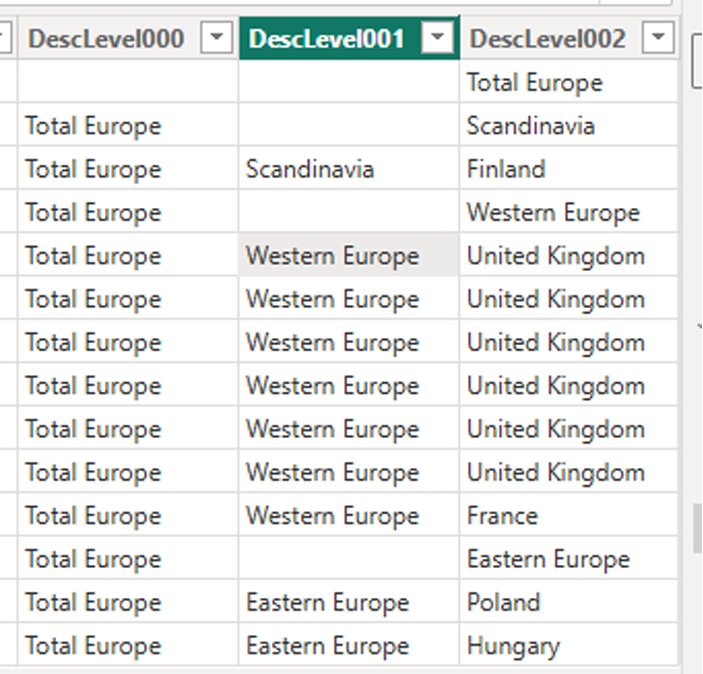
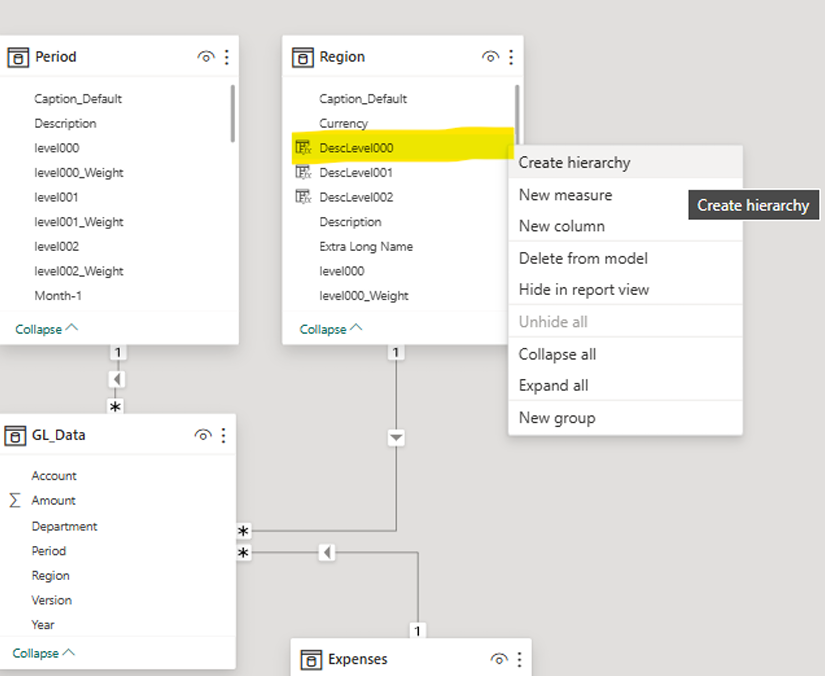
Go to the Region metadata ser in the Table view and create a hierarchy by right clicking on DescLevel00.
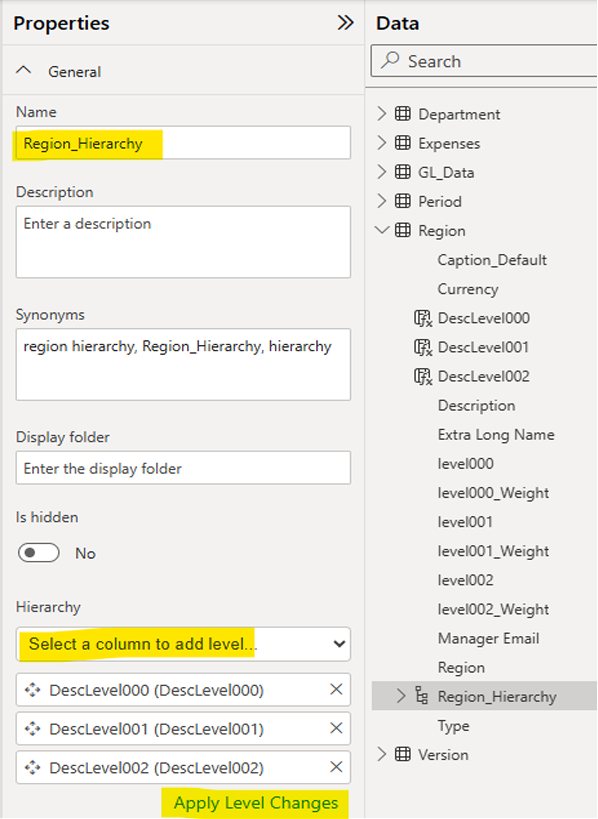
Named this hierarchy “Region_Hierarchy” in the properties tab. From the Hierarchy dropdown at the bottom, select the columns DescLevel001 and DescLevel002 to add the subsequent levels of the hierarchy, click “Apply Level Changes”.
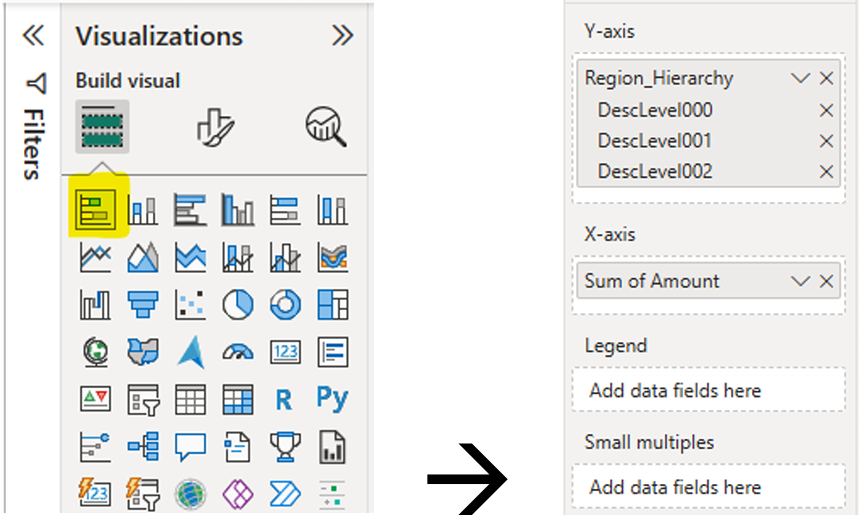
Lastly, go to the Report View and insert a stacked bar chart visualization. Select the Region_Hierarchy from the region metadata set and for the Y-axis and the Amount from the GL_Data and feel free to play with the formatting styles for this visualization.
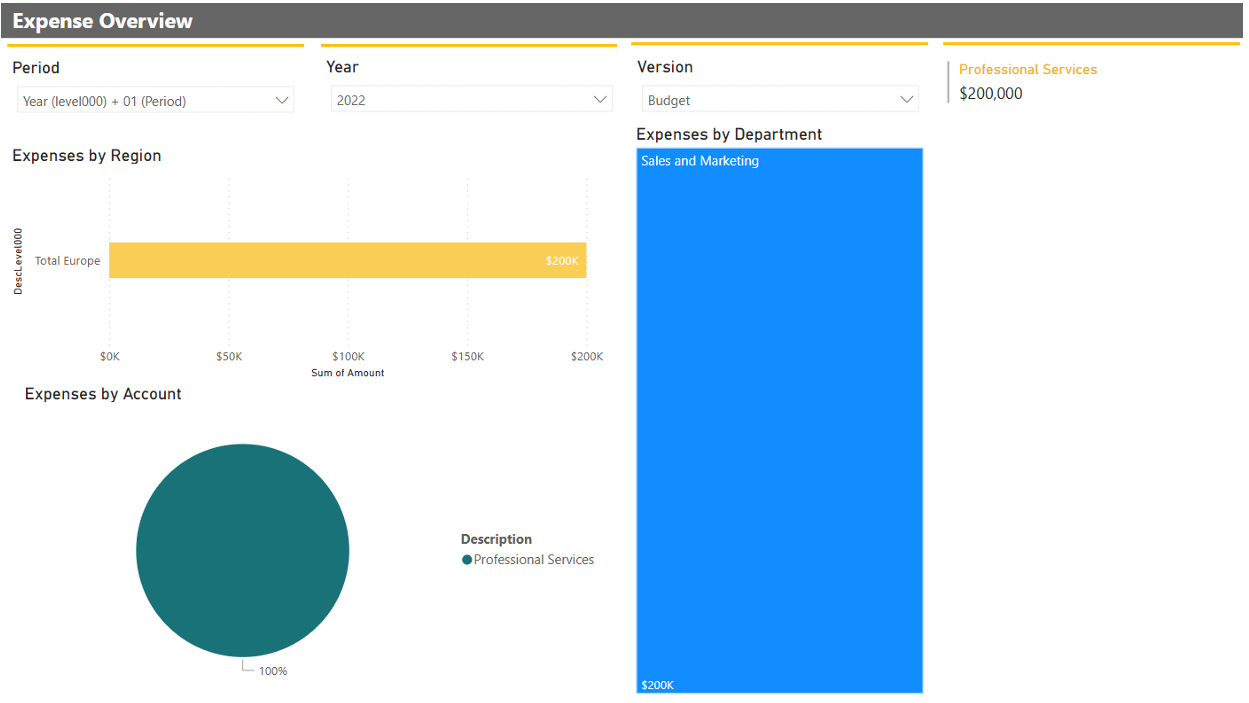
That’s it!, your dashboard should look like this:
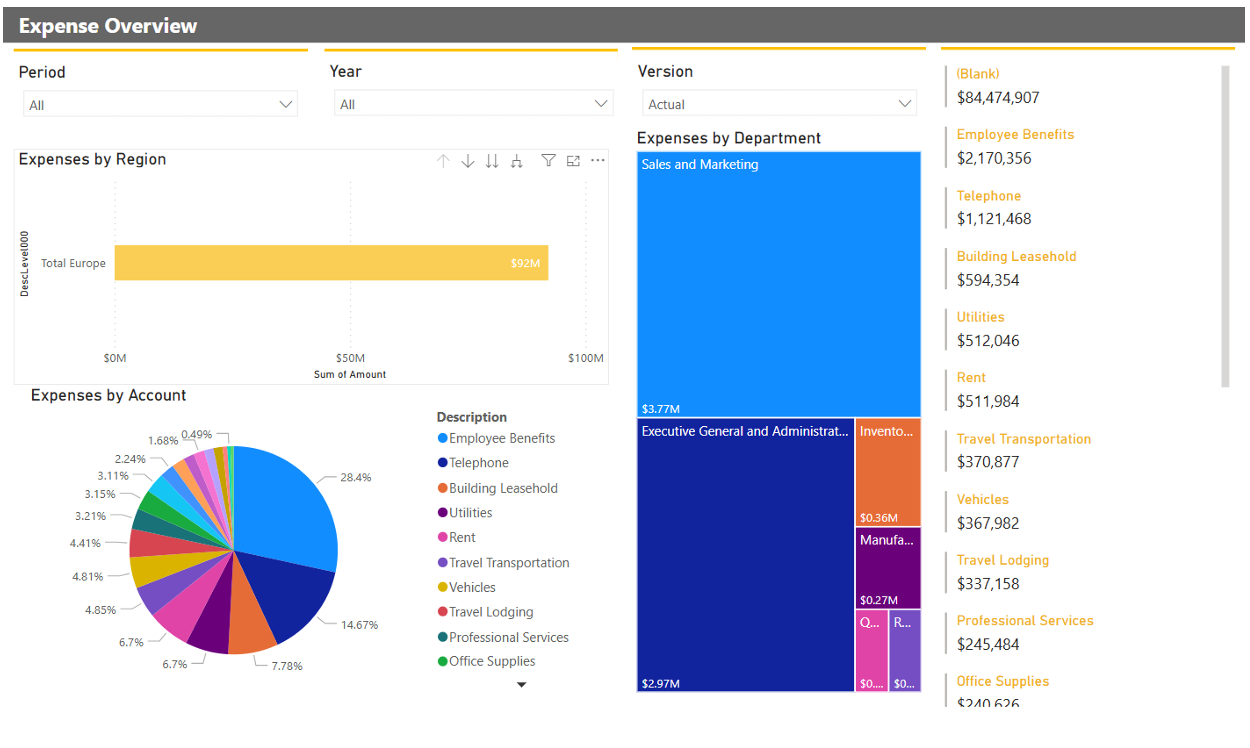
You can now do a data/metadata refresh either for all data sets in the dashboard or individually. Let’s select the budget version for period 01 and the year 2022 in the dashboard and you will note there is no data. Now let’s go to our TM1 model and enter some data. Open Arc, workspace or your prefer UI and got to the General Ledger cube and open the Budget Expenses view and enter and amount, in this case let’s enter $200,000 for the “Professional Services” account for January.
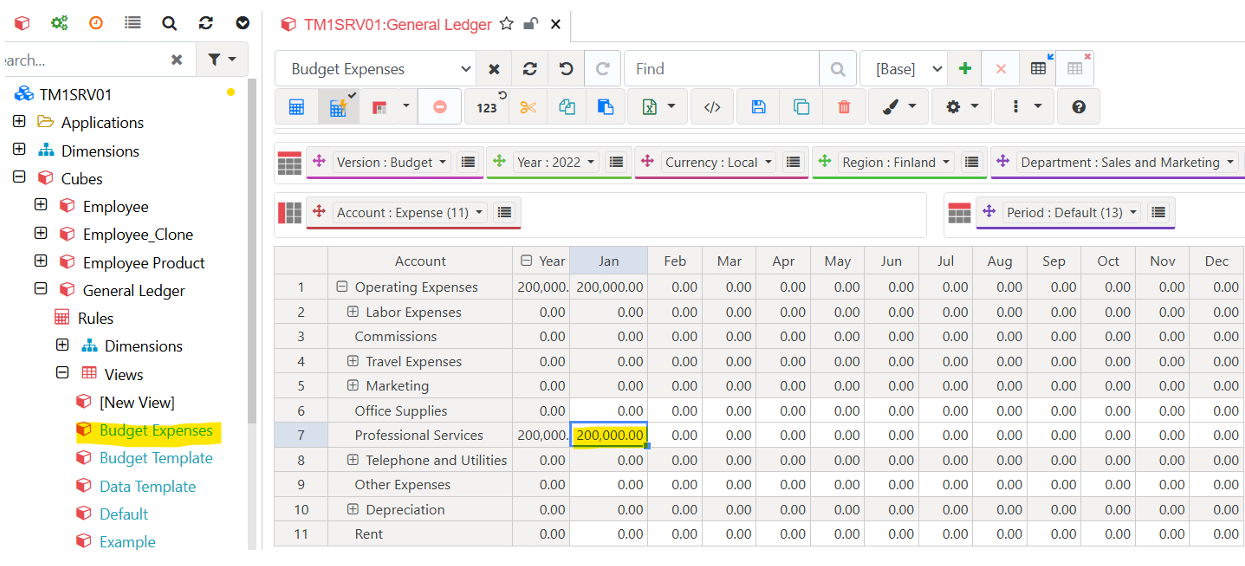
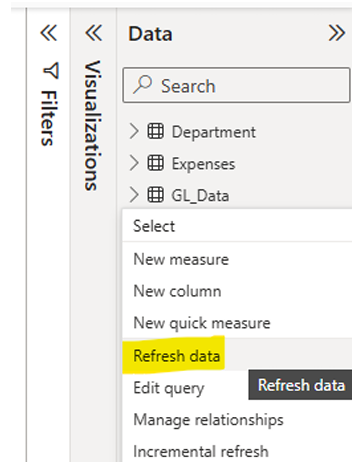
Now go to your Power BI dashboard, go to the Data tab on the righthand side and right click on the GL_Data set and select “Refresh Data”.