Charts
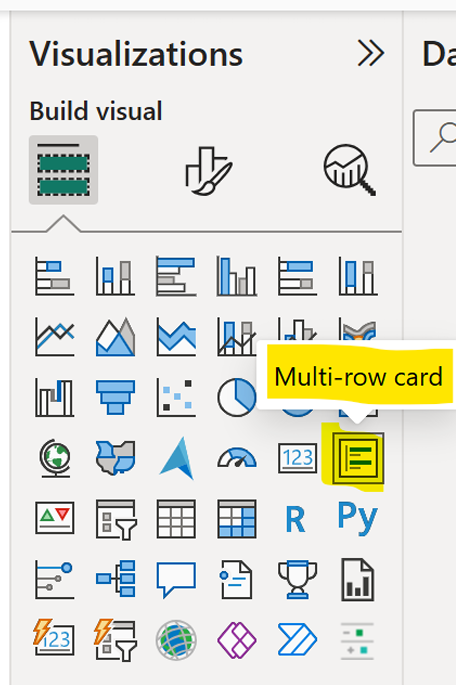
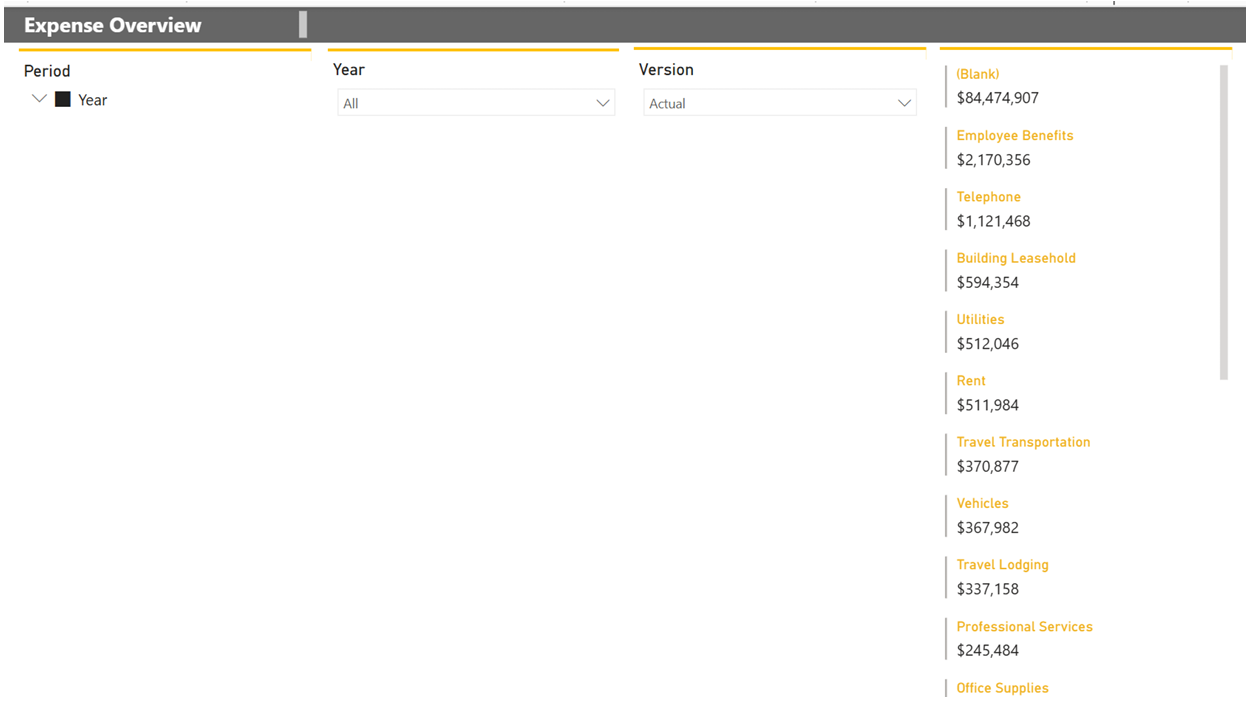
In the visualisations tab on the right-hand side, we will insert a multi-row card so we can display all the expense accounts sorted by the highest value to the lowest.
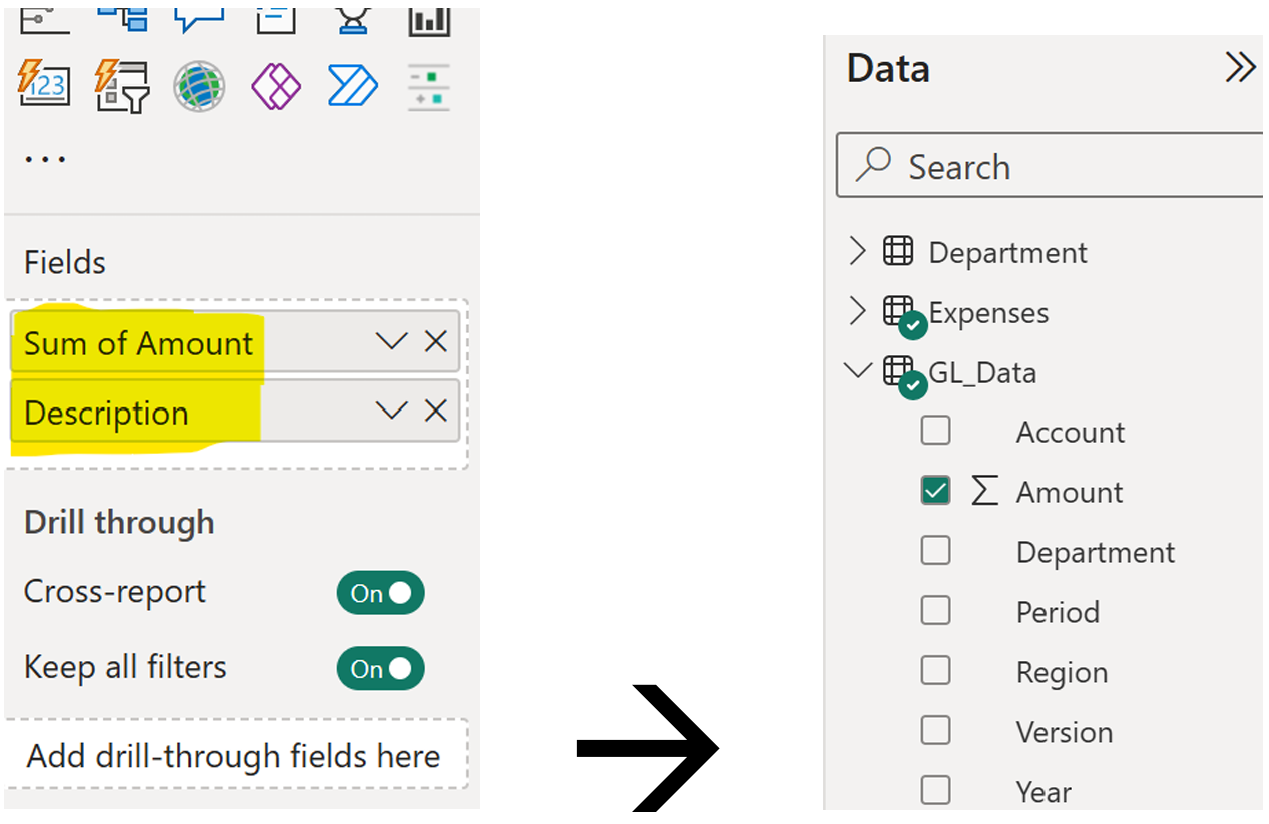
In the fields, select the amount from the GL_Data set and the Description from the Expense metadata set (account dimension).
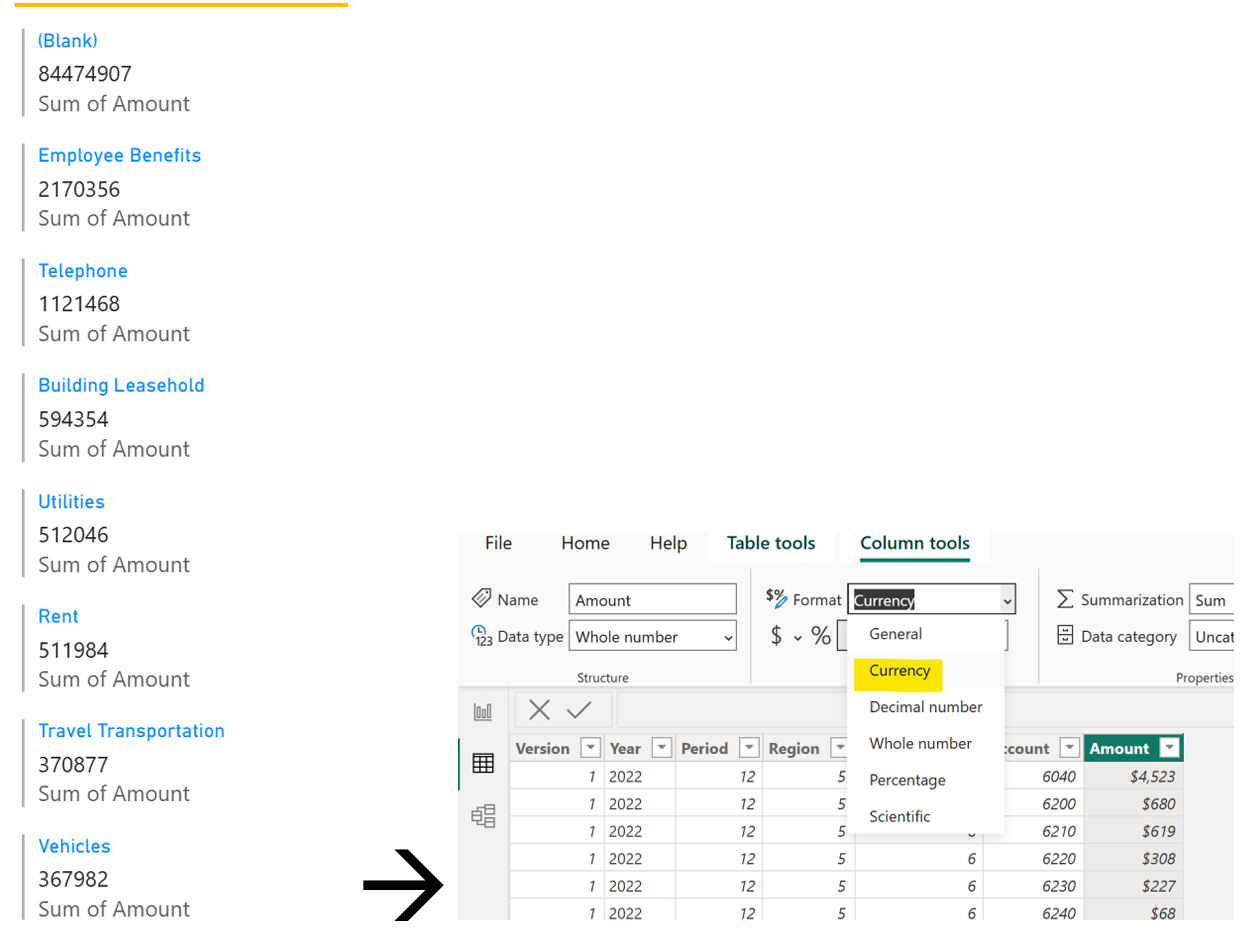
You will note that the numbers are hard to read, you can go to the Table View, select the GL_Data and format the “Amount” column as follows:
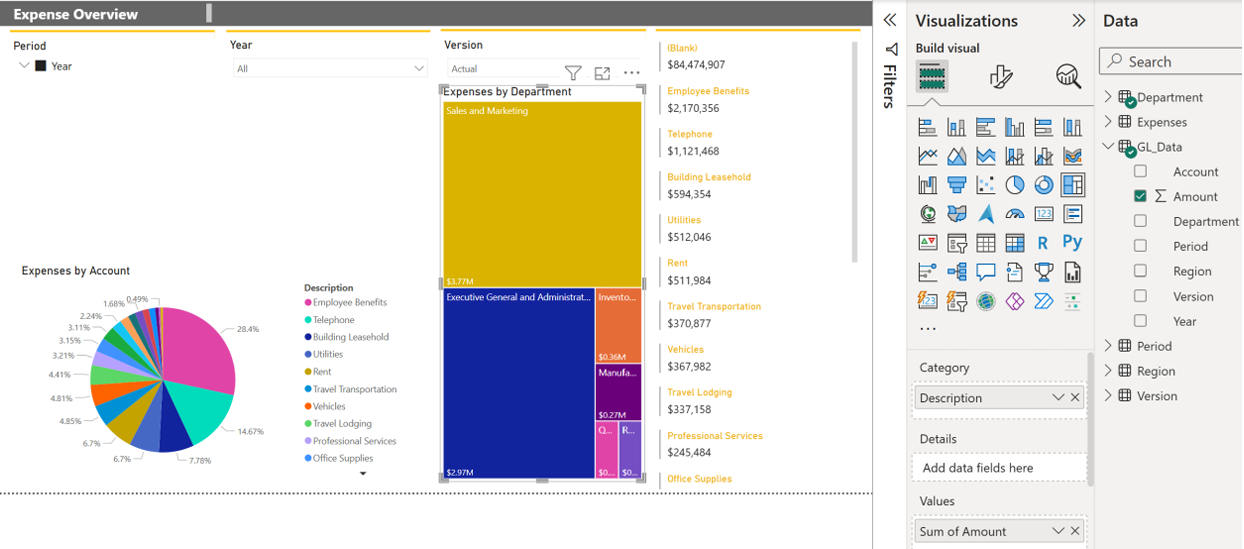
Take a look at the properties of this visualization and see if you can get a similar layout as per below:
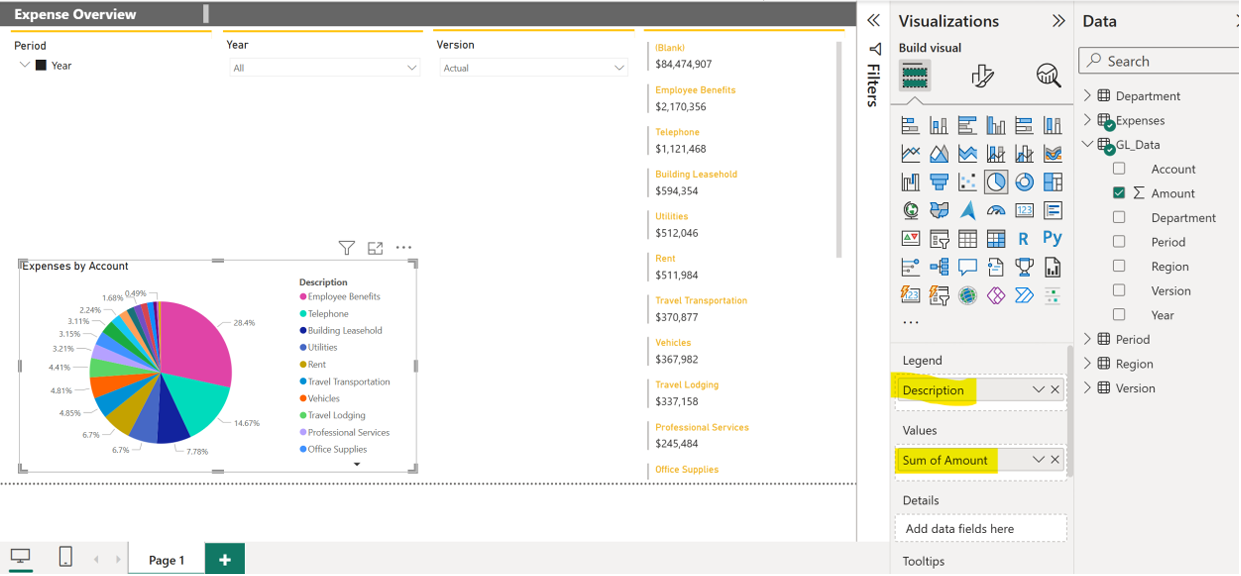
We will now create two more charts. First a pie chart containing all the expenses and their corresponding % value. Note that the “Description” comes from the Expenses metadata and the “Amount” from the GL_Data.
The second chart is a treemap that will display the total expense amount for the corresponding department. Note that the “Description” comes from the Department metadata and the “Amount” from the GL_Data.