Configuration
Server Settings
In the Server settings, you will find:
Cognos dispatcher: Authentication Using CAM / Active Directory
Long Running Operation Minimum: The minimum amount of time in seconds before Pulse logs the operation to the Pulse database
Excel Logging: Setting up Excel Logging to Pulse with the Excel logger
Log Interval (min): Set the maximum minutes of data cached in the browser
DB Password: Connecting to the Pulse database
System Alerts
It is important to enable the Pulse System Alerts to make sure that Pulse is constantly recording everything that is happening across all your instances:
Enable Database Connectivity Alert: Send an email notification when there is an issue with the database
Enable Disk Space Alert: Send an email notification when the disk space used by Pulse exceeded 50GB
Enable Elasticsearch Connectivity Alert: Send an email notification when there is an issue with Elasticsearch.
Enable Pulse License Renewal Alert: Send an email notification when Pulse License is about to expire
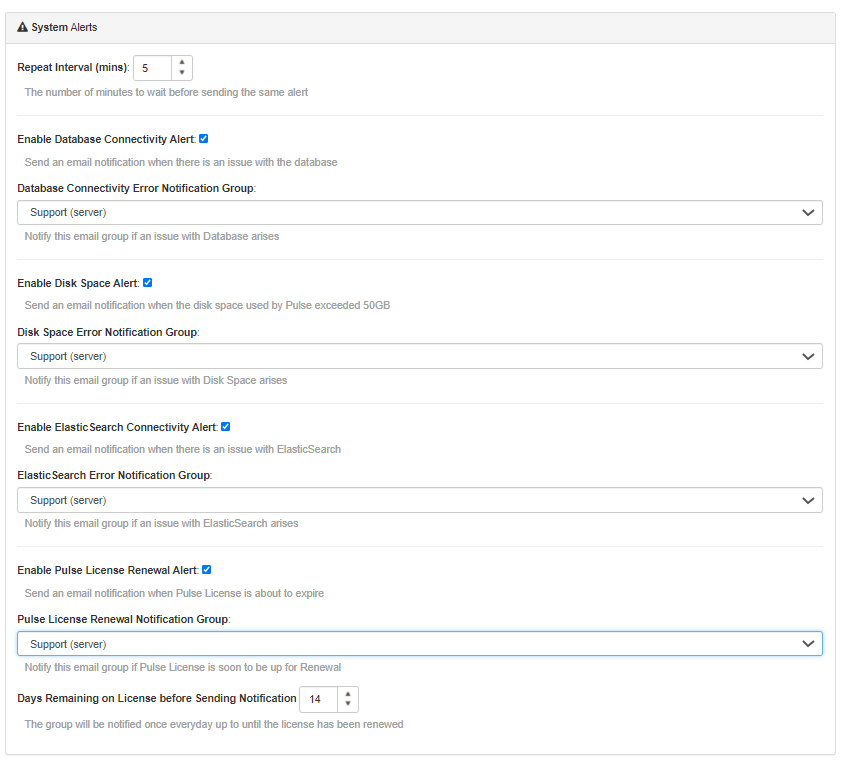
For each alert, you will need to select one notification group. If the dropdown is empty then you will have to create a new notification group (Administration > Notifications groups).
Pulse Alerts will only send emails if the emails settings are configured:
SMTP Server: This can be the name of the SMTP server or an IP address
SMTP Port Number: The default port number is 25, other common ports include: 587 or 465.
SMTP From Address: This is the email address that will be in the From field in the email. In most cases this doesn’t have to be a valid email address and could be something like: noreply@yourcompany.com.
Pulse Authentication
Pulse three authentication methods:
Basic authentication using username and password defined in Pulse