Table View
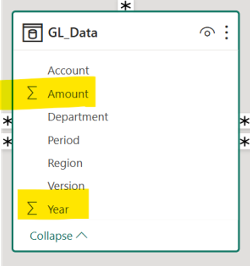
The Table View in Power BI Desktop allows you to see and interact directly with the raw data and metadata in each “table” allowing the creation and management of calculated columns and measures. If we look at the GL_Data in the Model View, you will note that both, the Amount field as well as the Year have been automatically defined as numbers therefore the “Σ” symbol next to it.
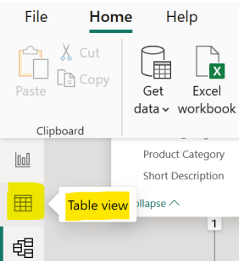
Go to the Table View which is on the lefthand side panel as shown below:
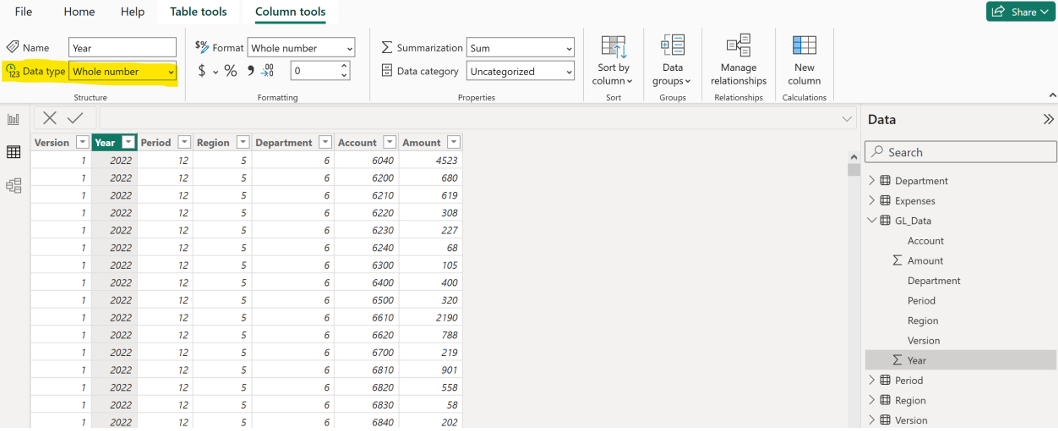
Select the GL_Data of the Data panel on the left-hand side, select the column “Year” and change the data type option to “Text”.
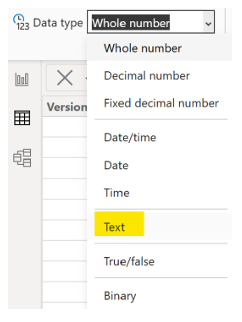
The “Σ” symbol next to the Year column will disappear.