Retrieving Data
In Power BI Desktop, open the “Get Data” dialog
In the “Get Data” dialog, search for “Cubewise”, select “Cubewise – IBM Planning Analytics (Beta)” and click on “Connect”
In the Navigator, select the views, subsets, and security information you want to use in Power BI.
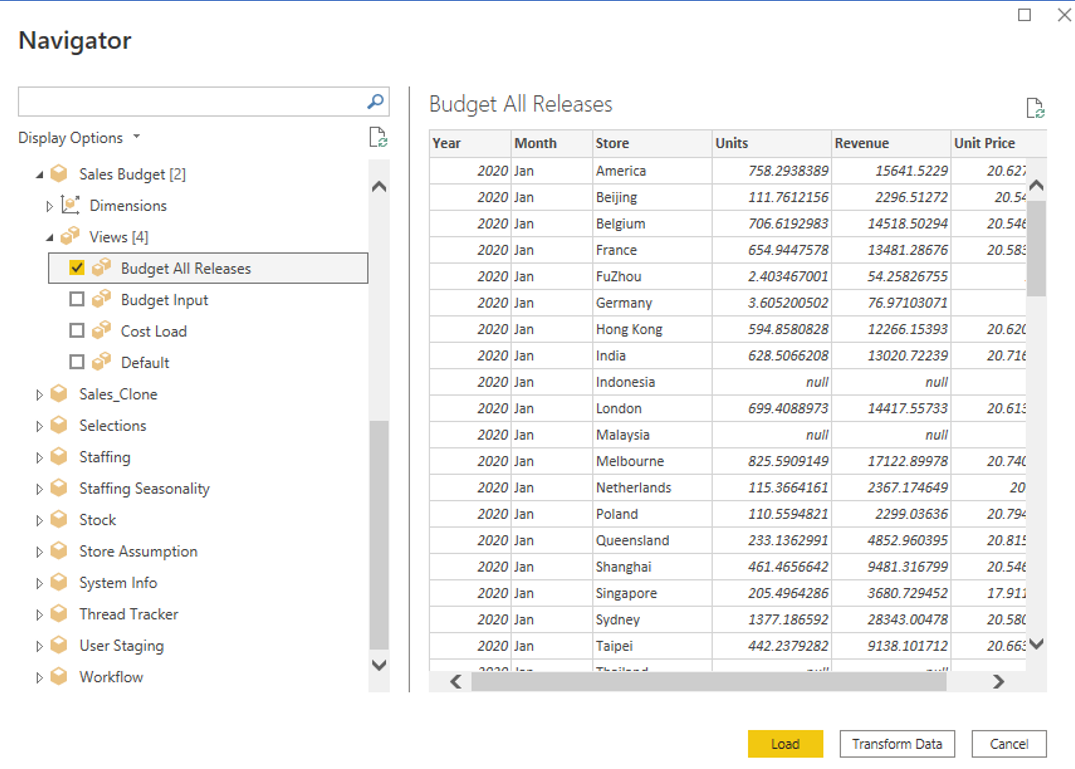
The screenshot above shows data from a public view called “Budget All Releases” in the “Sales Budget” cube. The navigator will show a preview of the data that will be loaded into Power BI.
When selecting a subset in a hierarchy, all attributes of the elements will also be loaded into Power BI Desktop
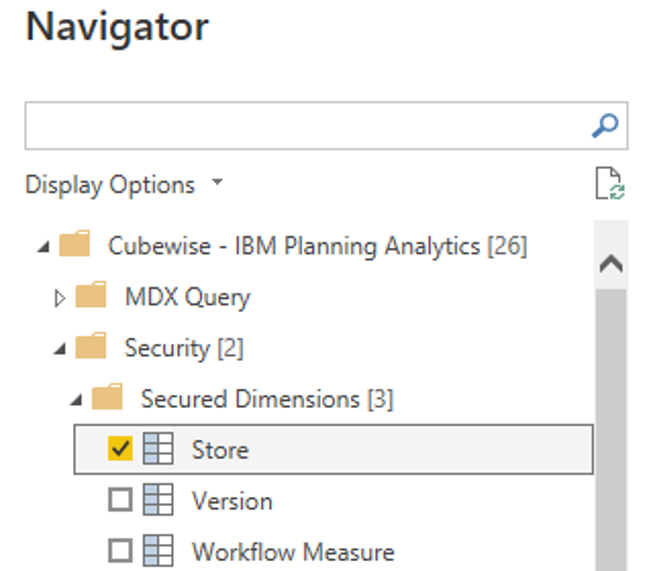
To include security within a given report, which will be published to the Power BI Service, select the dimensions that are used in the view and have element level security applied. This can be done in the “Security” node in the Navigator.
Before joining the tables to create a star schema, ensure the following:
a) Check the data types of element columns in your queries. In some cases, e.g. when years have a numeric representation, Power BI will interpret that column as being numeric, rather than text.
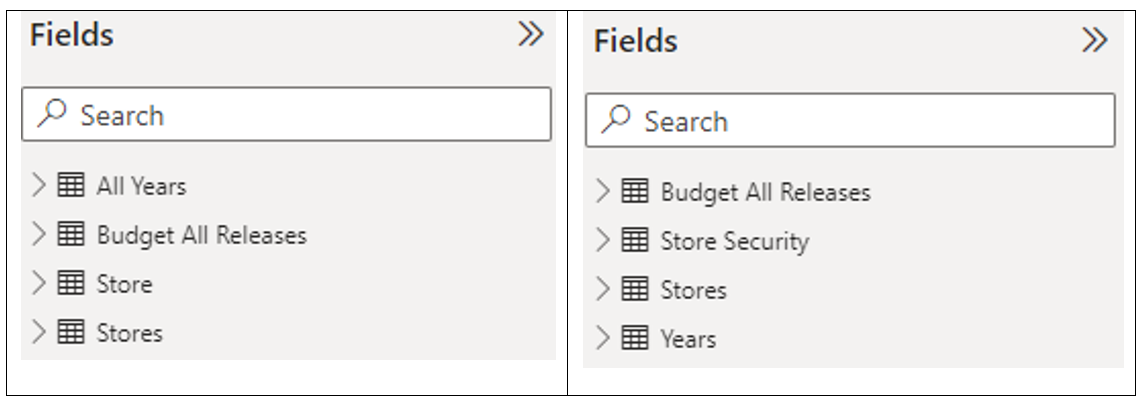
b) The tables are named according to your requirements. In this example the following changes have been made: