Installing Slice with the installer
This article explains the steps to installing Slice using the installer.
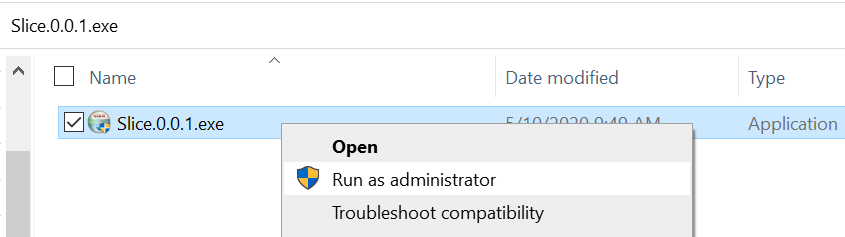
Once Slice is downloaded, unzip the file and then Run as administrator the Slice.x.x.x.exe file:
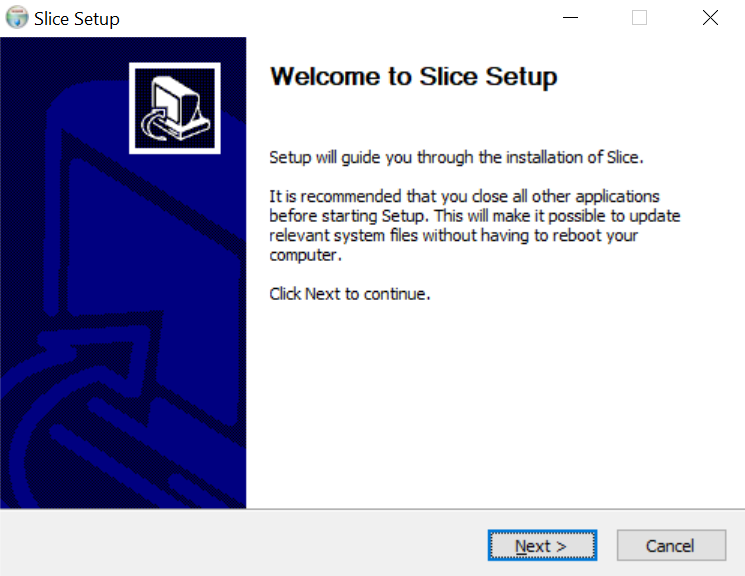
Click the Next on the Welcome page:
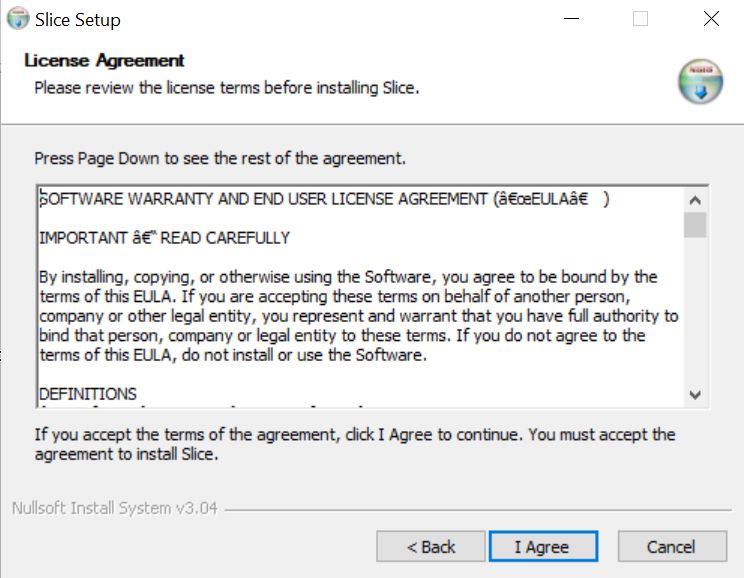
Accept the license agreement:
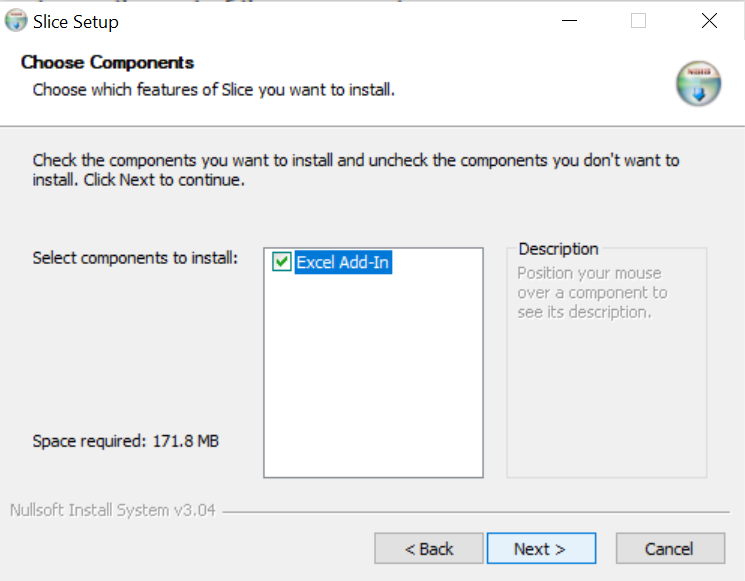
Click Next:
Choose the installation location and then click Next:
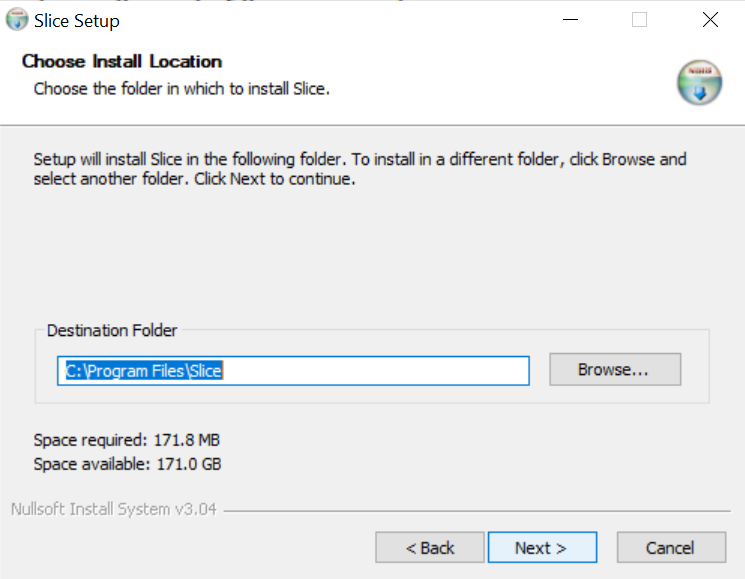
Click Install (the installer will now install the components):
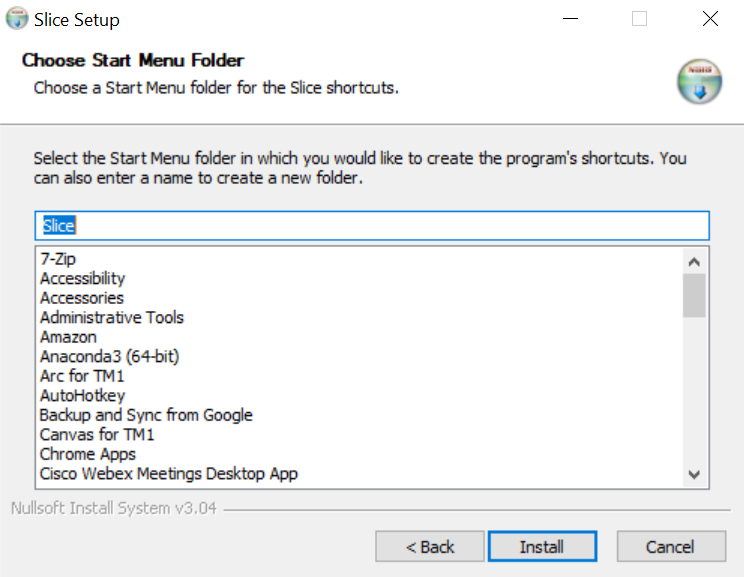
Click Next:
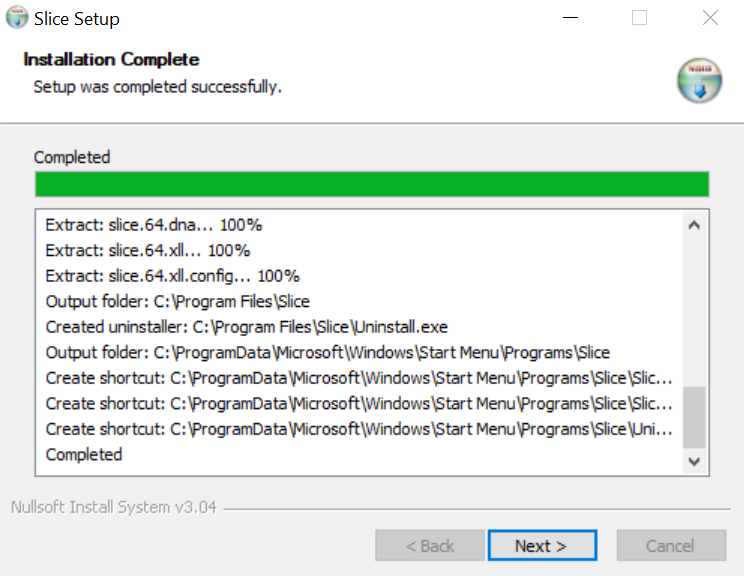
Click Finish:
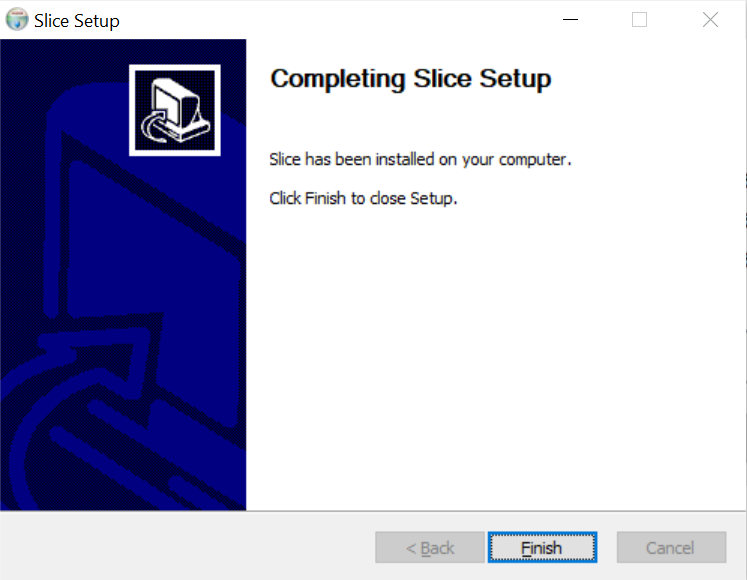
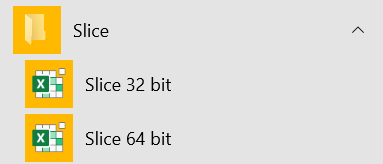
To launch Slice, you can find the 23 and 64 bit versions from the Windows Start Menu:
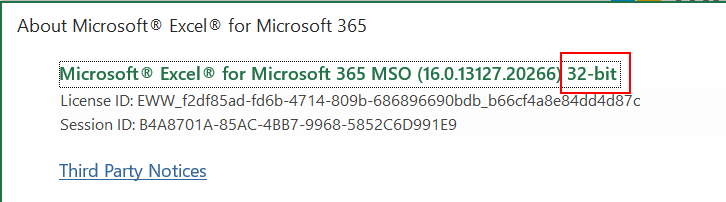
To check your Excel version, in Excel go to File > Account > About Excel:
Once selected the correct Slice version, the Slice ribbon should appear in Excel:

To start Slice with default settings, just click the Servers button. The Slice Explorer will open in a separate window:
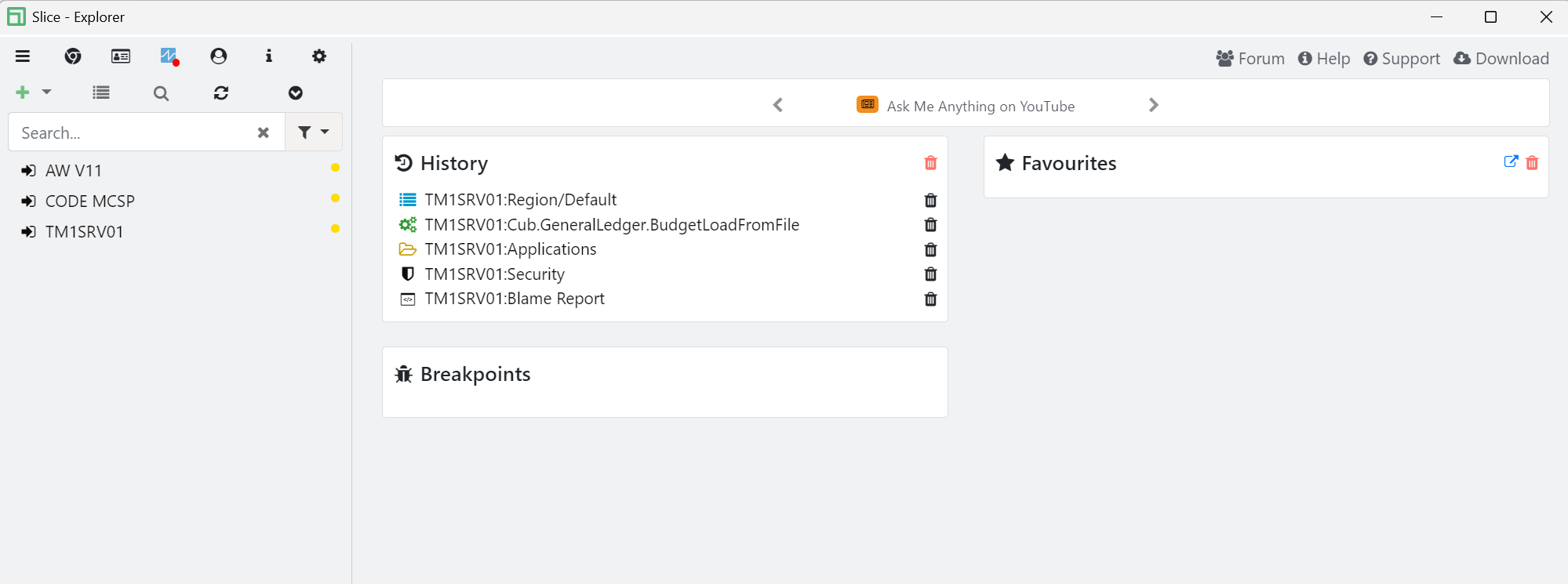
To log-in to a TM1 instance, just click the instance name and then enter your TM1 credentials.
Slice will auto-detect all TM1 instances available on the server where it is installed.