Create an Active Form from Excel
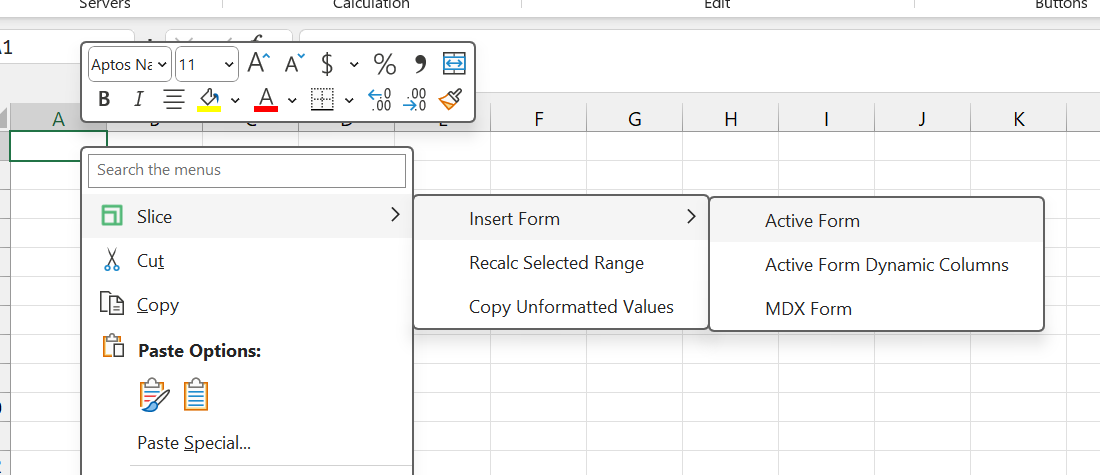
Open a new worksheet and right click on a cell, select the Slice context menu > Active Form > Insert Active Form.
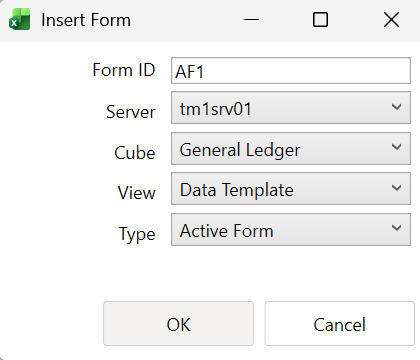
Select the following values:
Server: TM1 instance
Cube: General Ledger
View: Data Template
Type: Active Form
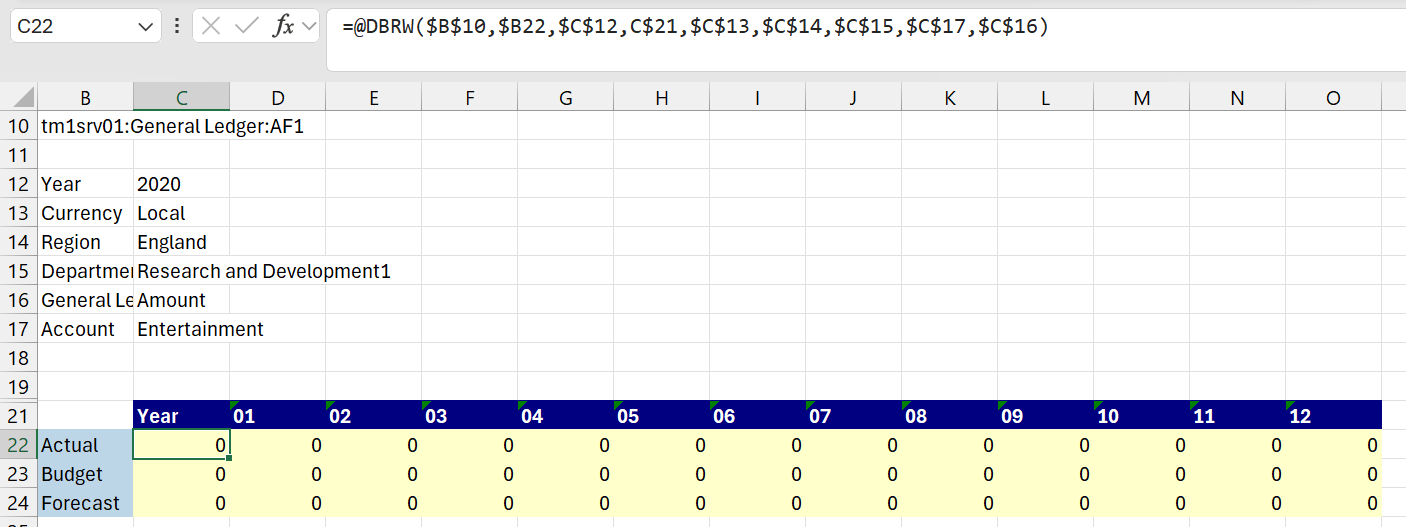
The new Active Form will be created:
Using the Paste Range function
When you want to write data back to TM1 from the DBRW / DBR formula, you need to type a value on top of these formulas for the value to send to the TM1 server. With paste range, you can copy a range of data and paste on top of DBRW / DBR formulas, saving time doing it one cell at a time. Enter manually 50 in cell D21, then copy this cell and select the rest of the row. Using the Paste Rage function from the Slice ribbon you just click and the values will be sent to the TM1 server:
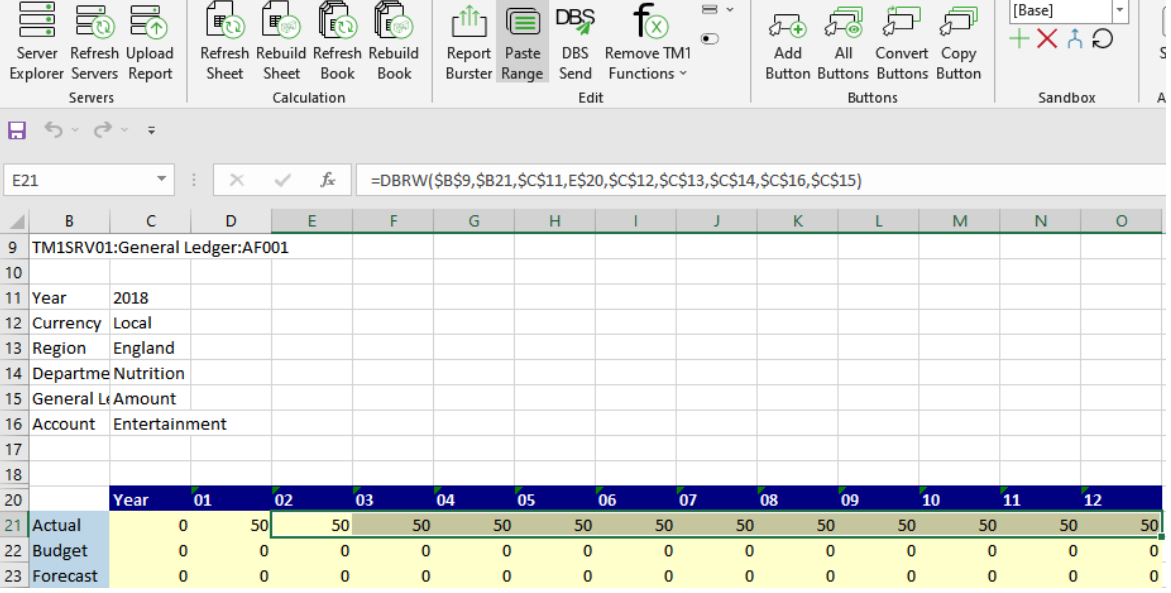
Refresh the sheet; you’ll see that the values we copied are now consolidating from the TM1 Server. Also, each cell has also retained the DBRW formula.