Building Hierarchies with a Process
Objectives
Each employee in the Employee dimension has a Department Code attribute value. We want to create a new hierarchy called Actual 2018 Department which contains all employees with their current department value. To do this we are going to create a new process.
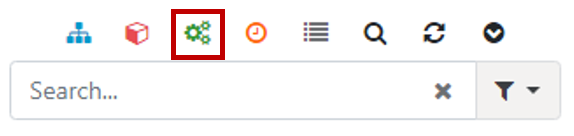
To create new process, just click on the New Process button from the Arc menu:
Then type the new process name:
· Dim.Employee.BuildHierarchy.Department
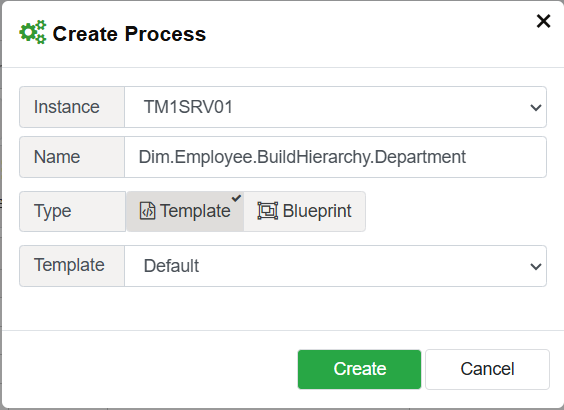
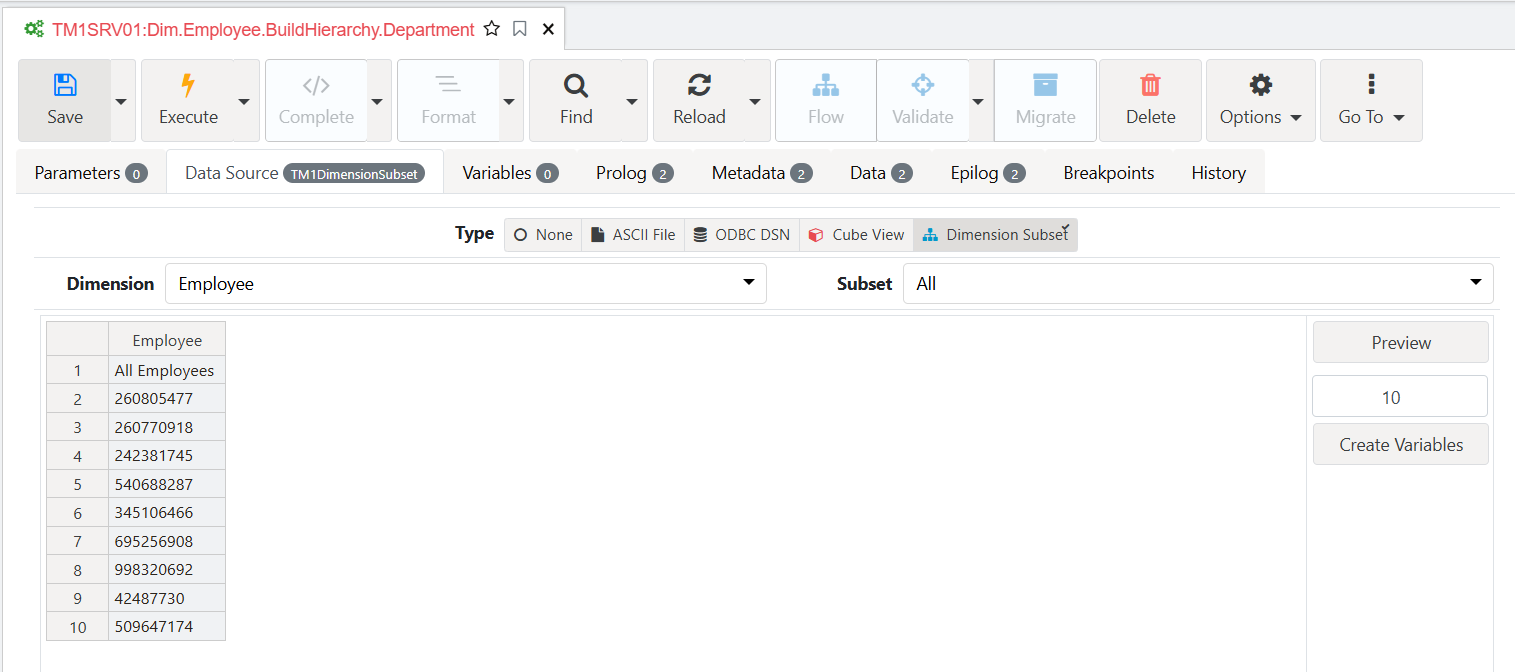
Click Create button, you should now see a new tab with the process name. In the Data Source tab, select:
Type: Dimension Subset
Dimension: Employee
Subset: All
Click Preview and then Create Variables.
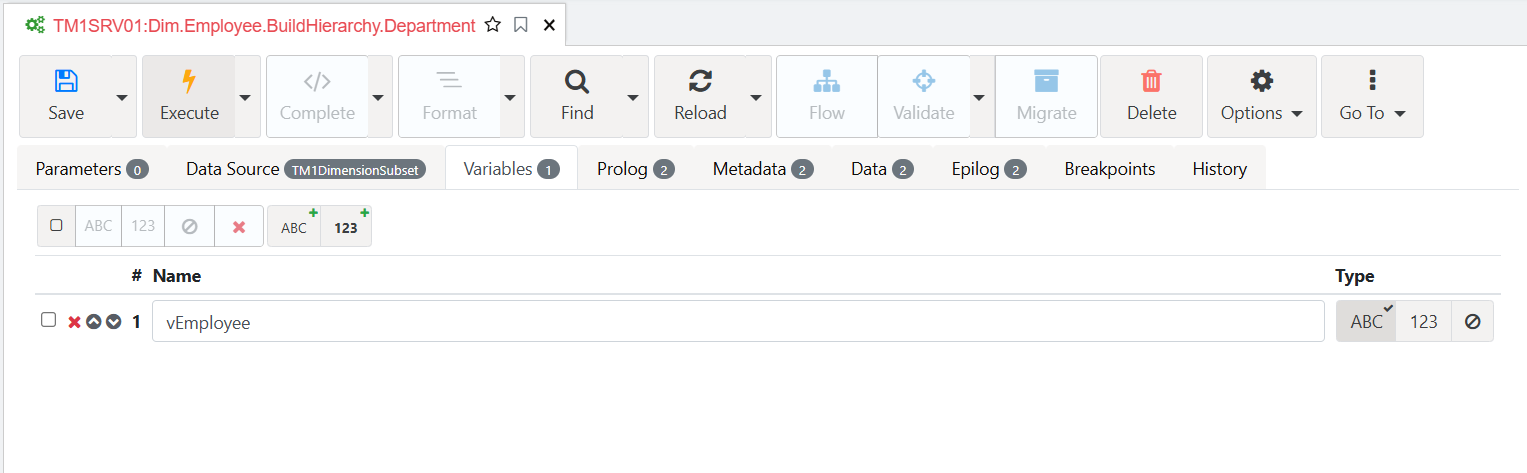
In the variables tab, notice that Arc has already prefixed the variable with a “v” (this can be configured in the settings.yml):
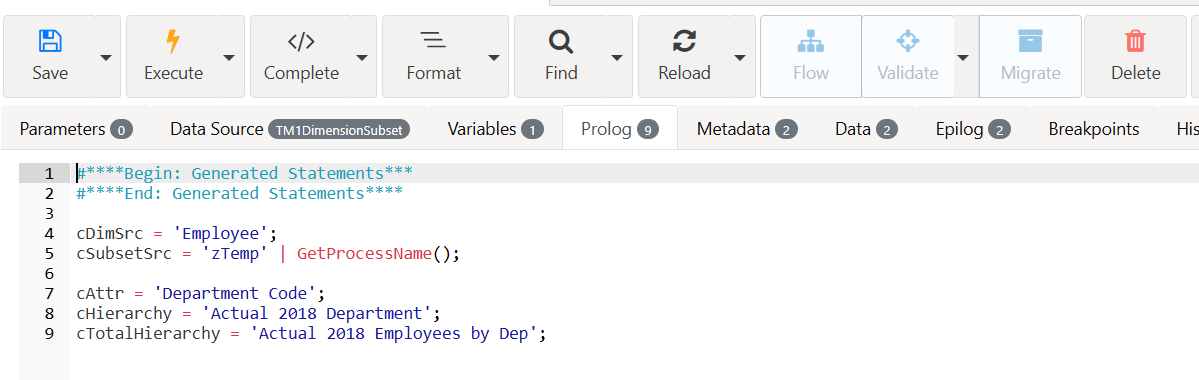
Let’s start by defining the constants in the Prolog tab, to build the hierarchy:
cDimSrc: our dimension source which is also our target dimension.
cSubsetSrc: The subset source that we are going to loop through.
cAttr: The attribute we need to build the consolidation.
cHierarchy: Hierarchy name.
cTotalHierarchy: The top consolidation of our new hierarchy.
Enter the following code then click the save button or hit CTRL+S: