Add an Alias
We used the department code to create the consolidation, which is not very meaningful. Let’s create an alias on this hierarchy to make it friendlier to read.
Open the process we had created to set up this hierarchy.
Add the alias in the Prolog tab with the following lines of code:
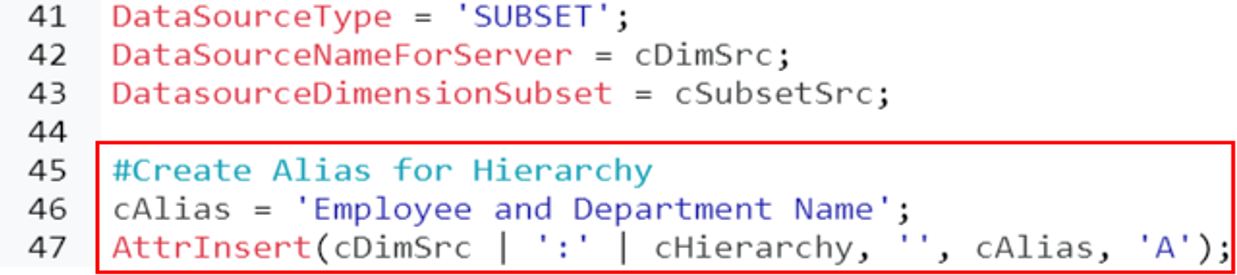
To avoid duplicate alias when creating a new attribute for a hierarchy only, use the new function ElementAttrInsert instead of AttrInsert. The syntax will look like this:
ElementAttrInsert(cDimSrc, cHierarchy, '', cAlias, 'A');
Replace AttrInsert with ElementAttrInsert.

The ElementAttrInsert will avoid duplicate alias on one consolidation which appears in two hierarchies in the same dimension.
Setting up the alias will be coded in the Data tab. We are going to retrieve the department’s alias from the Product Category attribute in the Department dimension. For the employee, we will retrieve the attribute Full Name from the Employee dimension.
To add an attribute value to a consolidation which exists only in the hierarchy, the syntax for ATTRPUTS will be:
AttrPutS(vDepartmentAlias, cDimSrc | ‘:’ | cHierarchy, vDepartment, cAlias)
Instead of
AttrPutS(vDepartmentAlias, cDimSrc, vDepartment, cAlias)
When using Hierarchies, the attribute value can be stored in different locations, either in the default hierarchy or in a specified hierarchy. If the hierarchy’s name is not specified in ATTRPUTS, the target element vDepartment will be the one in the default hierarchy (Department). To send the value to the vDepartment in our new hierarchy (cHierarchy), we use cDimSrc | ‘:’ | cHierarchy instead of just cDimSrc.
Save and Execute the process.
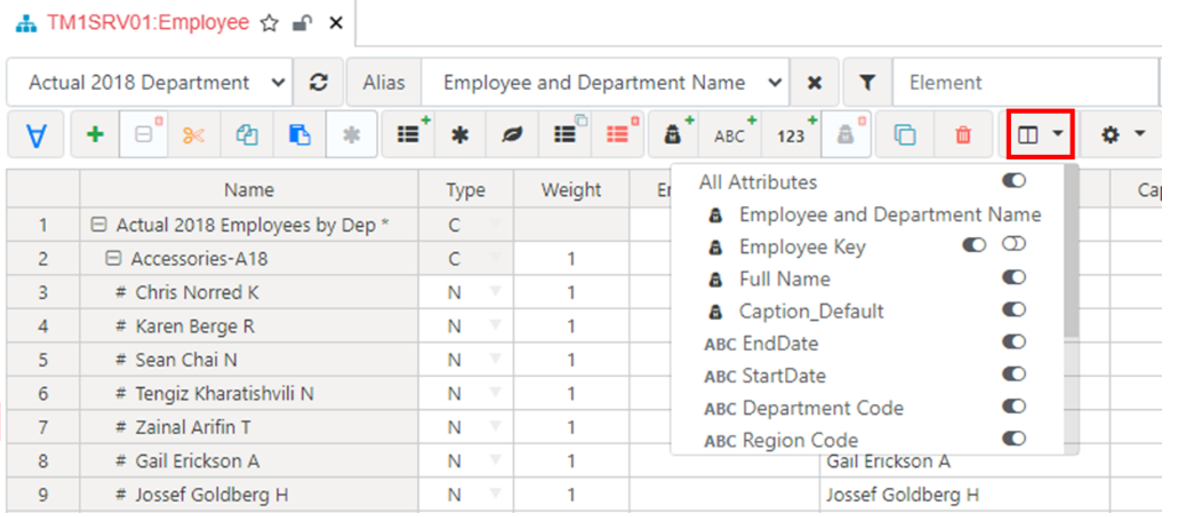
Open the Employee dimension, if you don’t see the alias just refresh your browser and make sure ‘Employee and Department Name’ is selected as the alias: