Setup Wizard (Cubewise Cloud)
To get Pulse up and running you need to follow the steps of the Setup Wizard.
Before starting the Setup Wizard you should have the following information ready:
IBM Security keys.
IBM ID credentials who is a TM1 Admin on each instance.
The SMTP server information for sending emails: server address and port number.
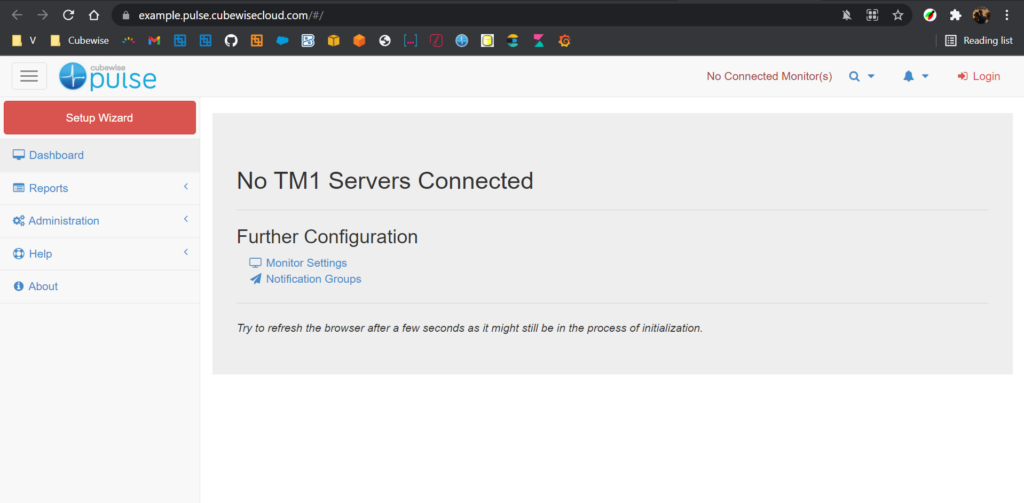
Open the Pulse URL provided to you which looks like this:
NOTE: Pulse only supports Internet Explorer 9 (Chrome is recommended)
Step 1: Start the Wizard: Click on the Setup Wizard button on the top left of the page
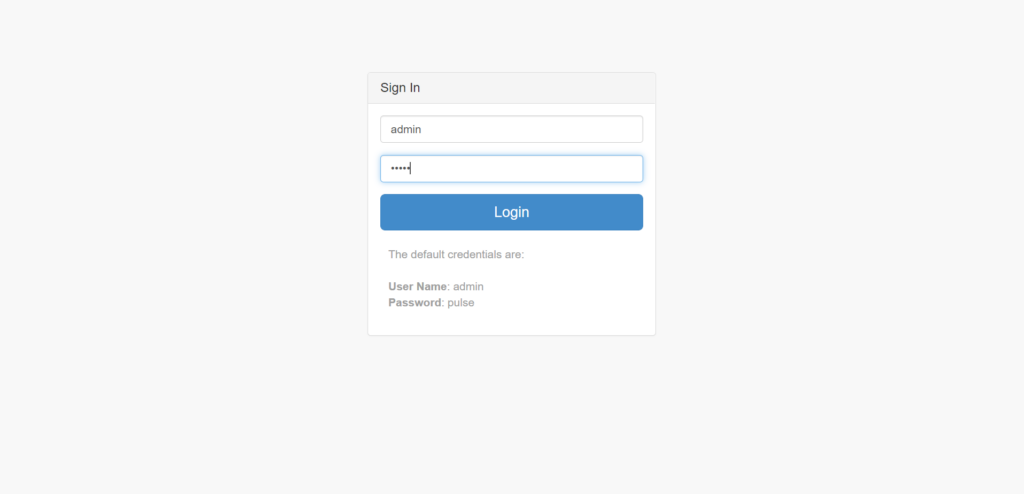
Step 2: Login into Pulse using the credentials sent to you by your cubewise local contact:
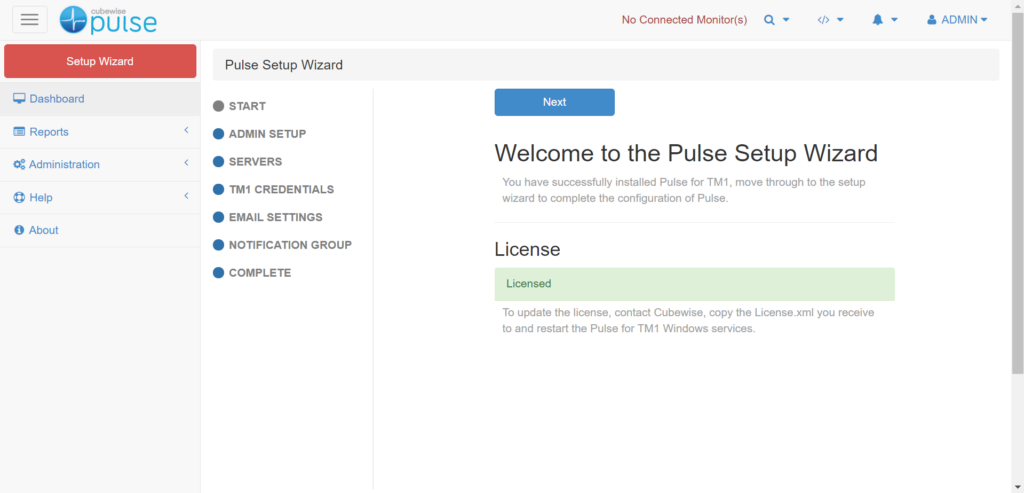
Step 3: Click Next
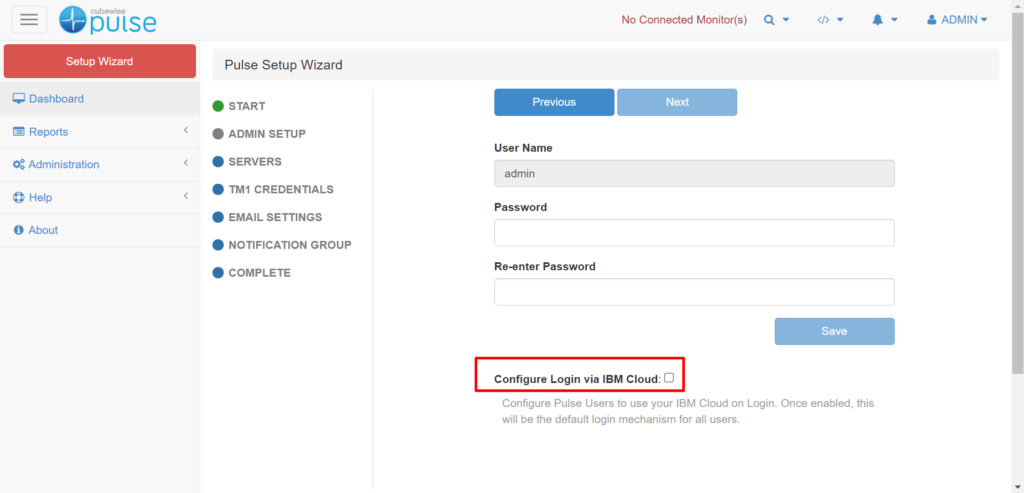
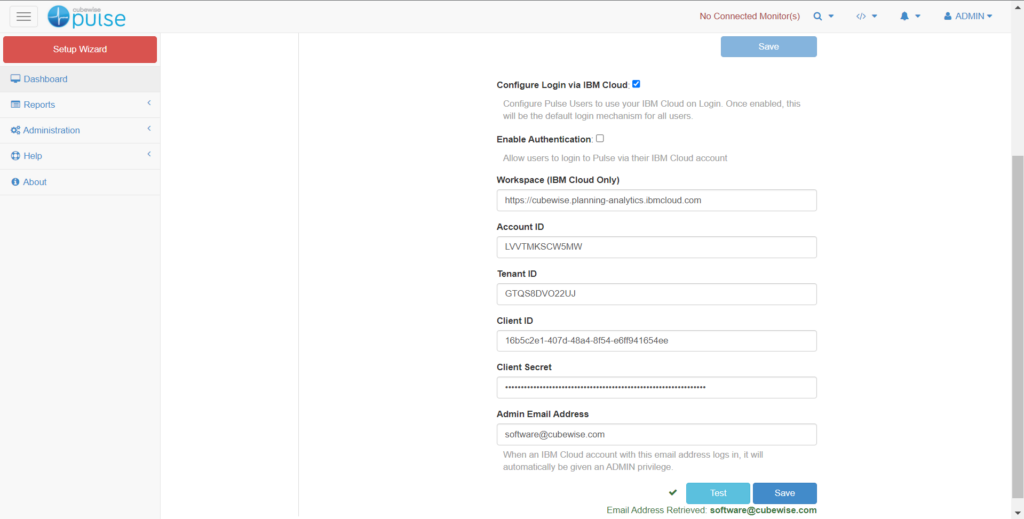
Step 4: To configure login via IBM Cloud tick the option “Configure Login via IBM Cloud”:
Then enter the IBM security keys as below:
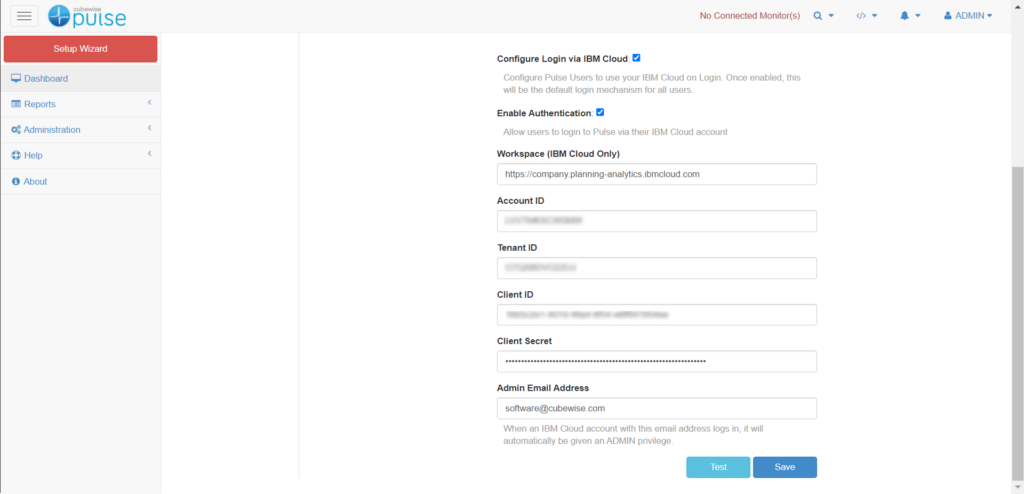
Click the Save button and click Test.
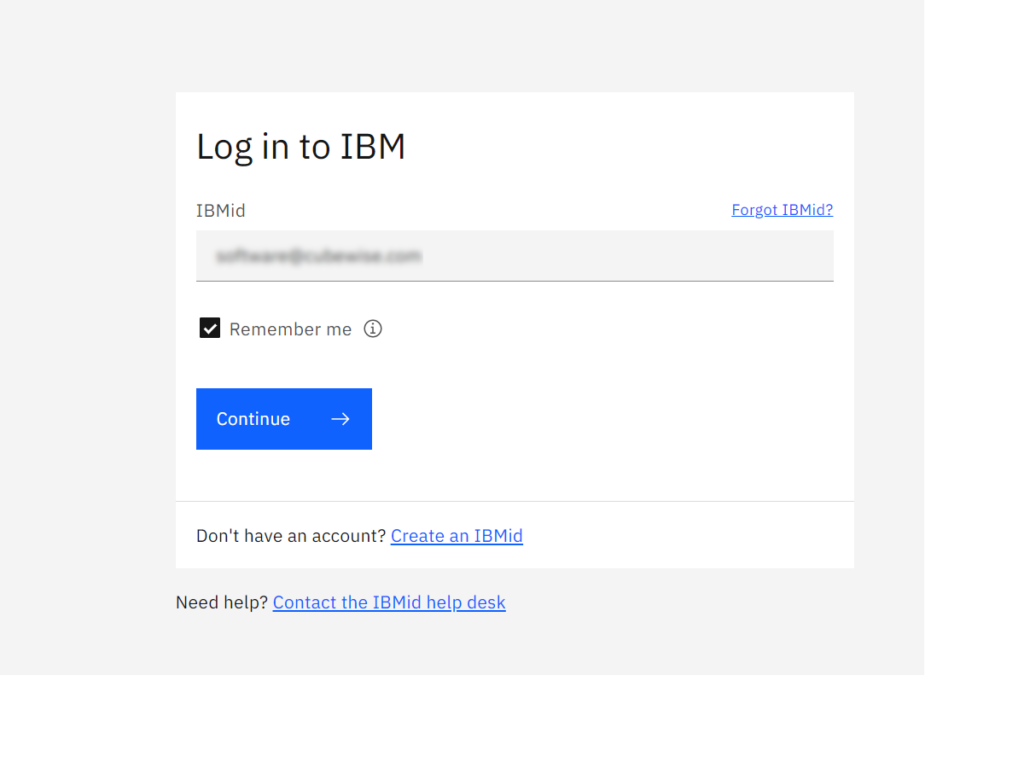
After clicking the Test button, you will be prompted with the IBM login screen, enter an IBM ID:
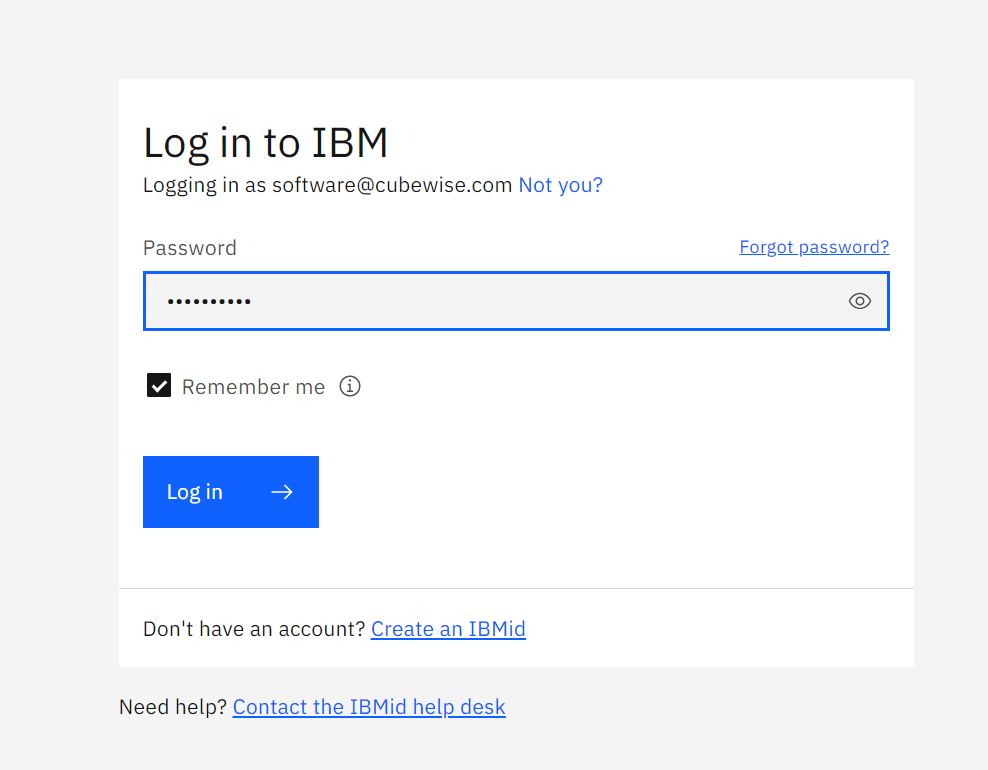
Enter the IBM password and click the Log in button:
If the connection is successful, you should see a green tick box close to the Test button as below:
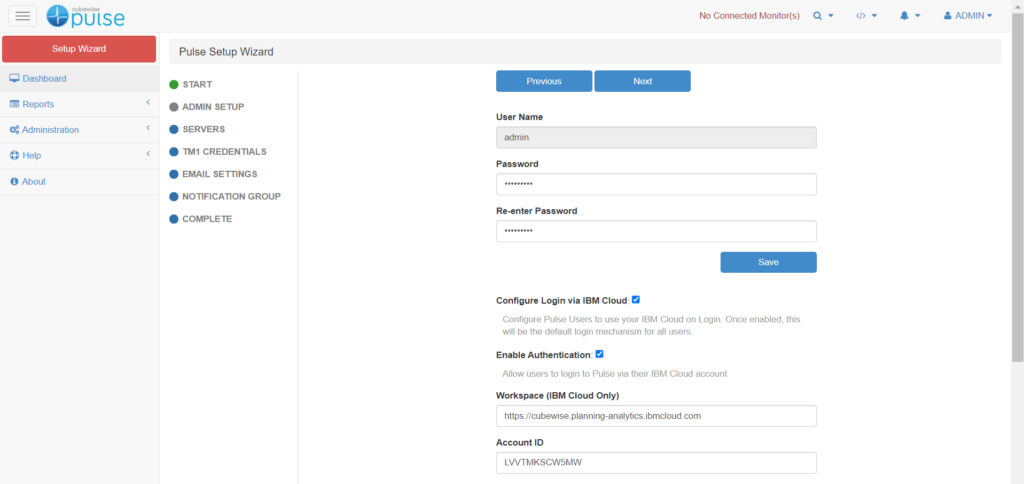
Update Pulse admin password, click Save and then Next
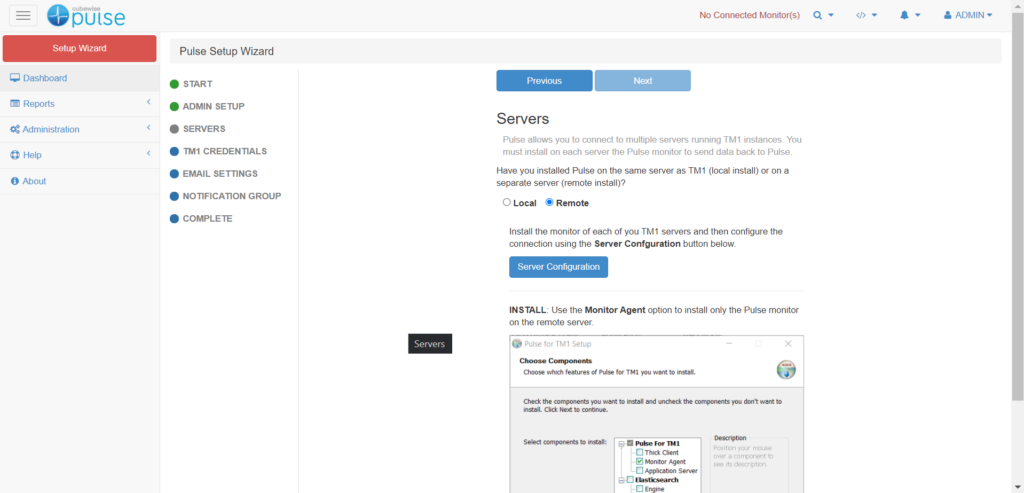
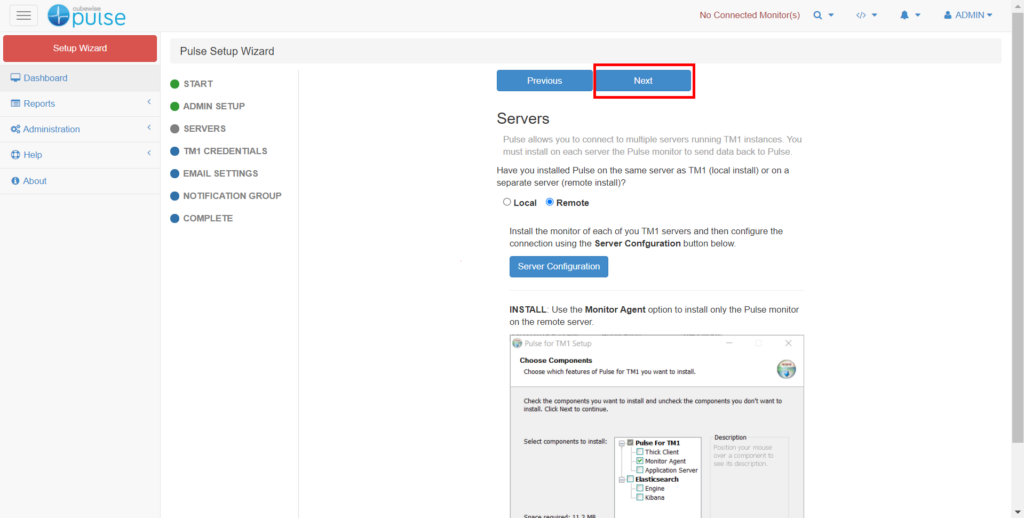
Step 5: Connect to your IBM Cloud environments: Tick the Remote option and then click on Server Configuration
Step 6: Tick the option Workspace (IBM Cloud Only) then enter the server name, the URL, the IBM Security keys, and finally click the Login button and enter your IBM ID
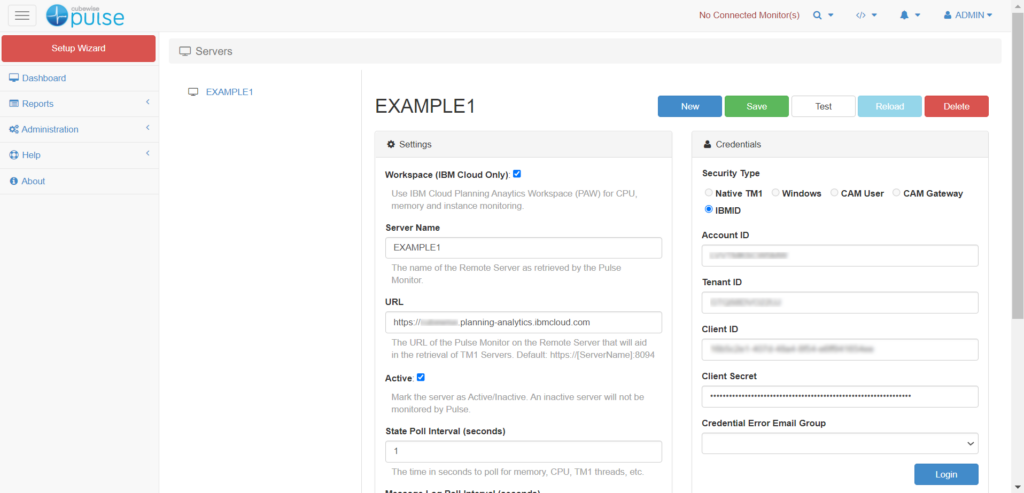
After clicking the Save button, you should see the TM1 instances:
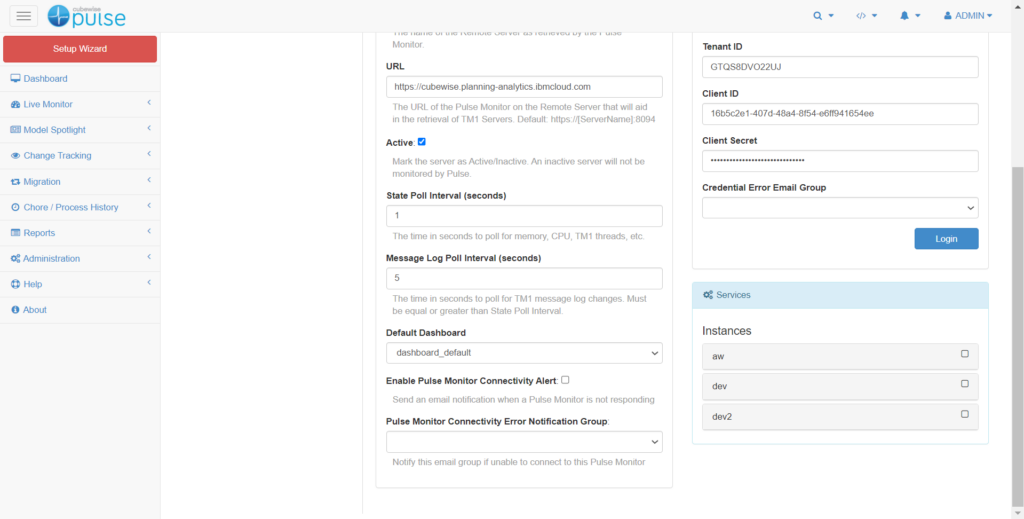
Then goes back to the previous tab where the Wizard is open and click Next:
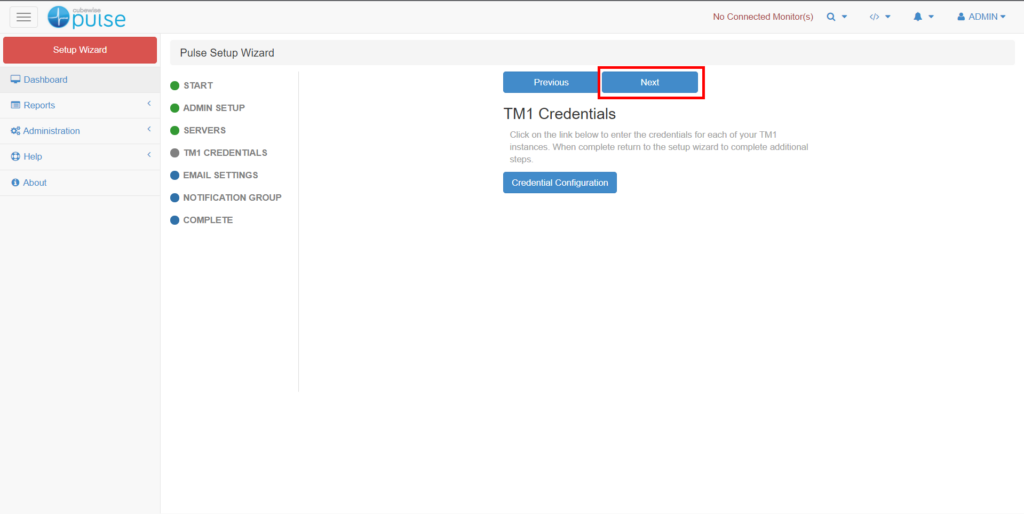
Click Next on the TM1 Credentials. Pulse will use the IBM ID setup on the Servers page to connect to the instances:
Step 8: SMTP Settings will be already filled.
Step 9: Notification Group: Pulse can have one or more Notification Groups, these are assigned to Alerts and allow you to send emails to a group of people. Before finishing the wizard you need to add have at least one notification group. Multiple email addresses should be separated by a comma.
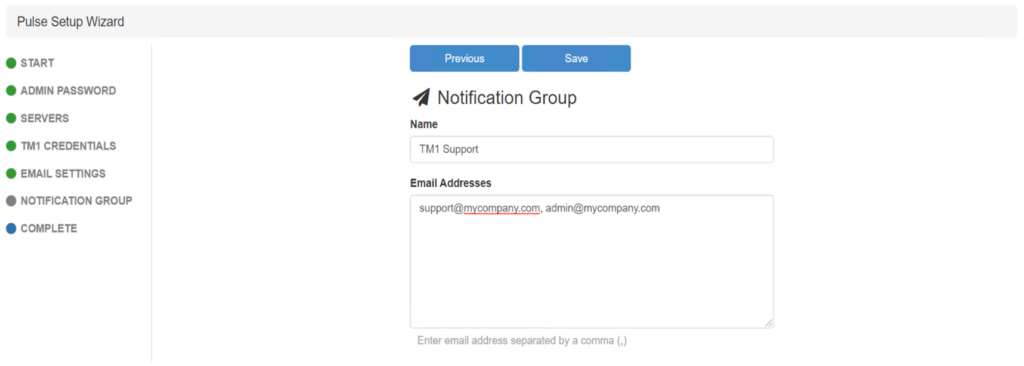
Step 10: Click Save.
Congratulations Pulse is now up and running. Click the Finish button.
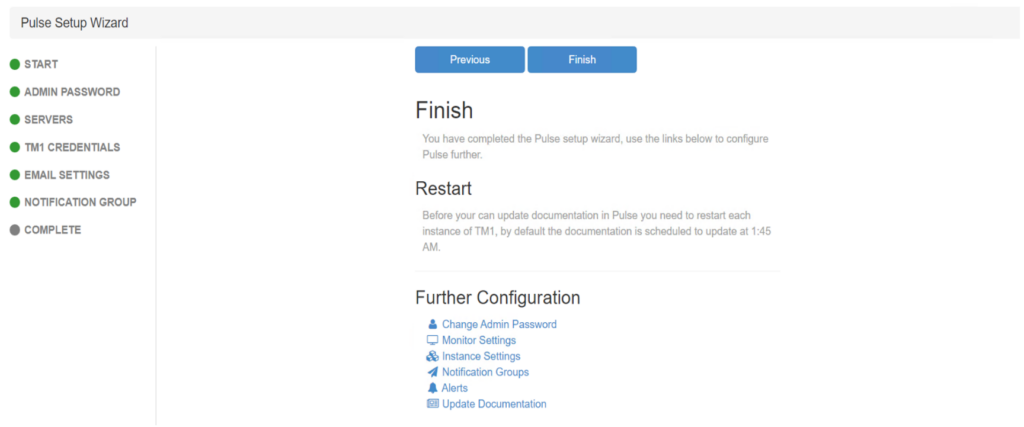
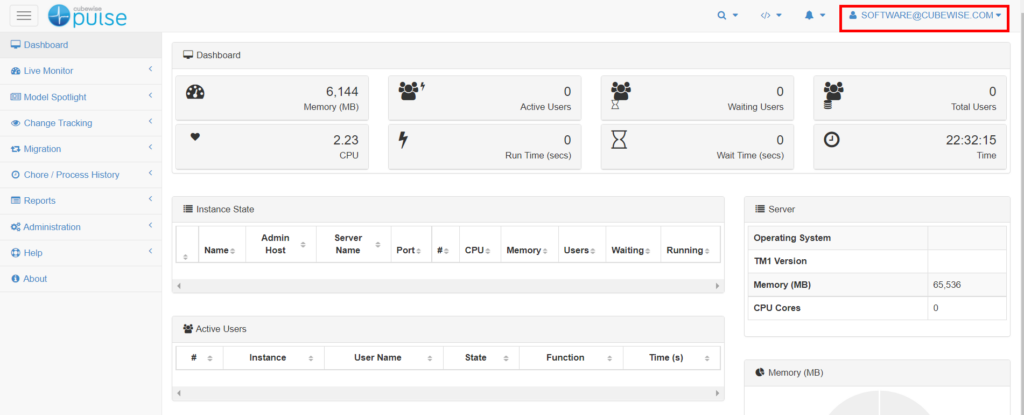
Step 11: Refreshing the page (F5) will remove the Setup Wizard button from the menu. Setup Wizard button should have disappeared. Even though IBM ID was configured in step 4, you will still be using the default Pulse Admin user:
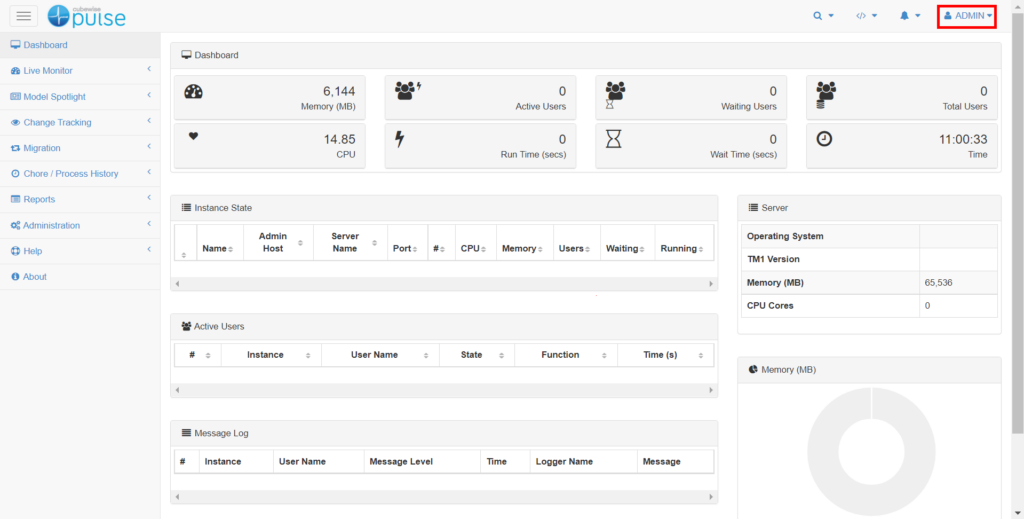
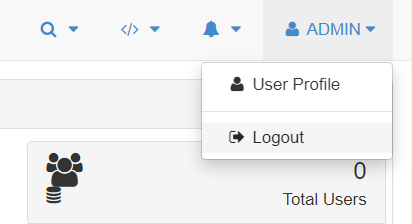
Click on Admin and then Log out.
Click the login button.
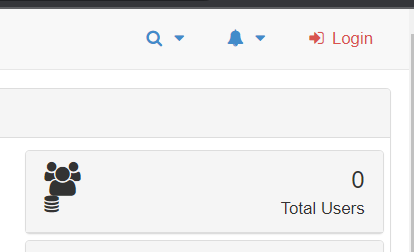
You should be prompted with this new Login button, it will direct you to the IBM login screen then enter your IBM ID:
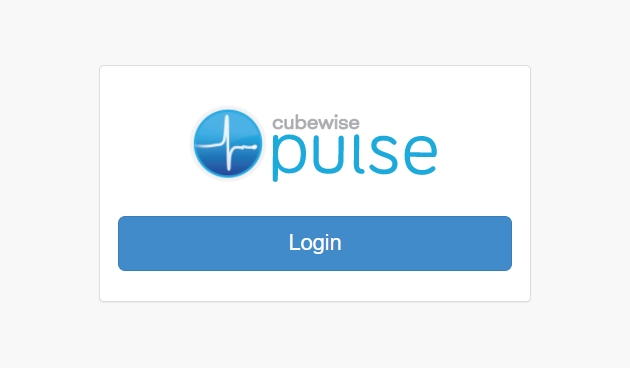
You will need to use the IBM ID used in step 4:
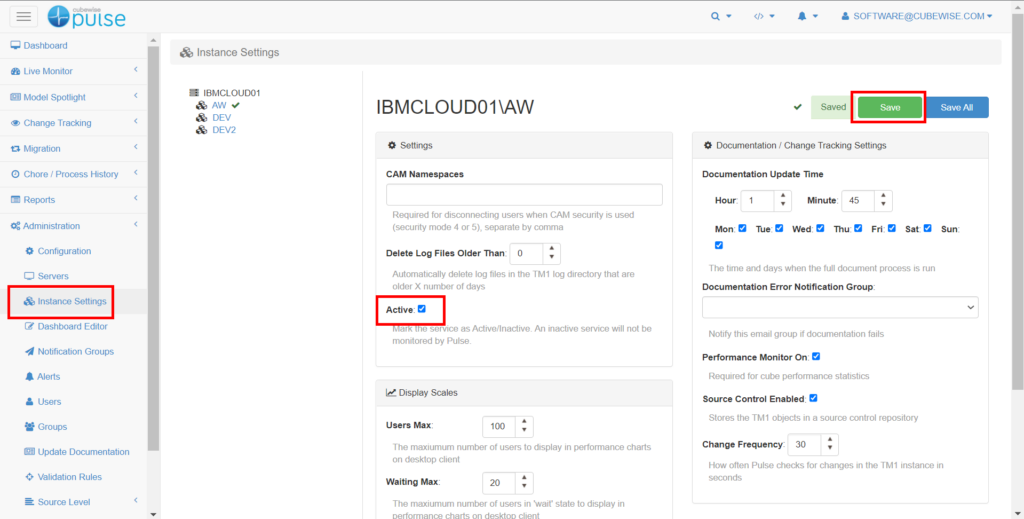
Step 11: Go to Instance settings and set the Active flag for each TM1 instance which needs to be monitored by Pulse. By default all TM1 instances are not monitored by Pulse. Just tick the Active flag and then click the Save button:
Step 12: The documentation needs to be executed for each active TM1 instance. Go to the Update Documentation page under Administration, select the instance and click the Document Selected Systems.
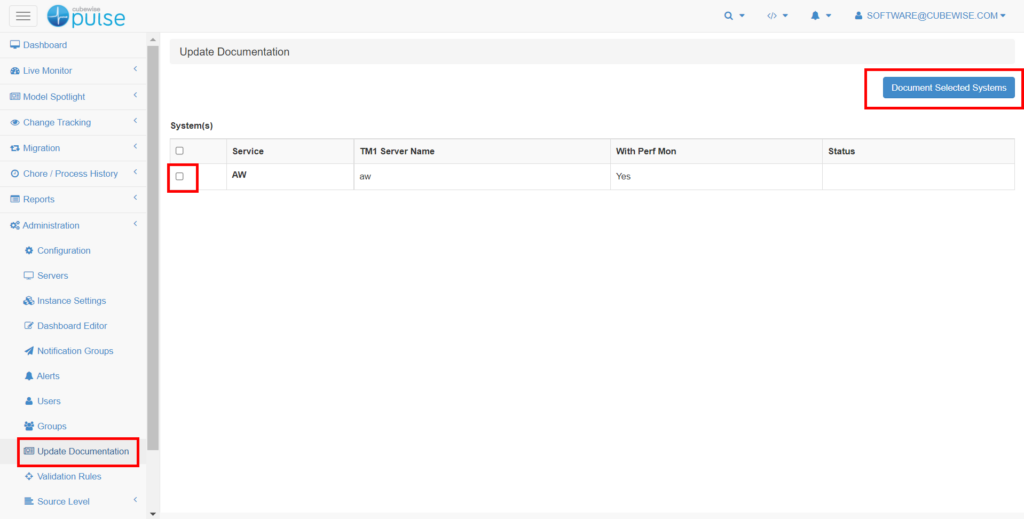
Check the status of the documentation, it might take few seconds/minutes to finish:
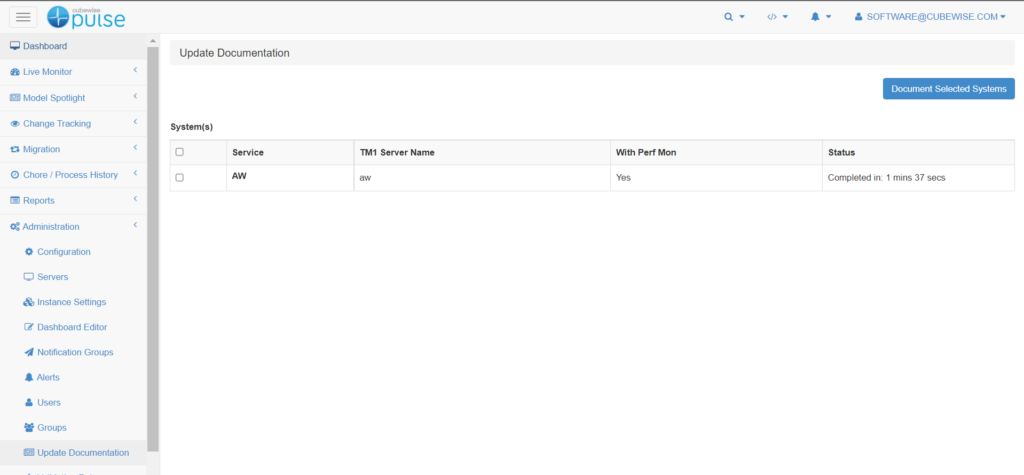
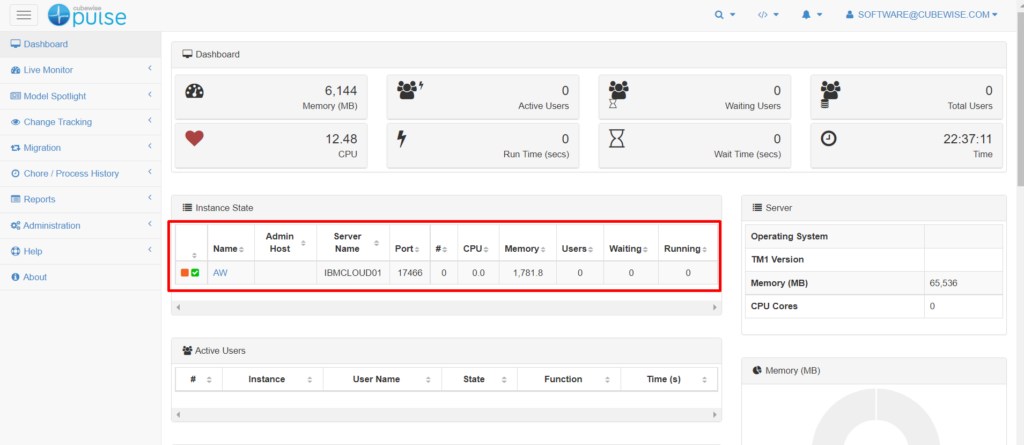
If the documentation is complete or have minor errors, it means that Pulse is configured correctly, if you go to the Dashboard, you will be able to see the instance state and server logs: