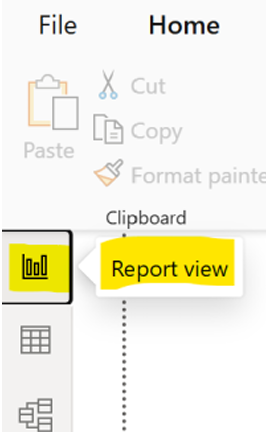
Report View
The Report View in Power BI Desktop is where we can design and build interactive data visualizations and dashboards. It provides a drag-and-drop interface for adding charts, graphs, maps, and other visuals. With tools for formatting, filtering, and customizing visuals, the Report View allows for the creation of dynamic reports that can be shared and interacted with. Go to the Report View which is on the lefthand side panel as shown below:
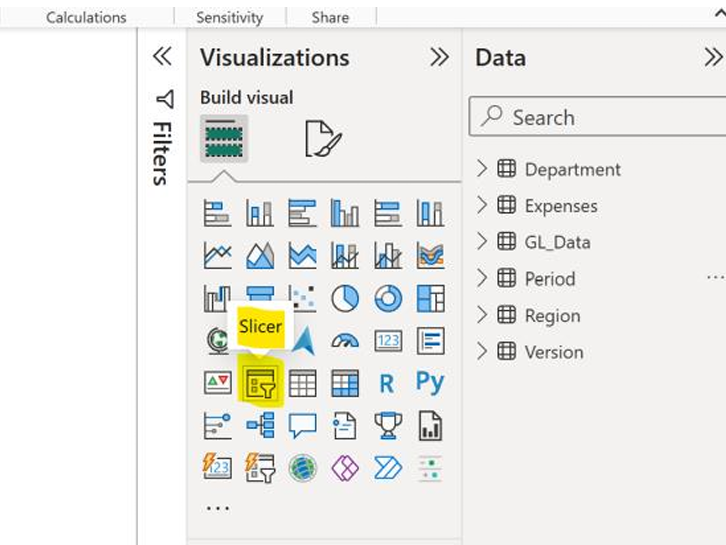
On the right-hand side, expand the visualizations tab and select the “Slicer”.
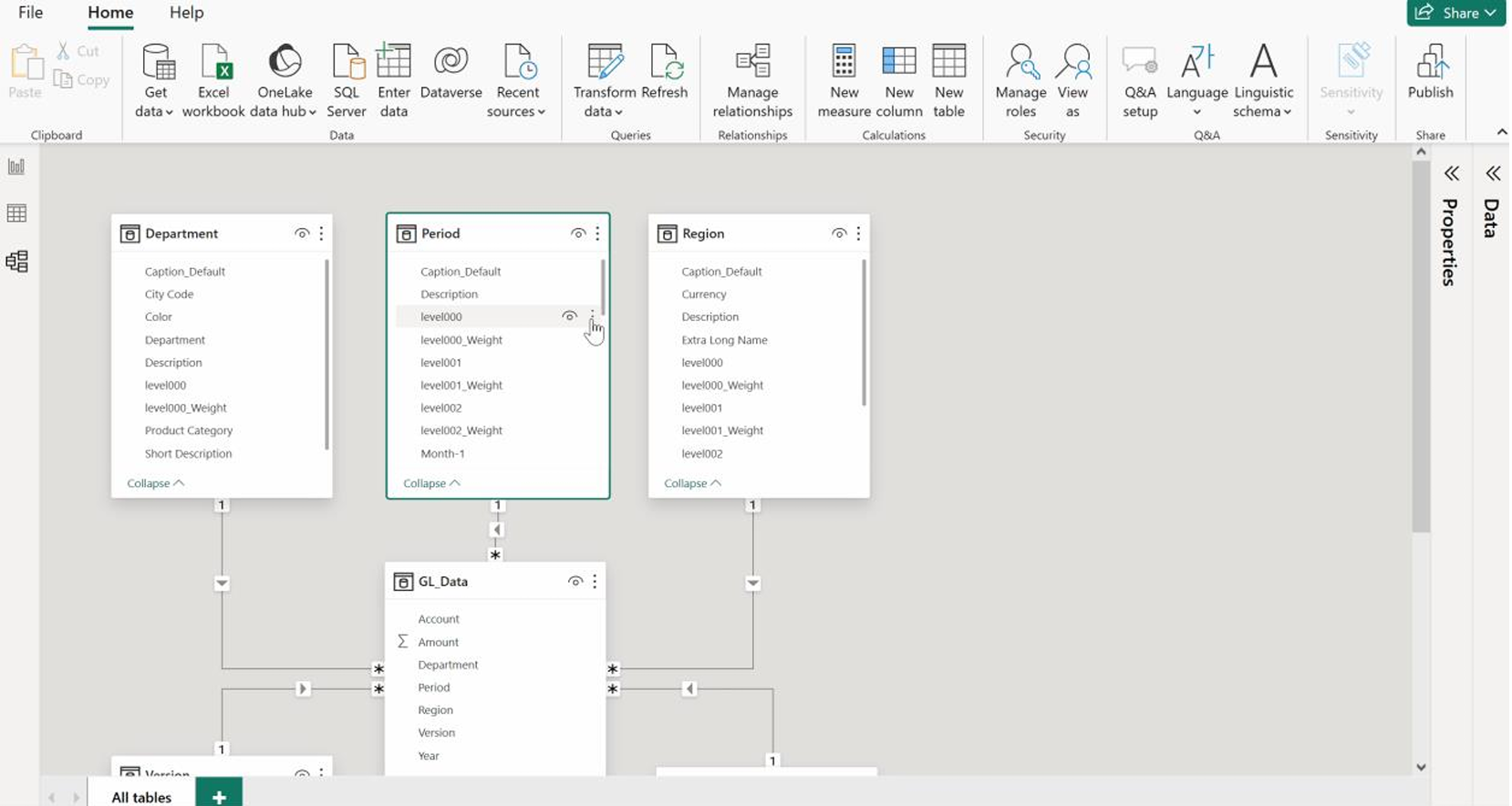
Go back to the Model View, select the Period dimension/table, select the level000→ Create Hierarchy and name it “Year_Hierarchy” in the properties tab, scrawl down to see the hierarchy. This needs to be done in order to have all periods consolidated when selecting “Year” or “All” in the Slicer.
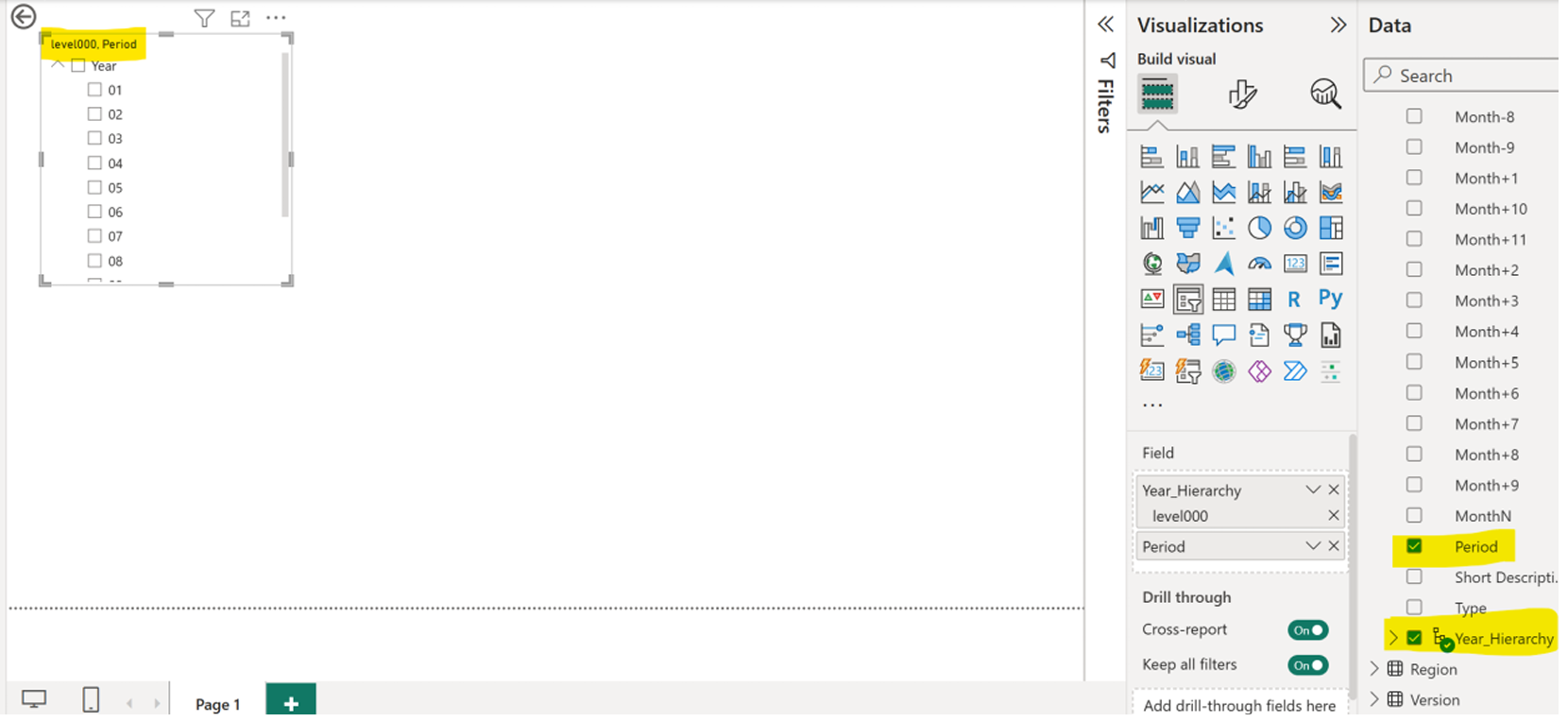
Go back to the Report View, select the slicer and on the Data panel and select the Period and Year_Hierarchy as shown below:
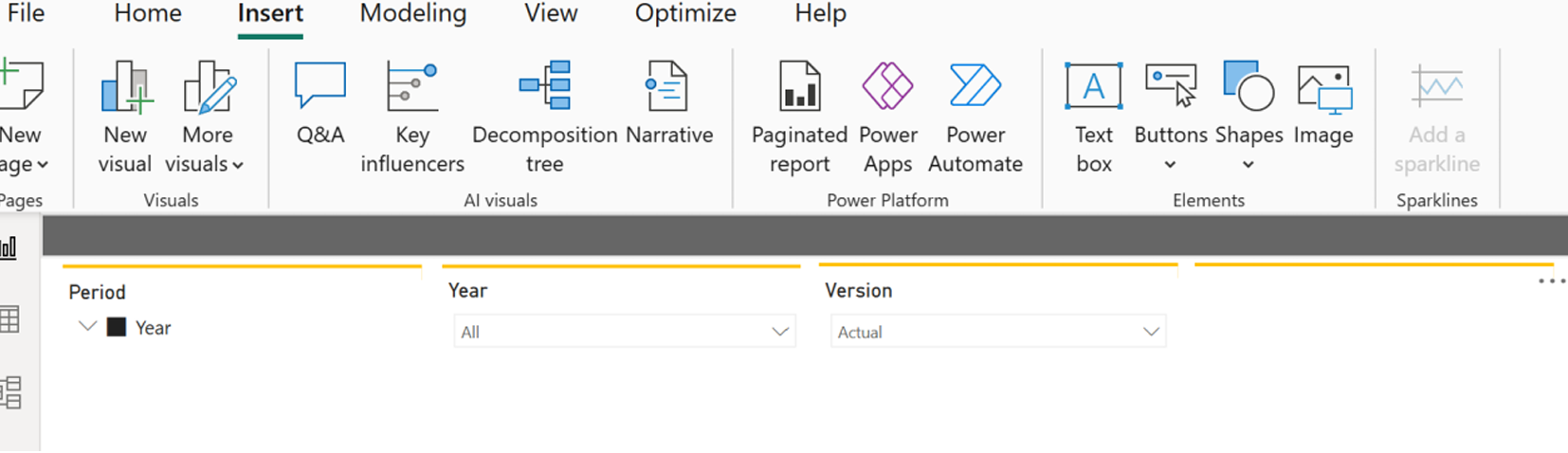
Create two more slicers, one for the Year and one for the Version dimensions. Note that for the Year Slicer you’ll need to select the “Year” from the GL_Data given that we did not load a subset from the year dimension. Feel free to play with the different options from the visualizations tab.
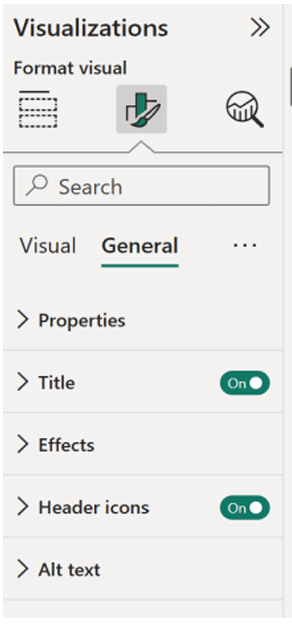
You can also insert some shapes and lines if you feel like giving the dashboard a more branded style. Try to create a similar layout as the following: