Generating an Arc license without internet connection
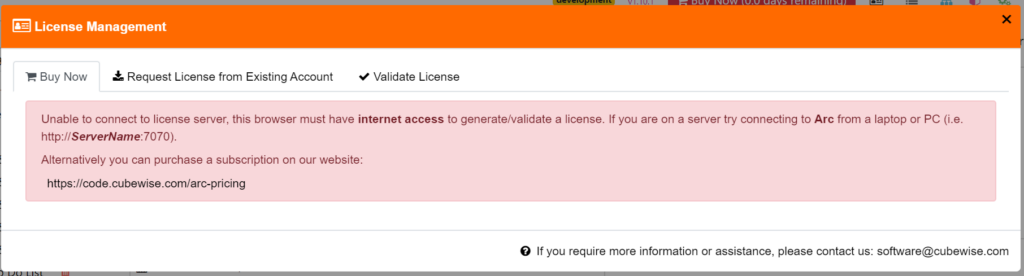
Arc cannot generate the license if the browser you are using does not have internet connection.
Generating a license from Arc
You will need to find a browser which has access to internet. Then access Arc replacing in the URL localhost with the server name where Arc is intalled (http://servername:7070).
If you can’t find a browser with internet connection and can access Arc, jump to the next section below Generating a license from the license server.
Go to the Request License tab, enter the email used to buy the subscription:
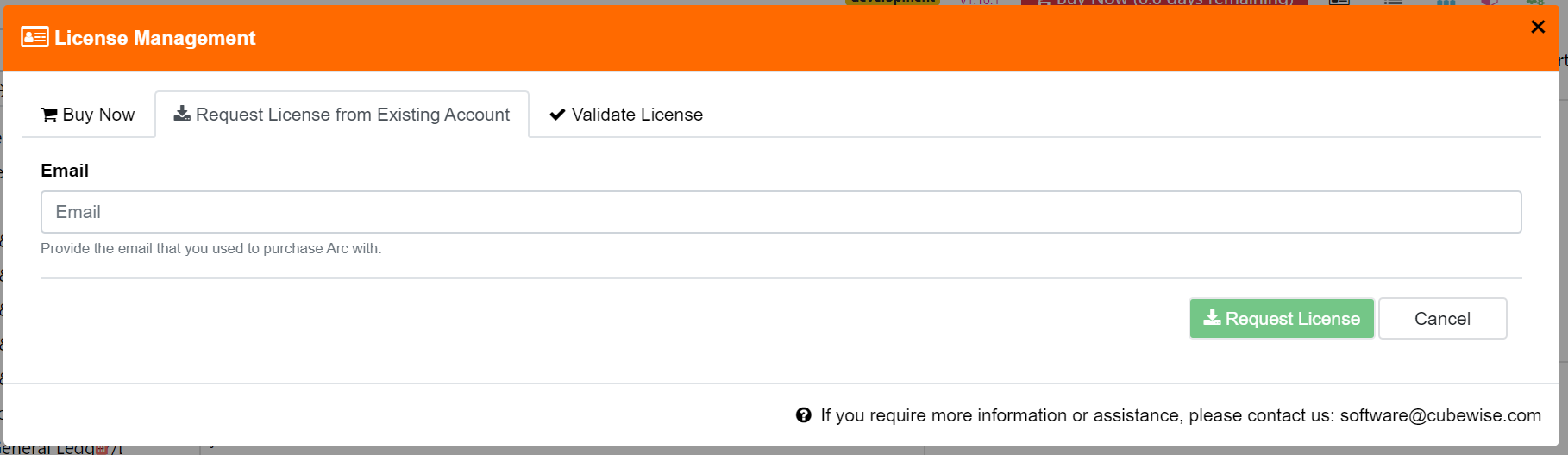
After clicking the request license button, an email will be sent (from software@cubewise.com) to the email used to purchase the subscription with the License ID:
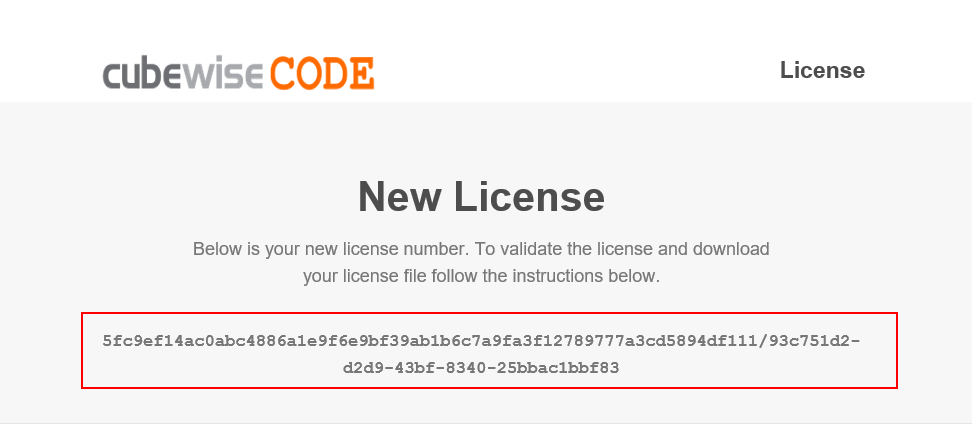
To validate the license, copy the License ID from the email and paste it in the Validate License tab:
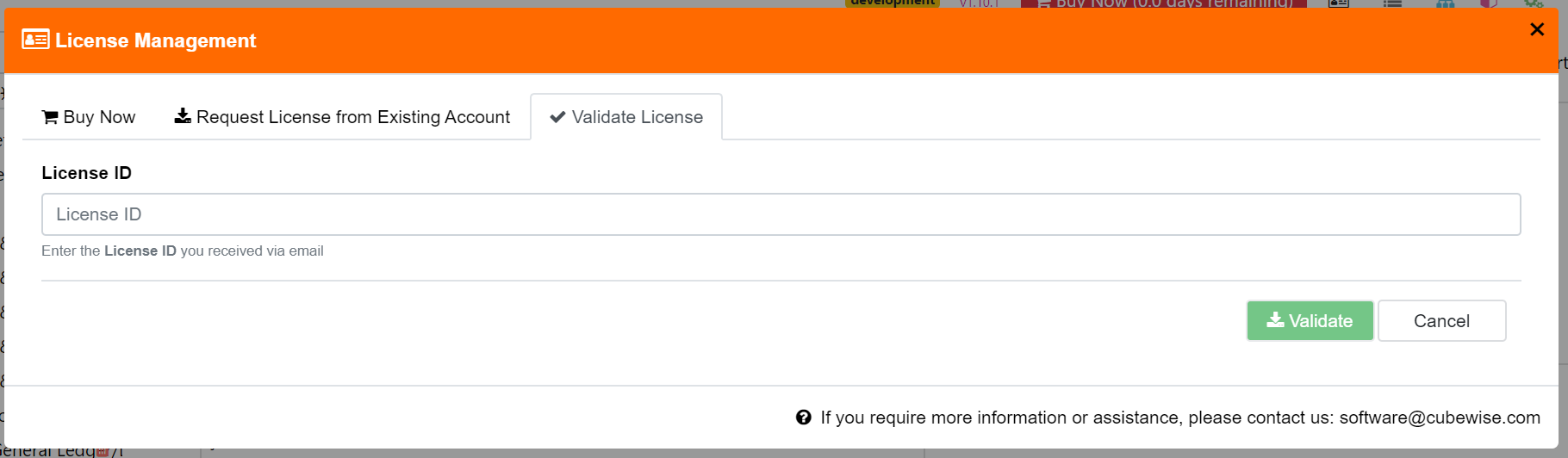
If the Buy Now button disappears, it means that your license is now active.
Generating a license from the license server
If you try to request the license from Arc and you don’t have internet connection, you will get the message below:
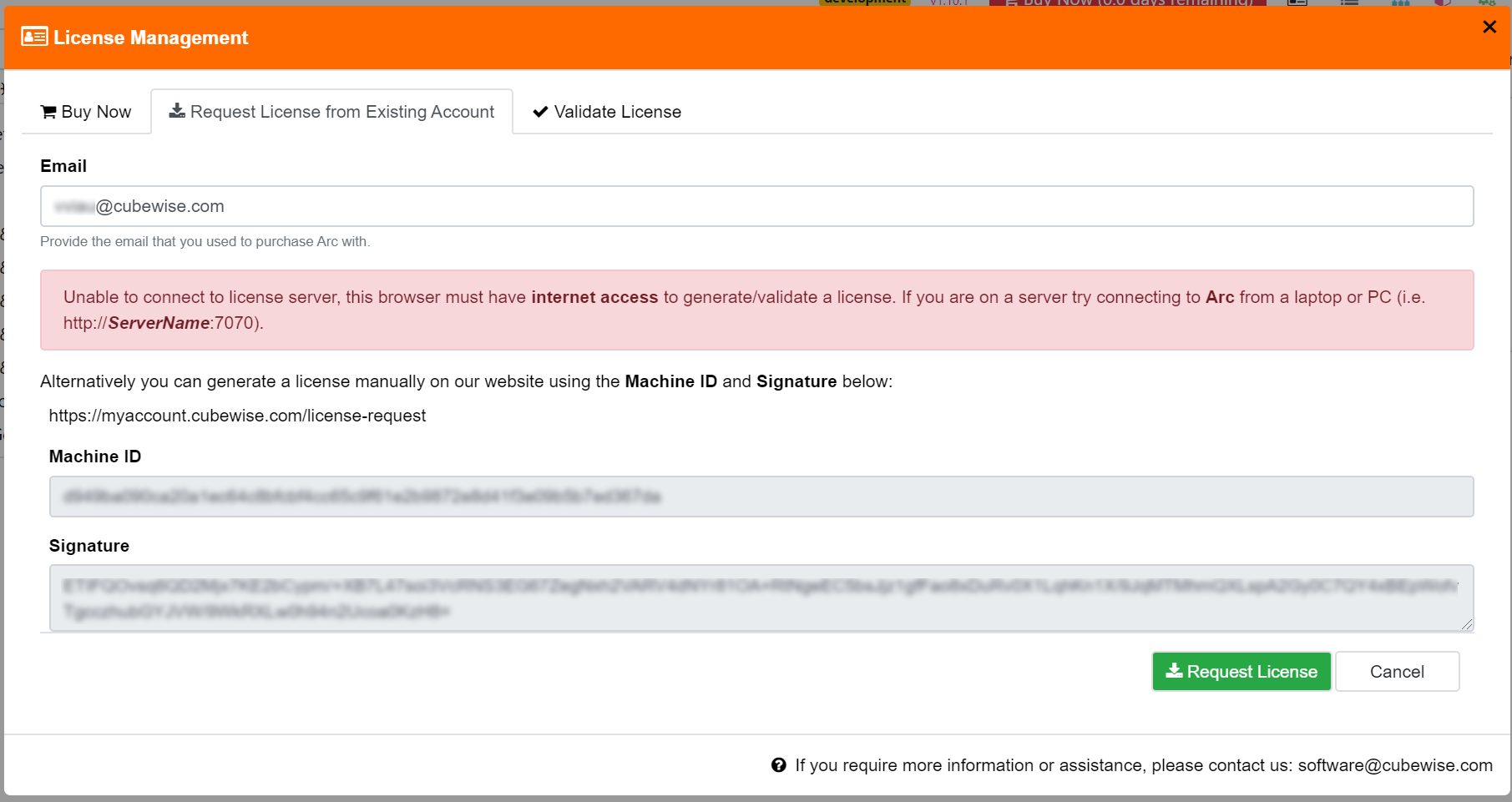
As it is described in the message you can request a new license to the license server without using Arc.
To do that go to https://myaccount.cubewise.com/license-request , input your email and copy the MachineID and Signature from the Buy Now window (as above) and paste it into the Generate license page and finally click the Request License button:
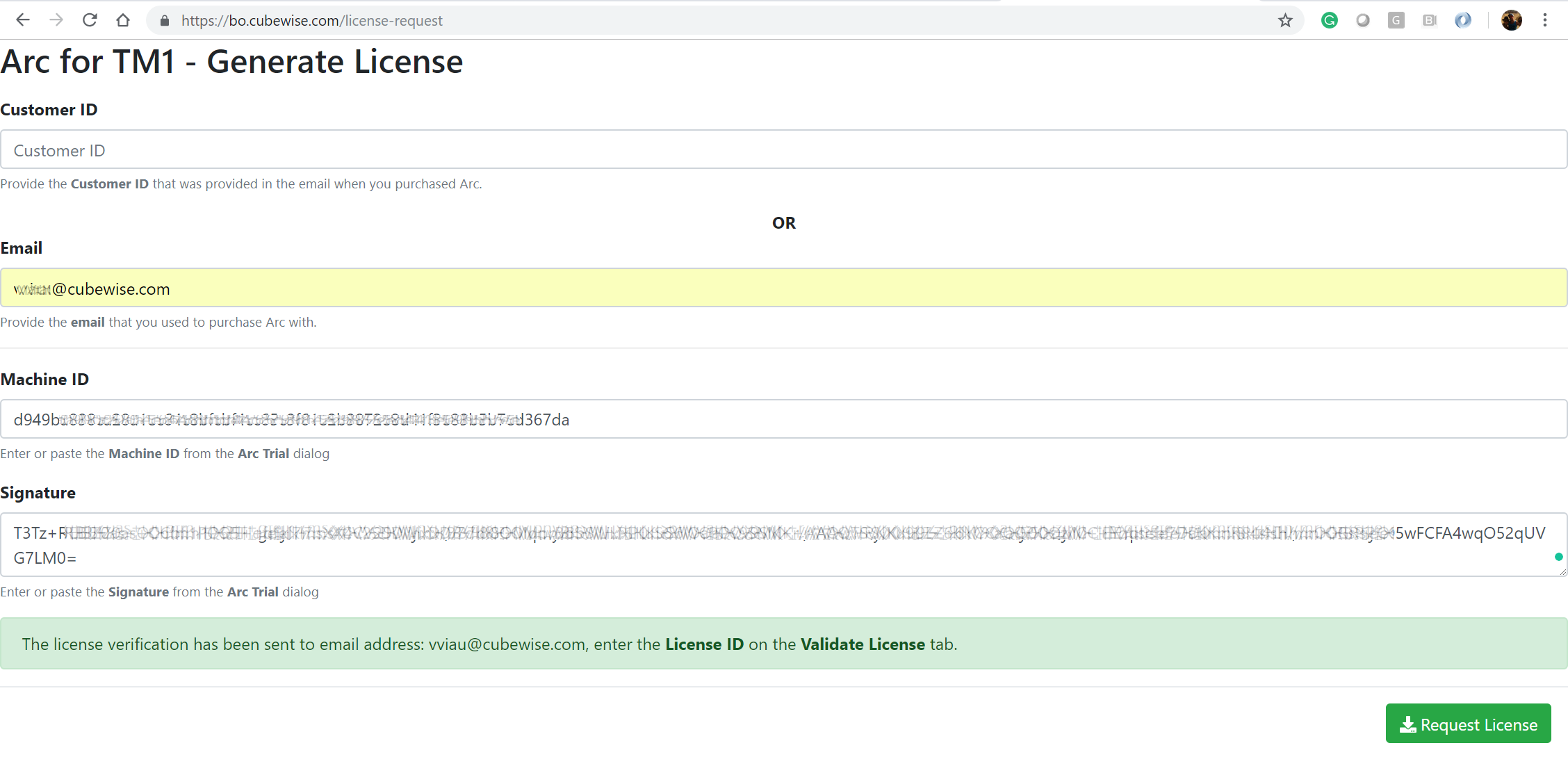
An email will be sent to the email entered containing the License ID.
To validate the license, you can either do it from the Buy Now button in Arc, but if Arc does not have access to internet you will get the following message:
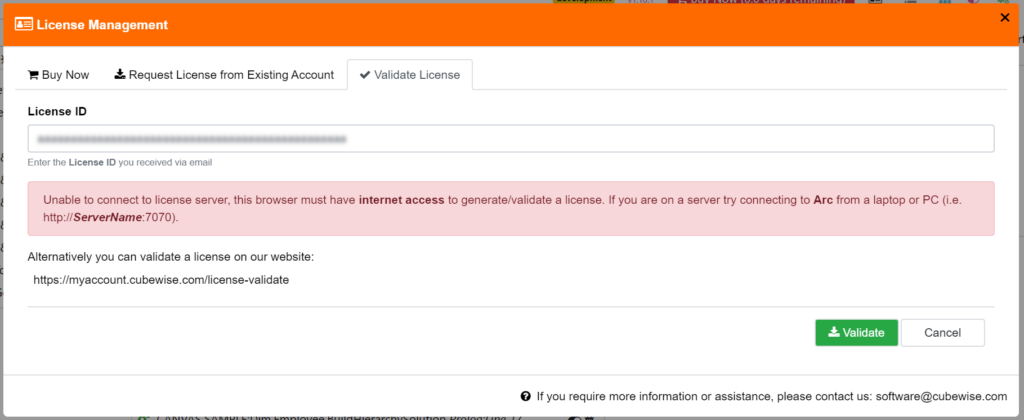
To validate the license from our website just go to https://myaccount.cubewise.com/license-validate , paste your License ID and click the Validate button:

You will now being able to download the License.json and License.xml files by clicking on the Download buttons:
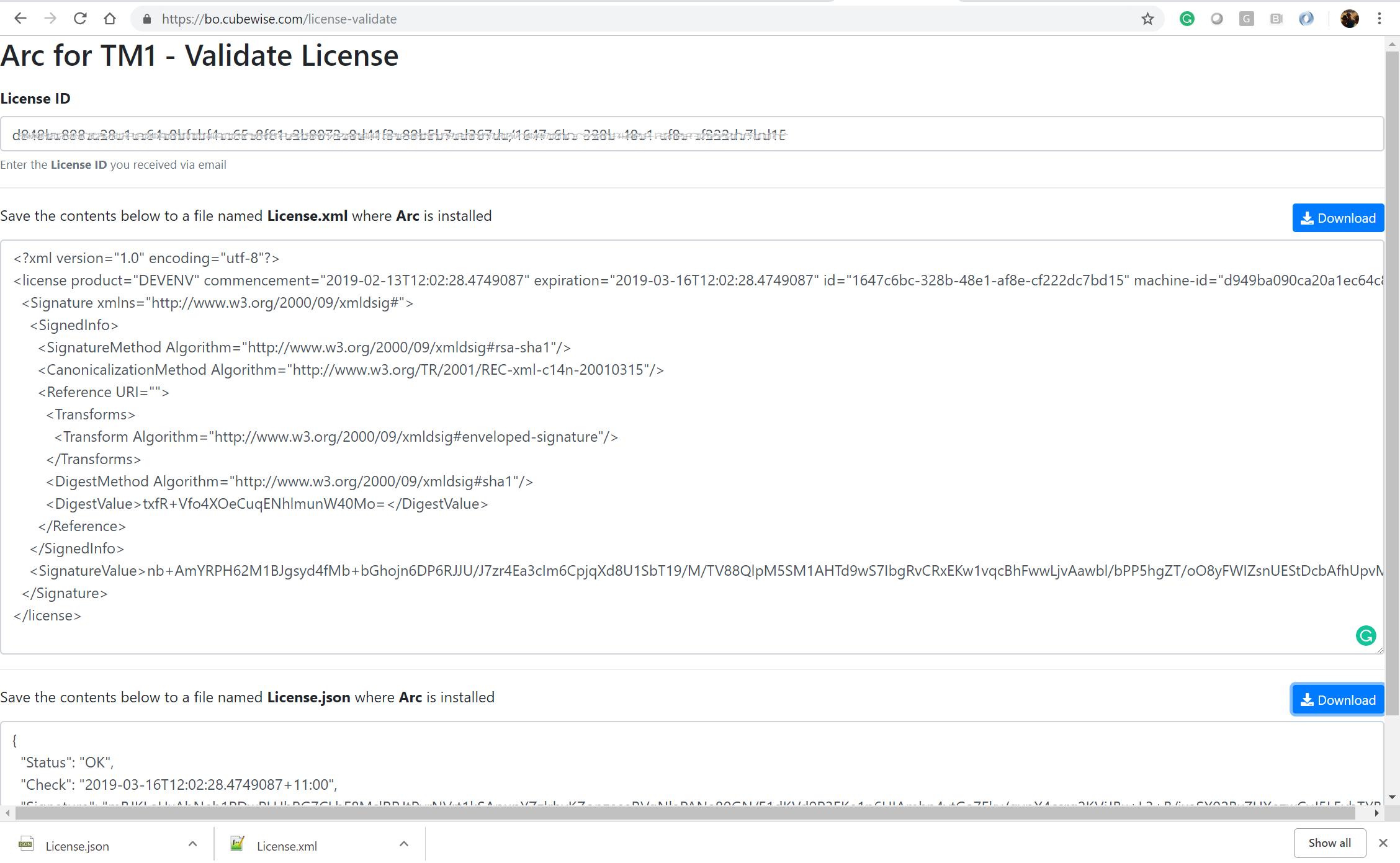
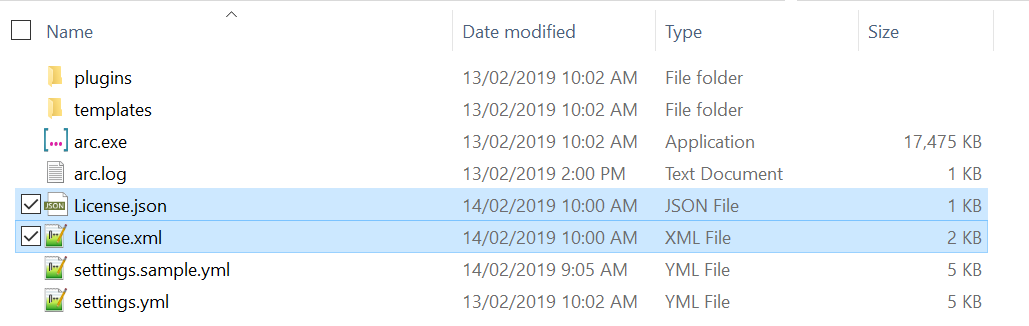
Then grab these two files and paste them into the Arc folder:
Now just refresh the browser and you should be able to use Arc now.