Create an Active Form (Dynamic Column)
To insert an Active Form with dynamic columns, right click on a cell in Excel and use the Insert Active Form feature.
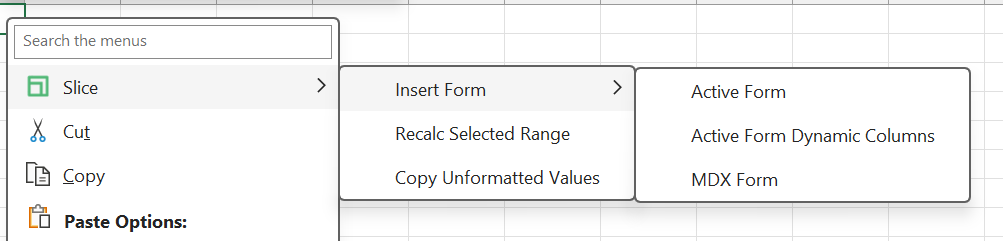
Select the following values:
Cube: General Ledger
View: P&L_Flash
Type: Active Form (Dynamic Column)
The columns will then be able to expand and collapse consolidations on columns. Select the “P&L_Flash” view from the General Ledger cube and insert it in a new sheet.
Once created, you will notice a “+” sign next to the consolidated elements across the columns. Similar to the behaviour of rows, it means you can expand and/or collapse them.
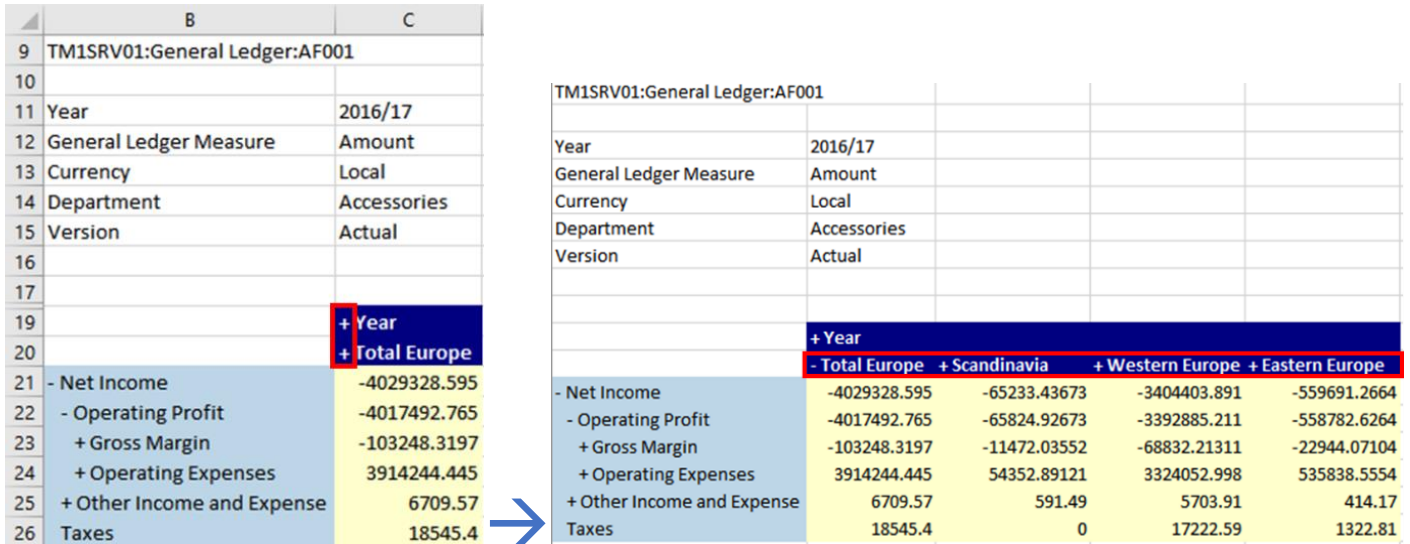
Feel free to expand and collapse columns as you see fit. All other Active Form functionality keeps working in the exact same way as a normal Active Form.