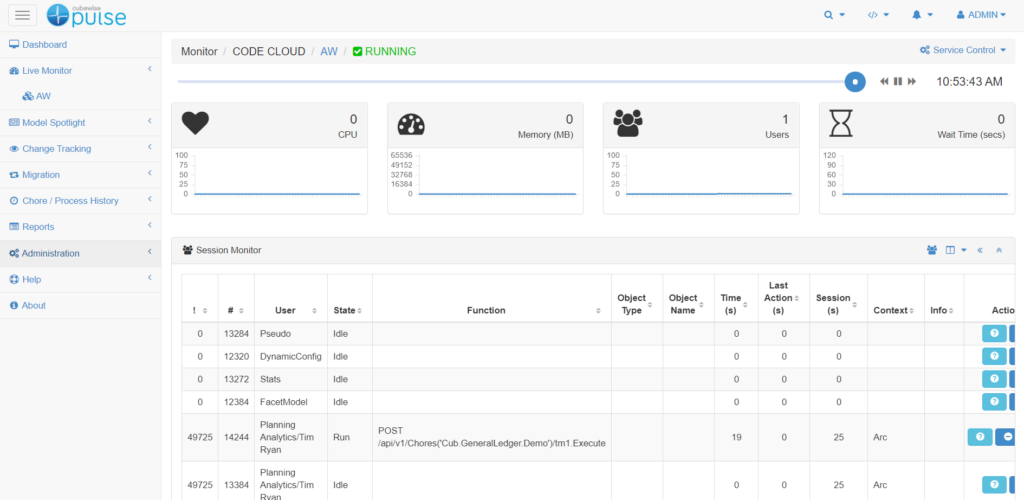
Getting Started with Pulse on Cubewise Cloud
This article gathers the steps that need to be completed when using Pulse on the Cubewise cloud monitoring IBM Planning Analytics SaaS:
Requesting IBM security keys
In order for Pulse to connect to your IBM Cloud environments, Pulse will require few security keys provided by IBM. To get these keys, please contact your local Cubewise contact and we will help you to request these keys to IBM.
Once you received the security keys from IBM, send them to your Cubewise local contact and you will then receive a URL to access Pulse.
How to access Pulse
The URL that will be sent to you will look like this:
Setup Wizard
The first time you go to the Pulse URL, you will have to go through the setup wizard.
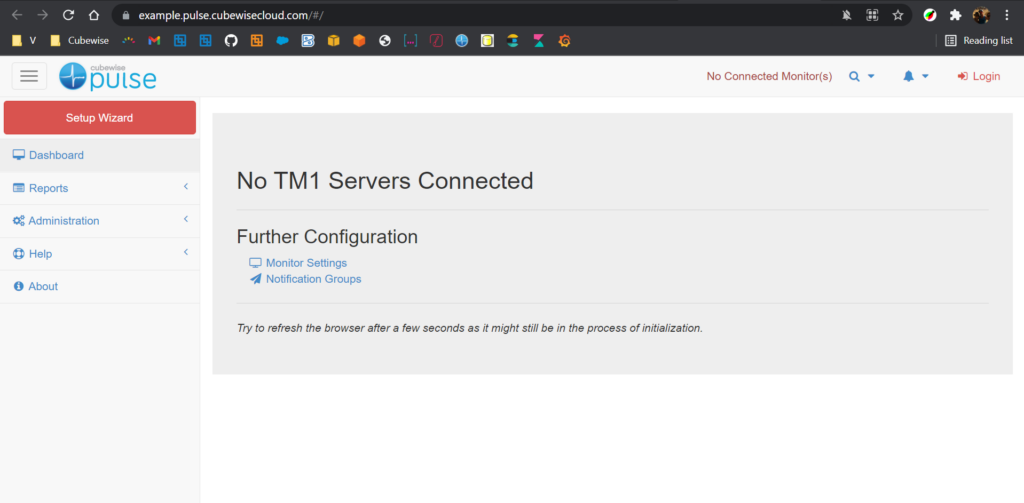
The setup wizard is explained in the following article:
Connecting Pulse to your IBM Cloud environment
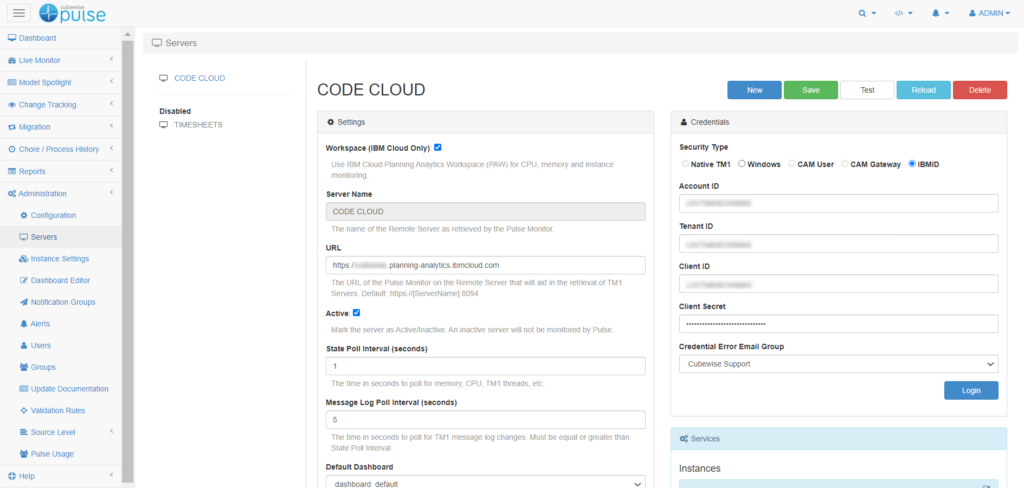
Once logged in to Pulse, to connect Pulse to a new IBM Cloud environment go to Administration > Servers.
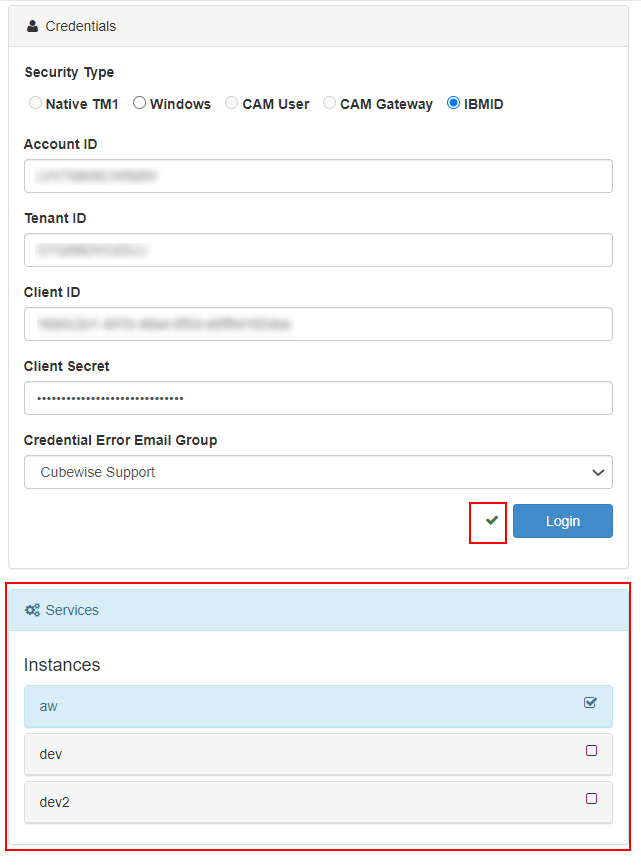
Then click on the Login button and enter your IBM ID. The IBM ID needs to be a TM1 admin on the TM1 instances.
If the authentication is successful, you should be able to see all TM1 instances:
Activate Pulse Monitoring
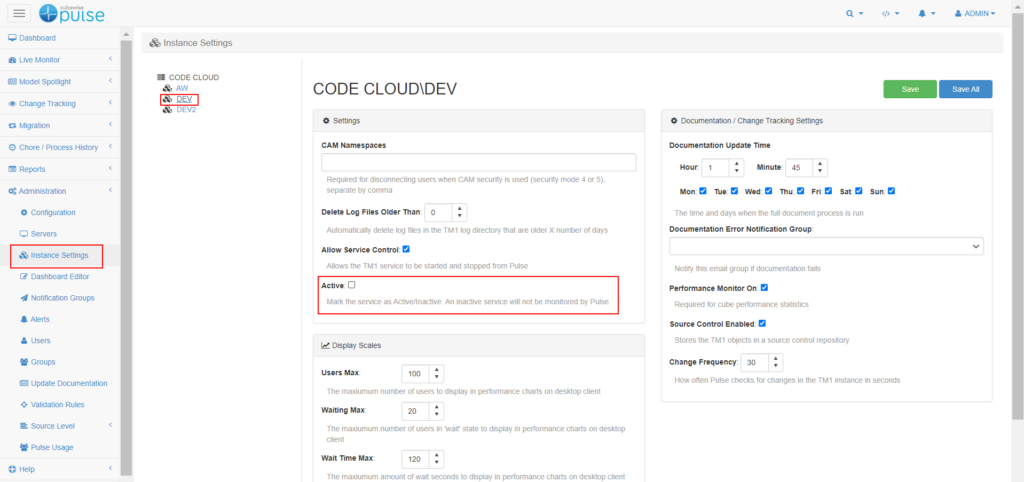
There is an Active flag per TM1 instance (Set to False by default). When set to True, Pulse will start monitoring the TM1 instance.
Execute the documentation
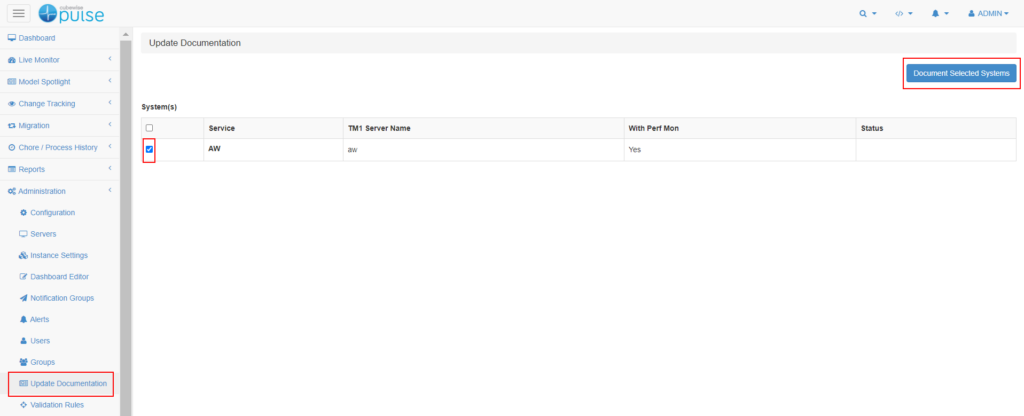
The documentation is Pulse’s backbone. Many features such as Change tracking rely on the documentation, when a new instance is set to Active, go to Administration > Update Documentation, pick a TM1 instance and click Document Selected Systems:
Notification Group
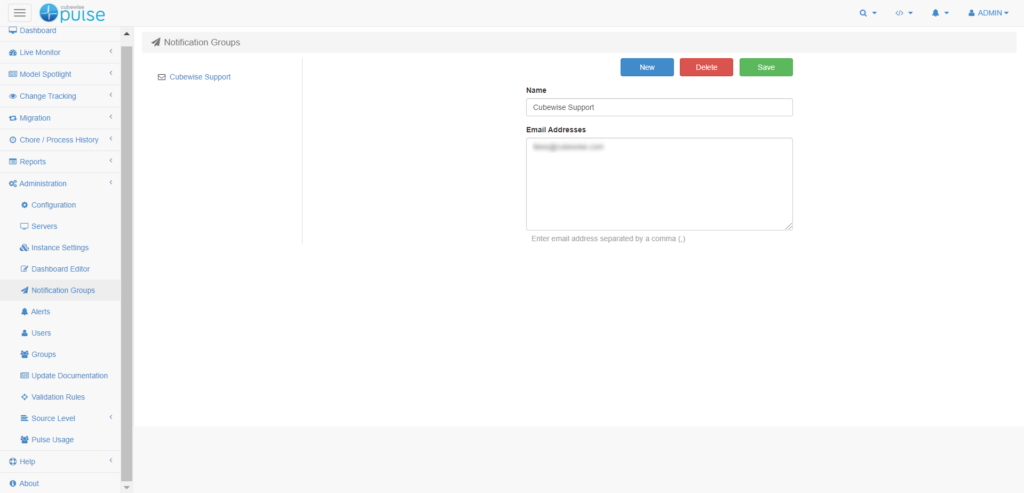
Go to Administration > Notification group and add a new group with the emails of everyone in your team who needs to receive Pulse Alerts.
Checking sessions in the Live Monitor
The last thing to check will be see the sessions in the Live Monitor. Go to Live Monitor > Instance name: