Accessing the PowerConnect Connector
Overview
To learn more about PowerConnect architecture, please go through the following page from the PowerConnect User Manual:🏛️ Architecture and Prerequisites
How to access the PowerConnect Connector
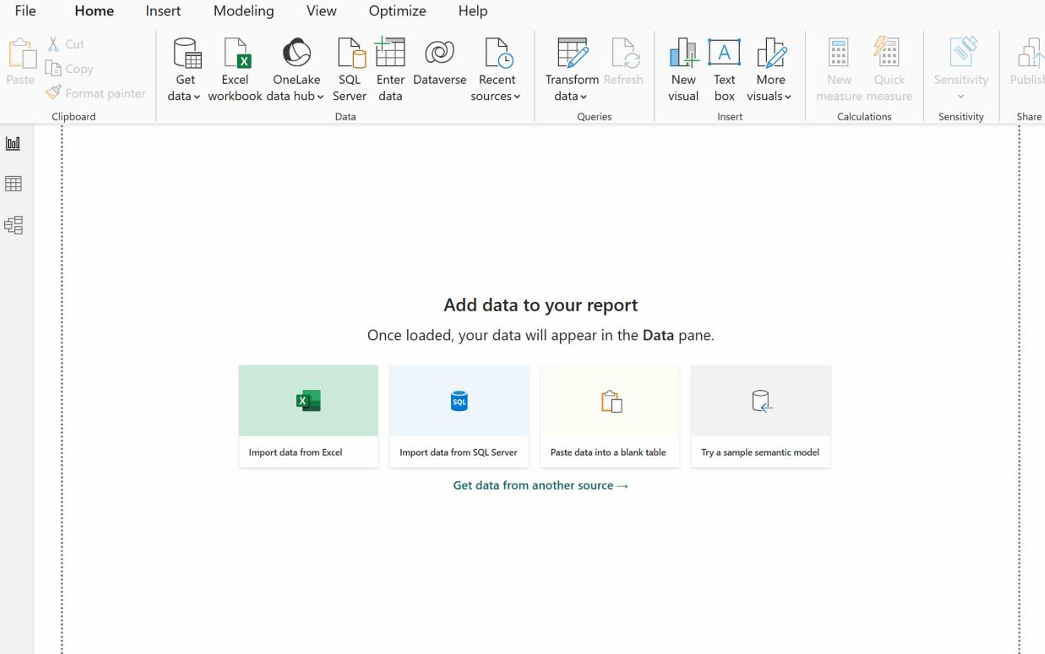
Locate the Power BI Desktop shortcut on the Windows Start Menu. In the Home tab, click on “Get Data”, select more and search for the Cubewise connector.
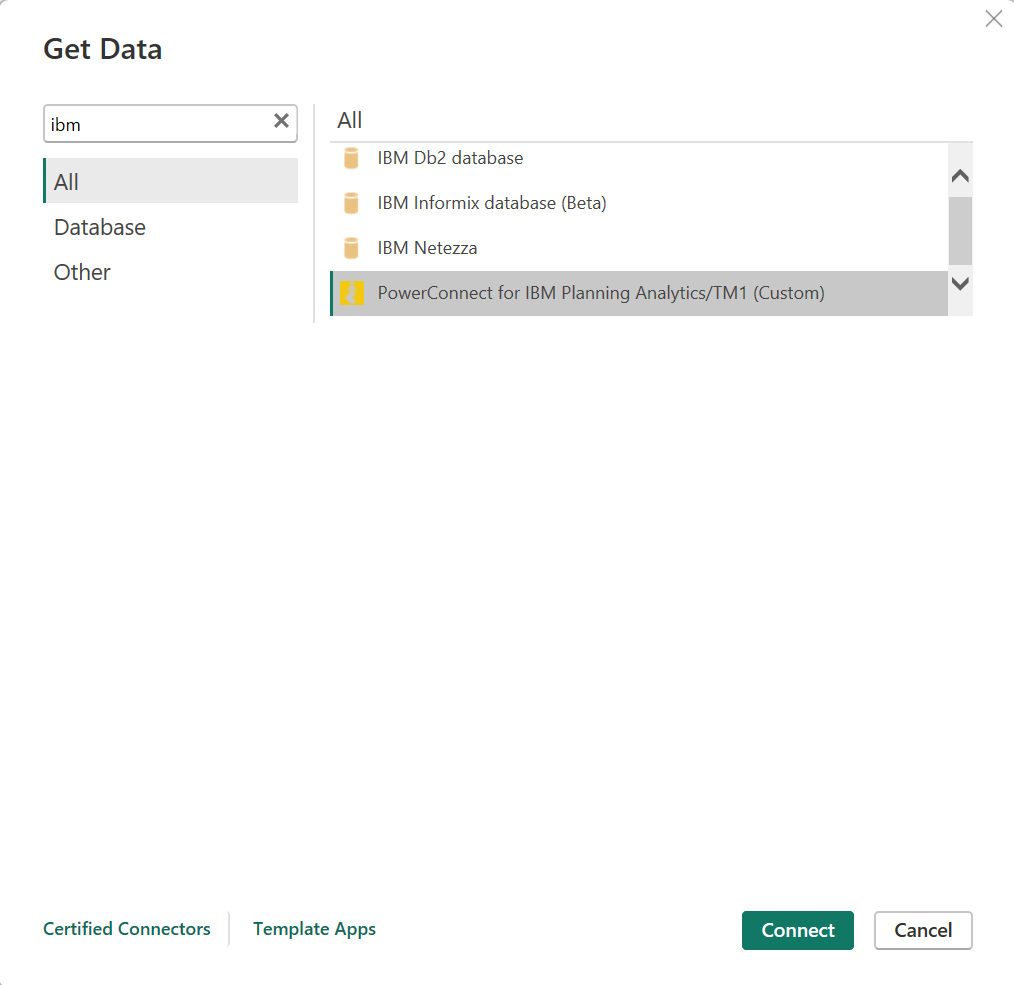
Filter by “ibm” and you should see the PowerConnect for IBM Planning Analytics/TM1 connector and then click Connect:
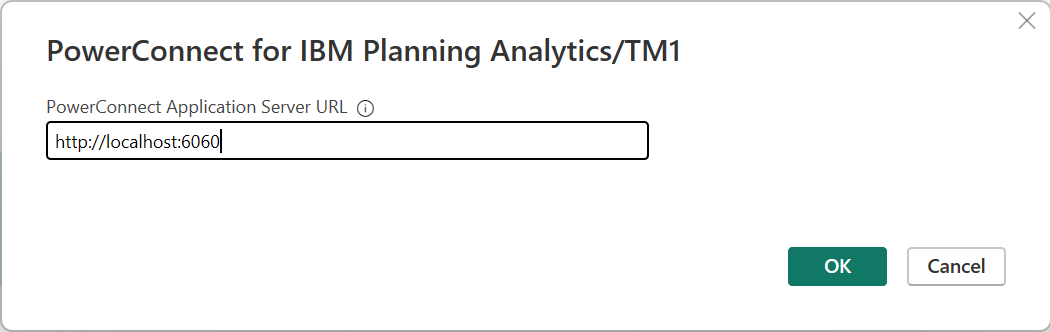
Enter the PowerConnect Application URL: http://localhost:6060 (by default) then click OK:
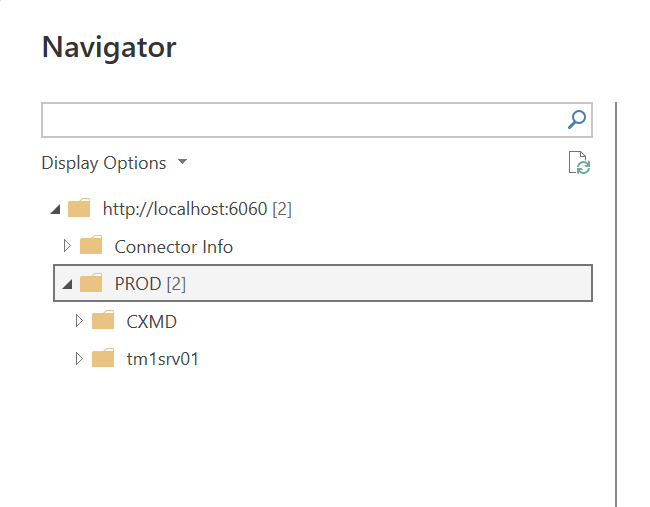
You should be able to see the name of the connection for the TM1 instance (this should have been set up in the settings.ylm file during the installation of PowerConnect), in this case is TM1SERV01 as shown below. You can expand and collapse the navigation tree to see the TM1 objects in this instance.