Building Hierarchies Manually
Let’s start by building manually a new hierarchy, we want to create a new hierarchy called Type which groups Bikes, Components and Clothing under a new consolidation High Value and then Accessories, Safety and Nutrition under Low Value.
First, expand the Dimensions from the menu, expand the Department and finally click on the Edit button:
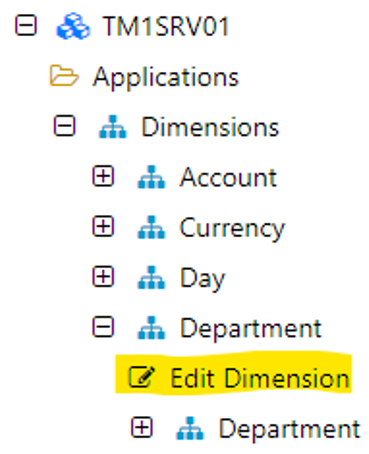
By clicking on the dimension (Edit Dimension ) in the left-hand side menu, it is going to open the hierarchy editor. The dimension has currently only one hierarchy (the default hierarchy which has the same name as the dimension name):
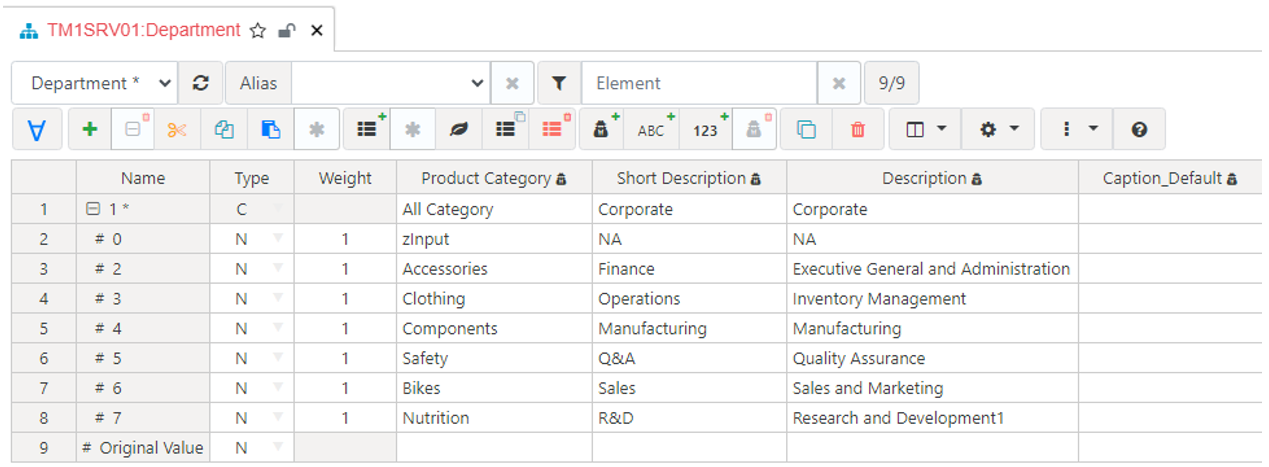
To create a new hierarchy manually, you can either click “New Hierarchy” to start from a blank hierarchy or like in our case we want to create a new hierarchy including all the elements so we need to select the “Department” hierarchy and then click on, “Hierarchy Save As” :
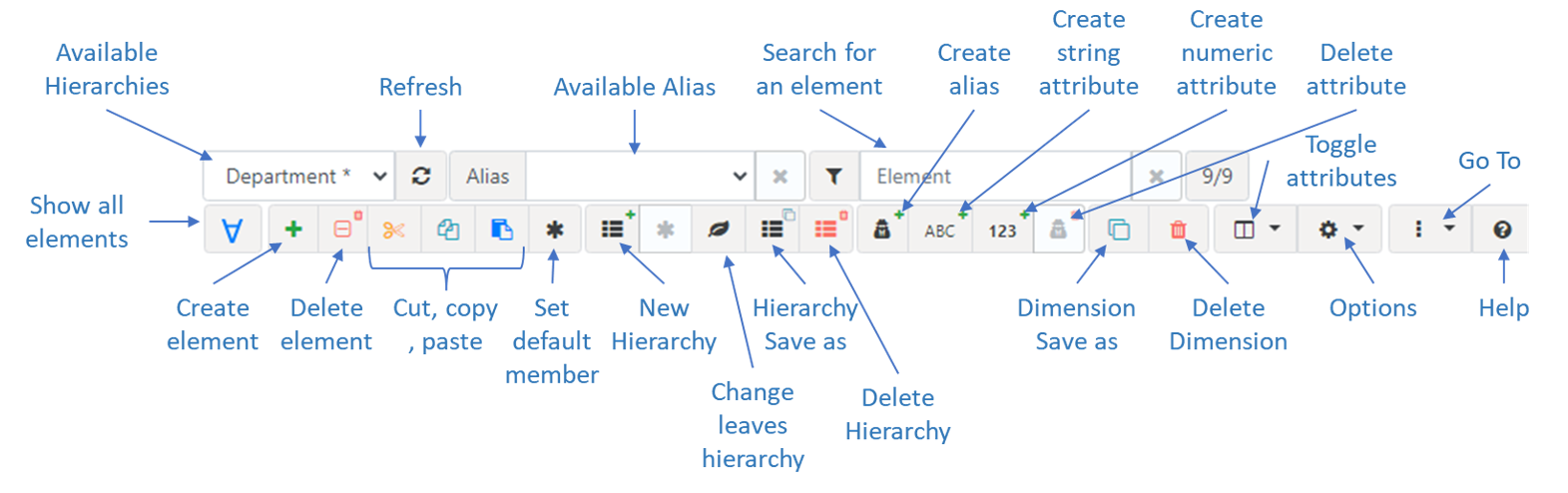
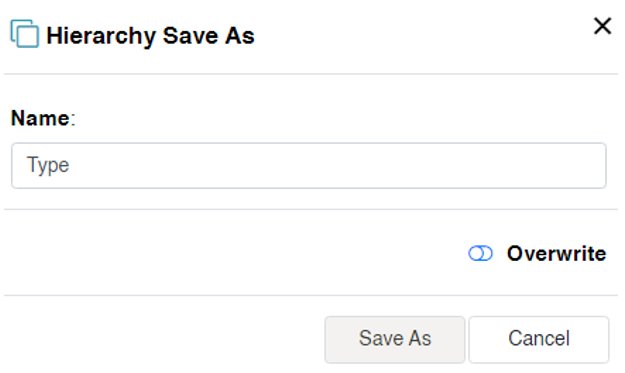
The name of the new hierarchy is Type and then click Save As button:
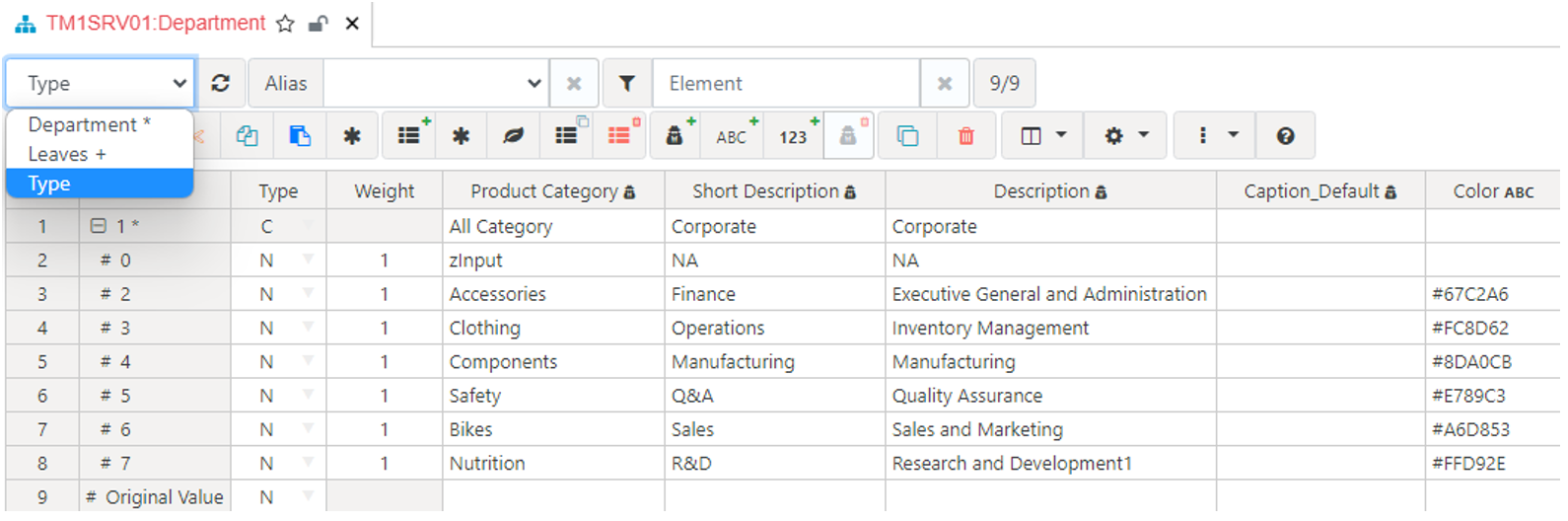
Now in the hierarchy list, we can choose between Default, Leaves and our new hierarchy, Type:
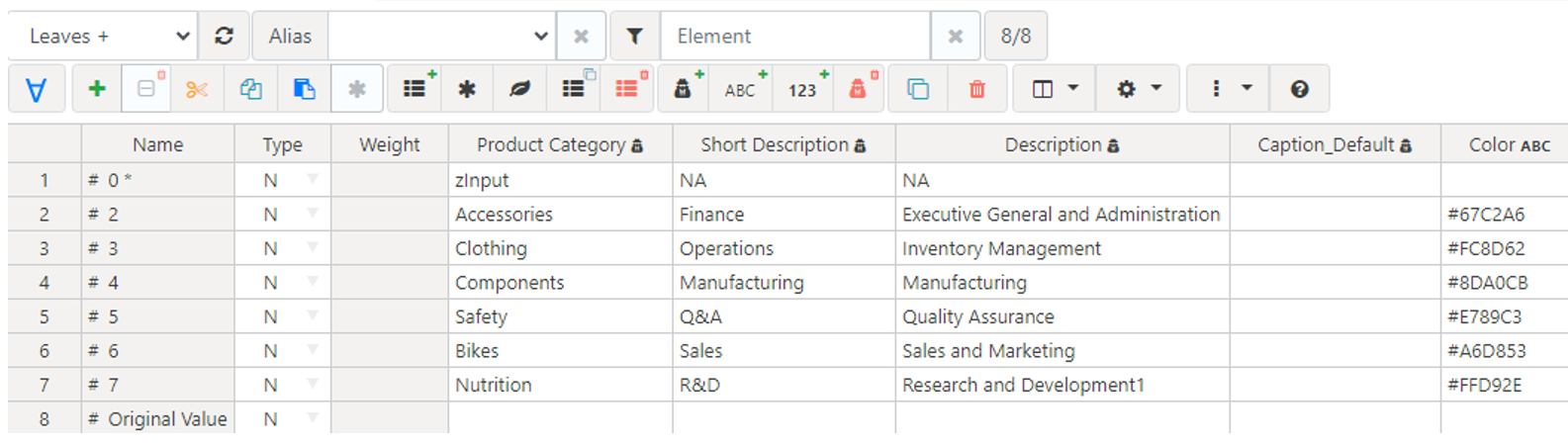
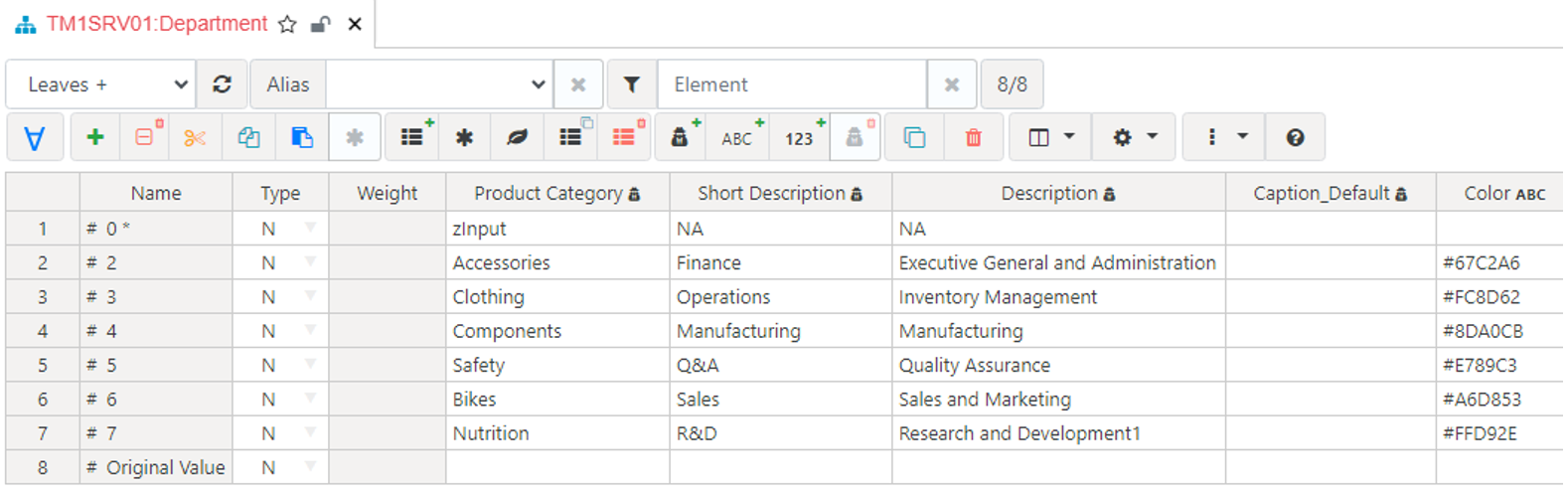
The Leaves hierarchy is created automatically by TM1 when the first hierarchy is created. It is a default hierarchy which contains all leaf elements:
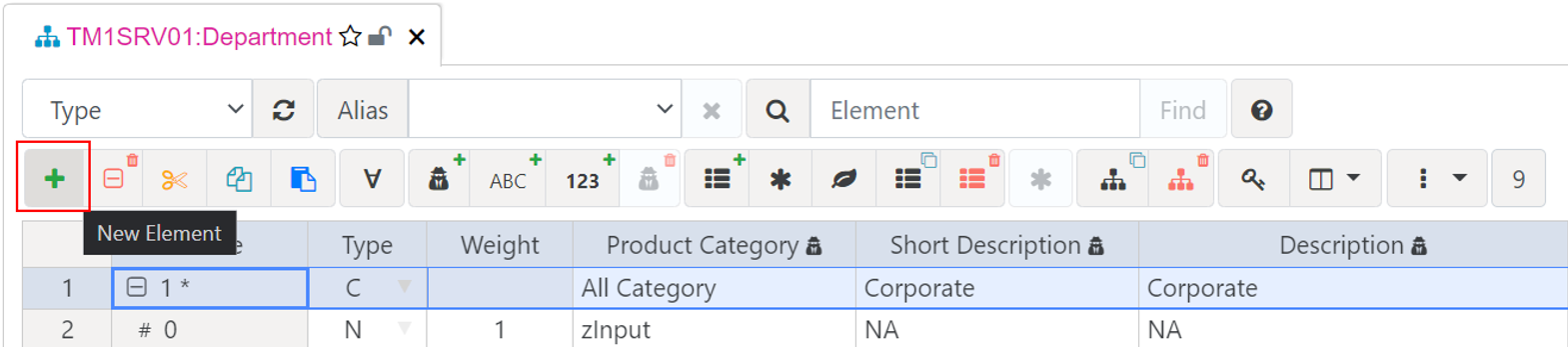
Let’s go back to the Type hierarchy, we want to add two new consolidations to the top consolidation “1”, right click the top consolidation and then click the “+ Add” button to add our new consolidations:
Enter ‘High Value’ as the name for the new consolidation, set the type to ‘Consolidated’ and select ‘Child of Element (Start)’ to add as a first child of the consolidation:
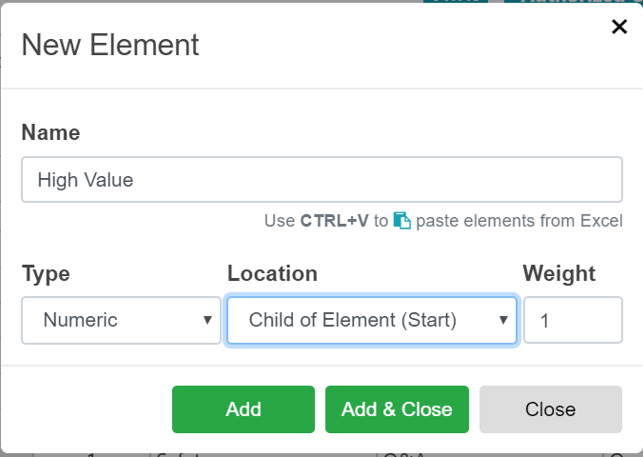
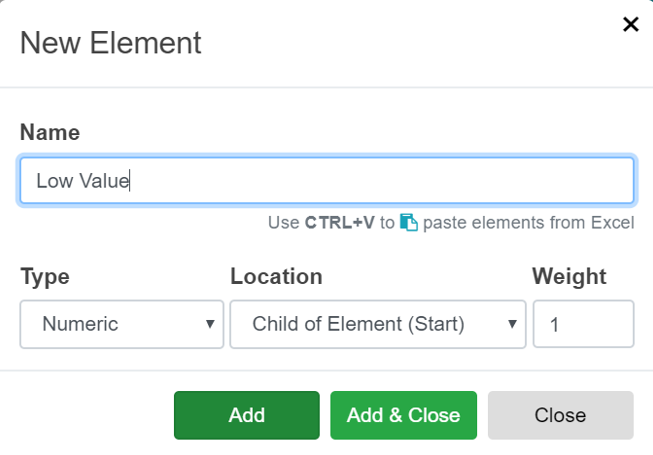
Click Add button and then Add the Low Value Consolidation, click the Add & Close button to close the pop-up window:
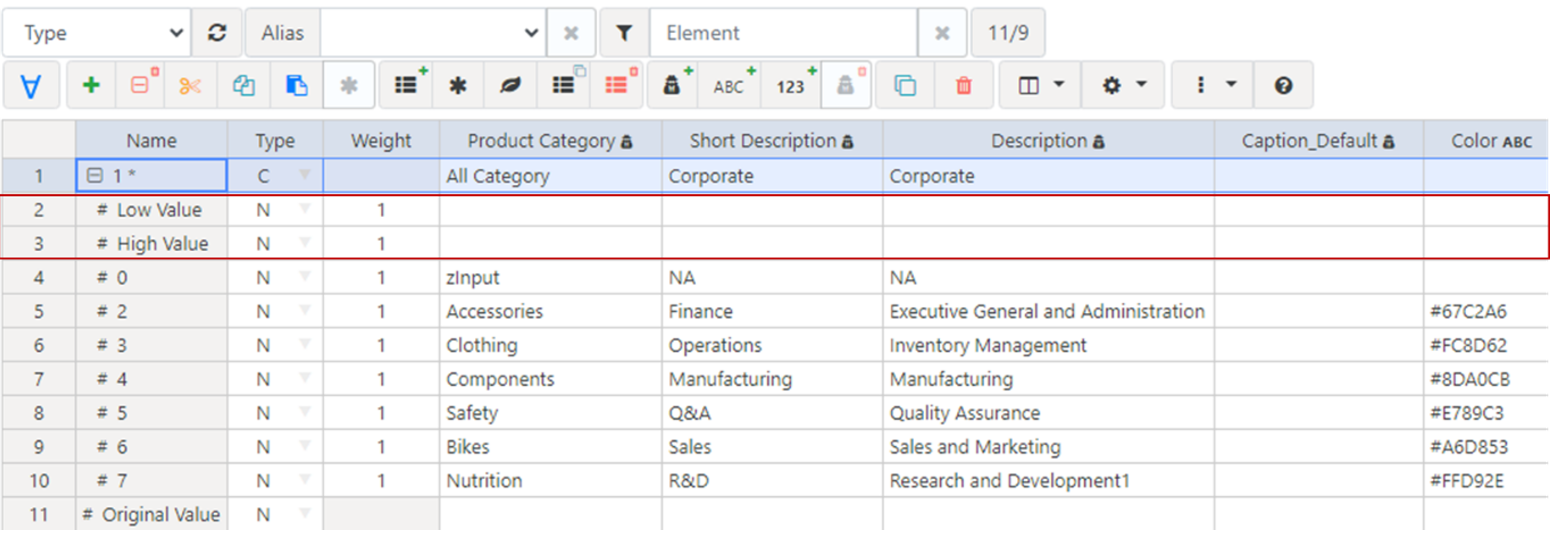
Changes are immediately applied to TM1. If you look at the Type Hierarchy, you will see the two new elements:
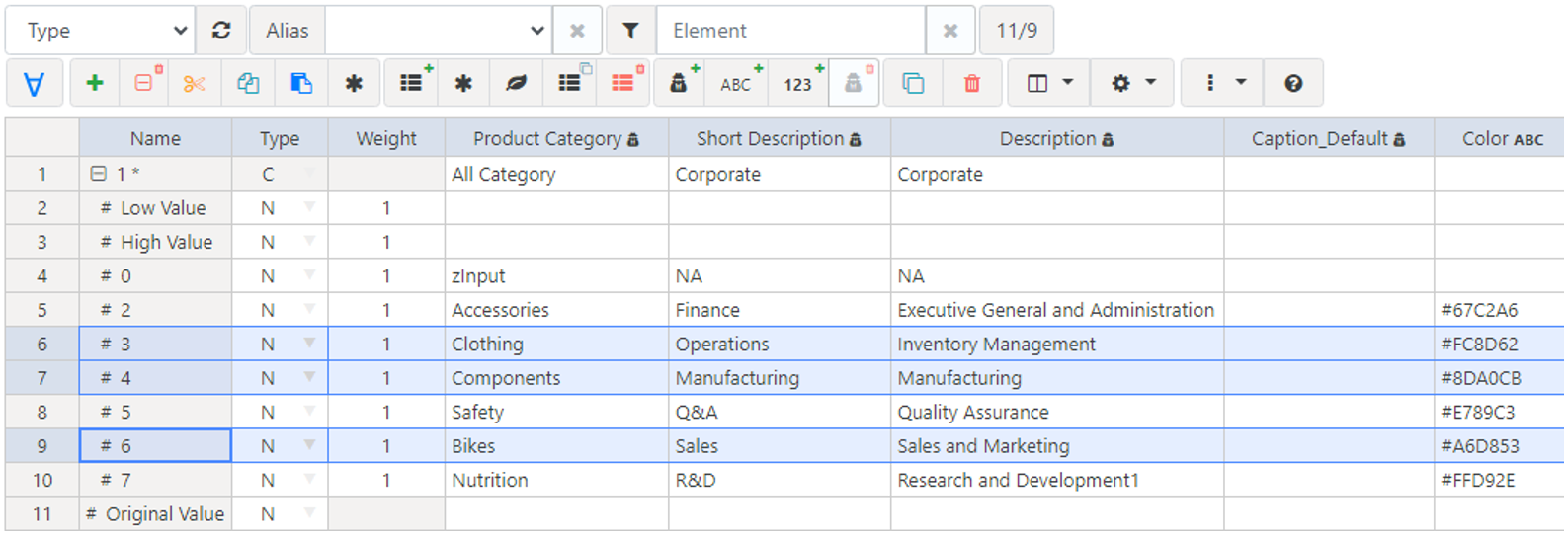
We want to move the elements 3,4 and 6 as child of High Value. To do that, first select the three elements as below and then click on the cut button:
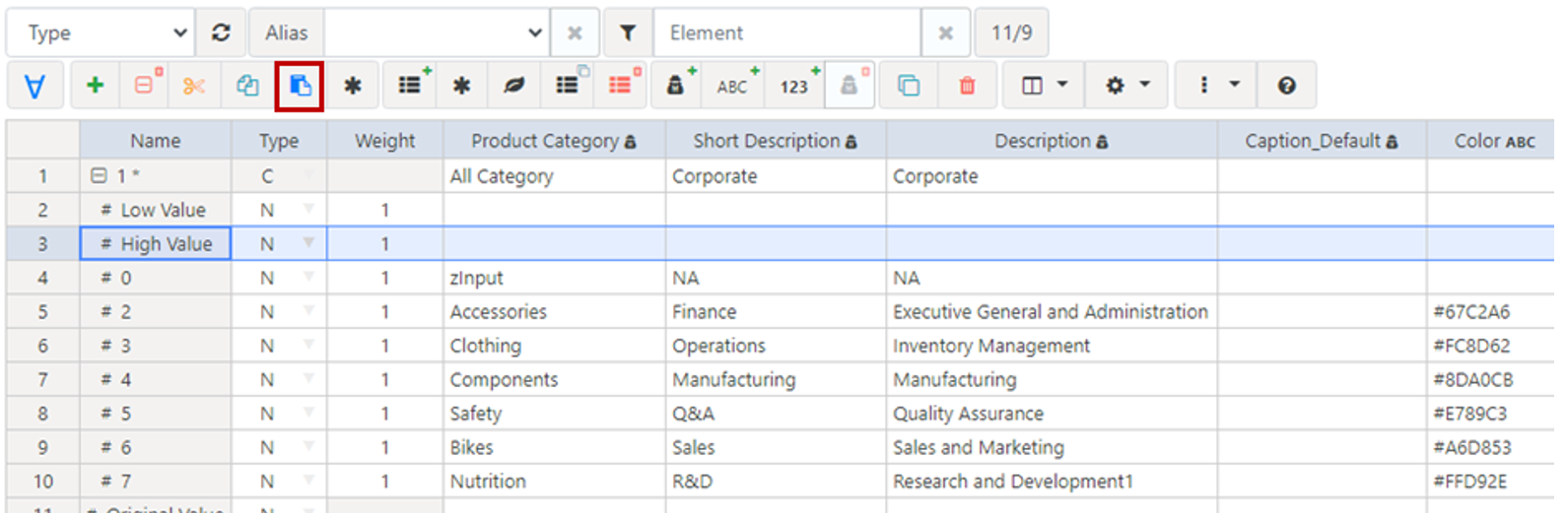
Once the cut button selected, you will be able to see the paste button, just click the paste button for the element High Value as below:
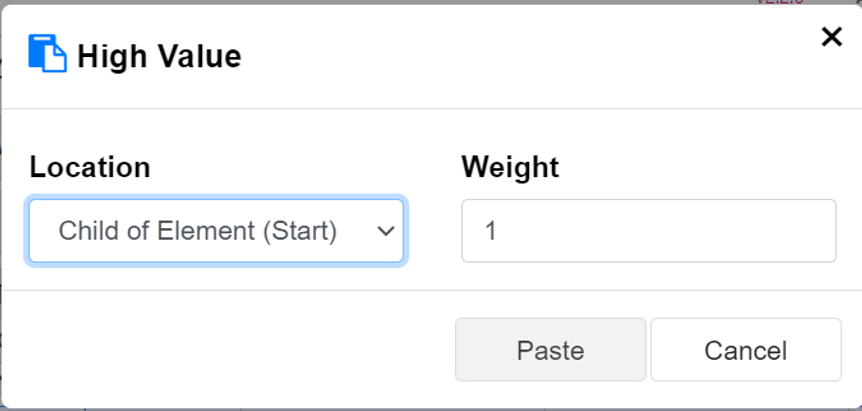
We want to add the elements as child so select Child of Element (Start) and then press Paste:
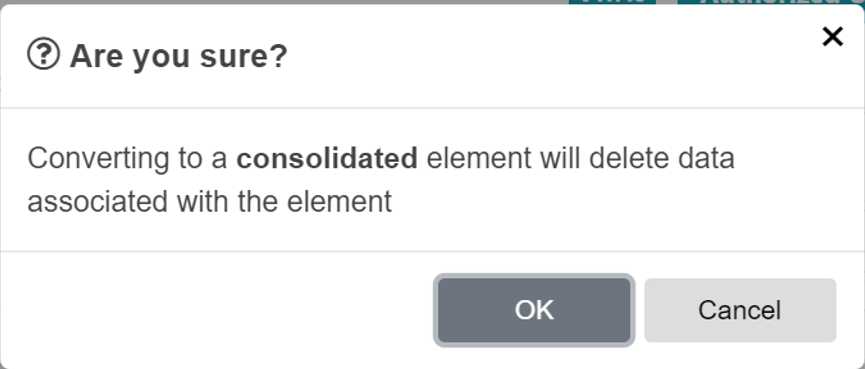
If the High Value was a leaf element you will the warning message below saying that the element will become a consolidation, just click OK:
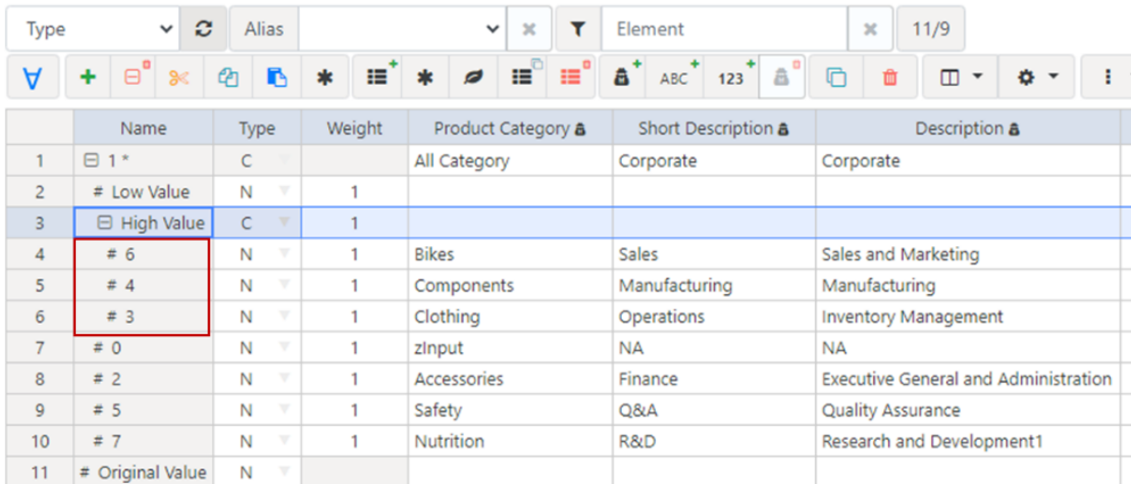
You should be able to see now:
Let’s replicate these steps to move elements 0,2,5 and 7 as child of Low Value:
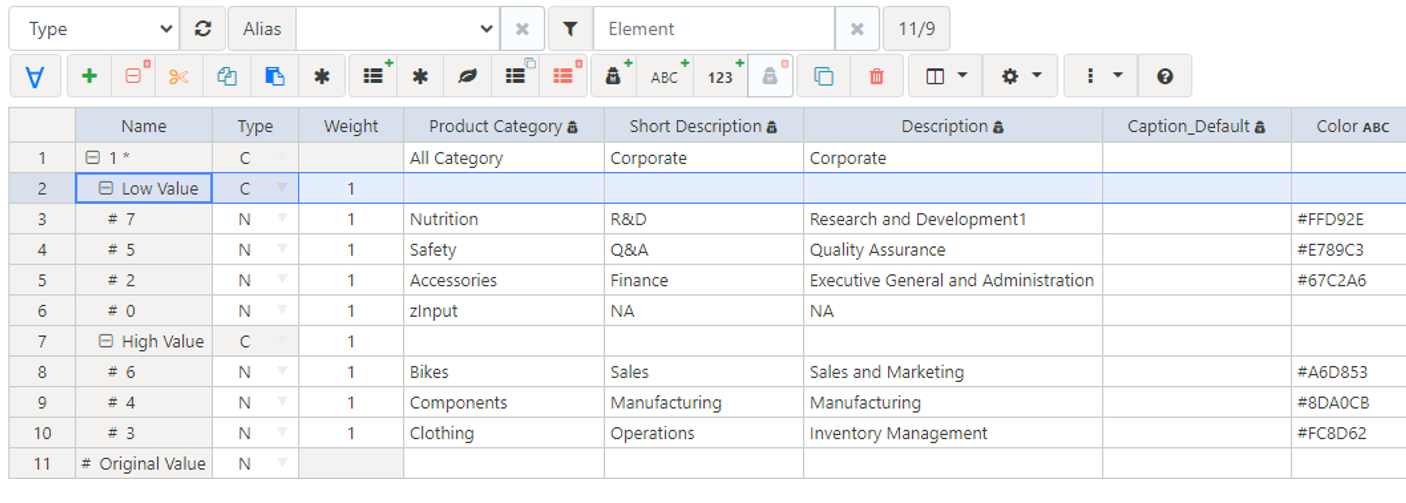
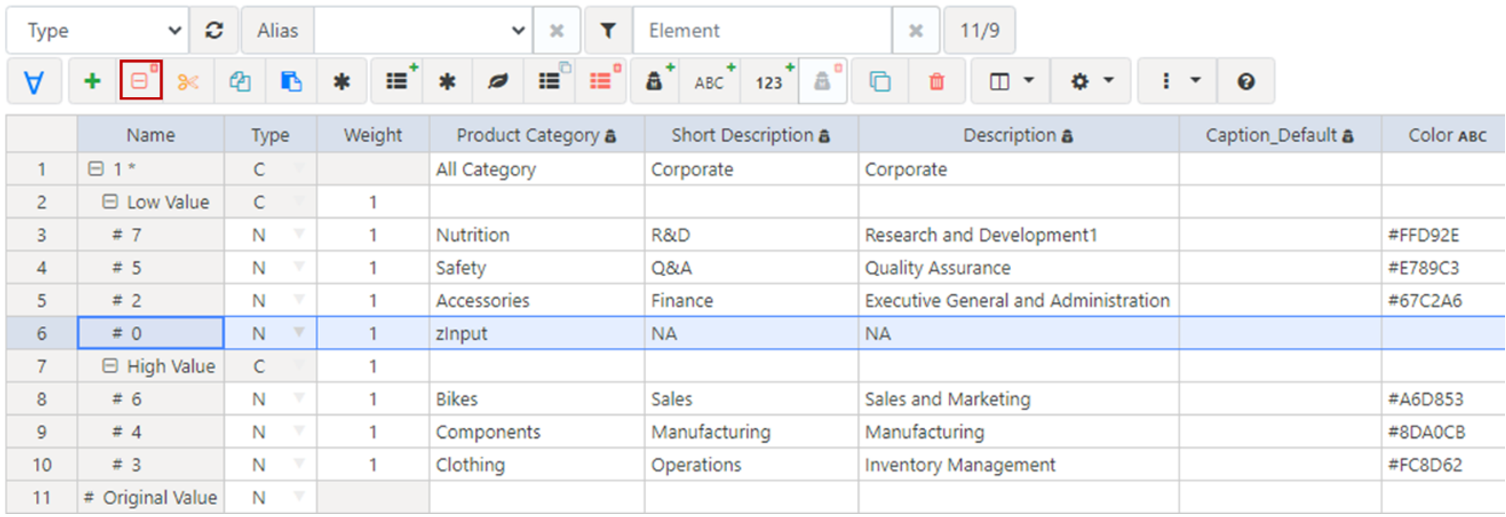
In this hierarchy we do not need the 0 element, click the delete button and you will then have to click the Confirm button to delete it:
Click Element to delete the element from the Hierarchy:
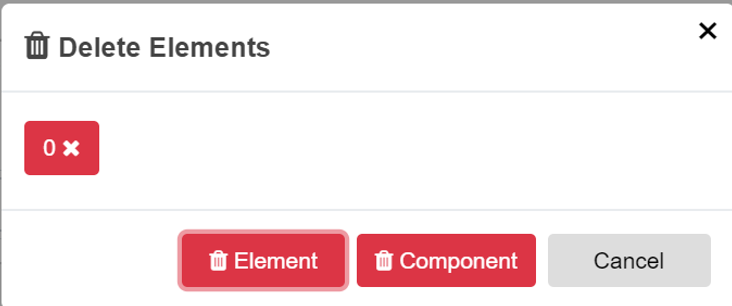
Note: The delete Component button would remove the element only from the consolidation. We don’t need the Original Value element, just delete it as well.
You can then use drag and drop to reorder the child, for example click on the element 2 row number and drag it before the element 7. Replicate these steps to order all elements as below, the Type hierarchy should look like this:
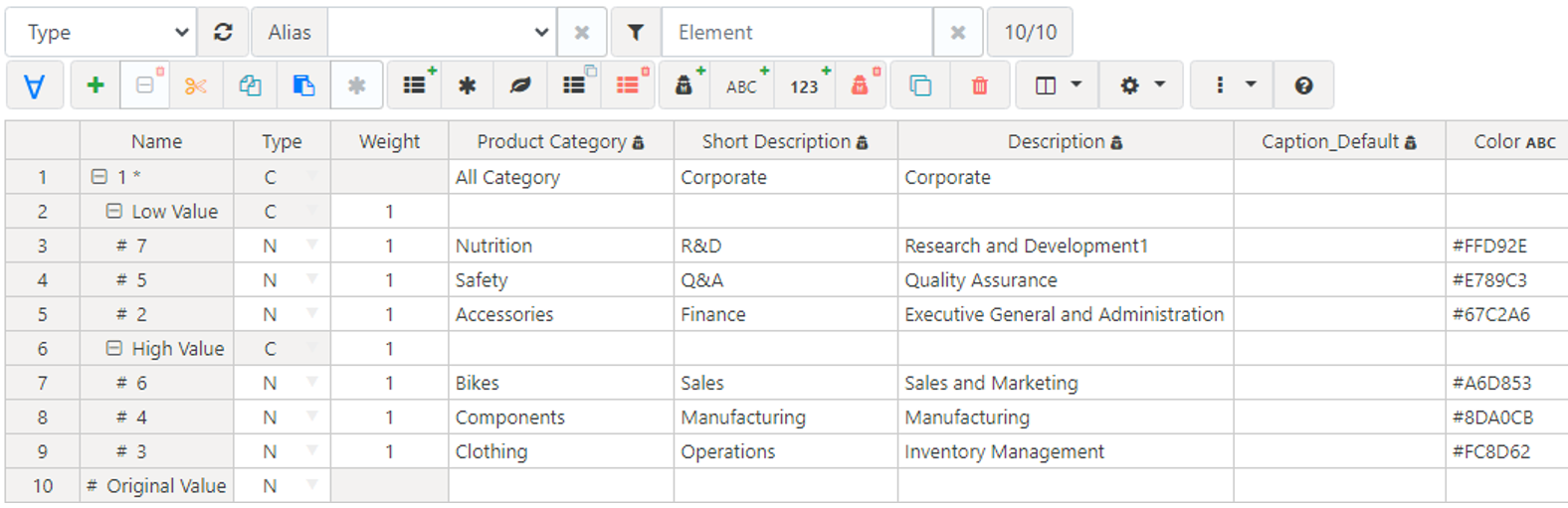
It is important to be aware that deleting a leaf element from a hierarchy is not going to delete it from the default hierarchy (Department and Leaves), you can see now that these two elements have been removed from the Type hierarchy but they are still available in the Department and Leaves Hierarchy: