Server Logs
Arc includes a tool called Server Logs which will enable you to filter the logs.
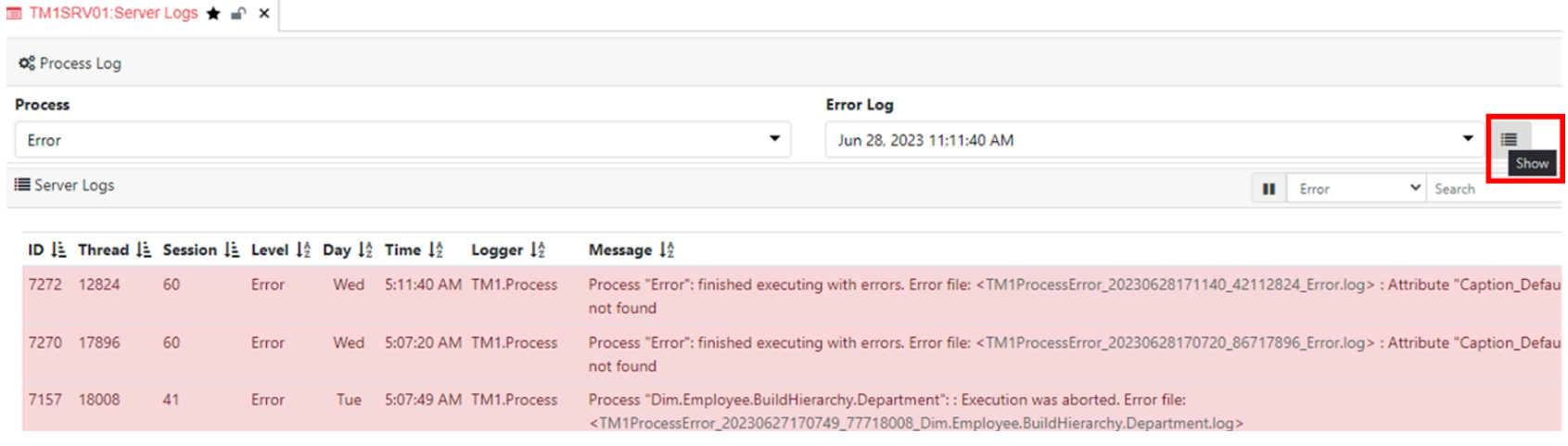
Let’s open it, by clicking the Server Logs, either from the favourites or from the Administration list. In the first panel, you will find a dropdown with all the processes which ran unsuccessfully. In Error Log dropdown, you will find the list of error file for the selected process.
In the second panel you will find the messages from the tm1server.log file:
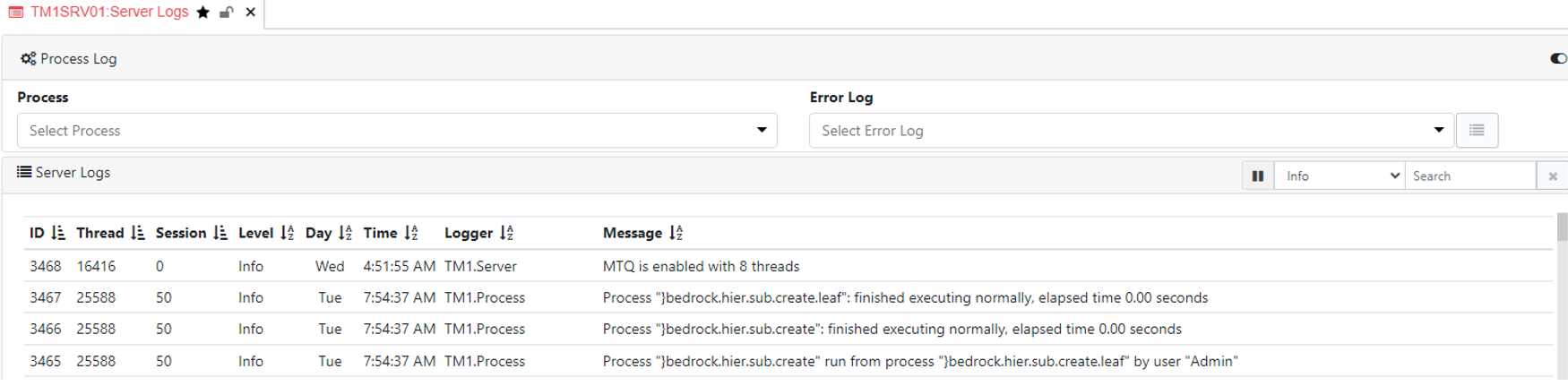
Currently in the message log, there are only Info messages. Let’s run a process which generates errors in order to see different type of messages.
To see some errors, let’s execute the process called Error, to find it you can type in the search box error t:p then right click on the process name and click Execute from the context menu.
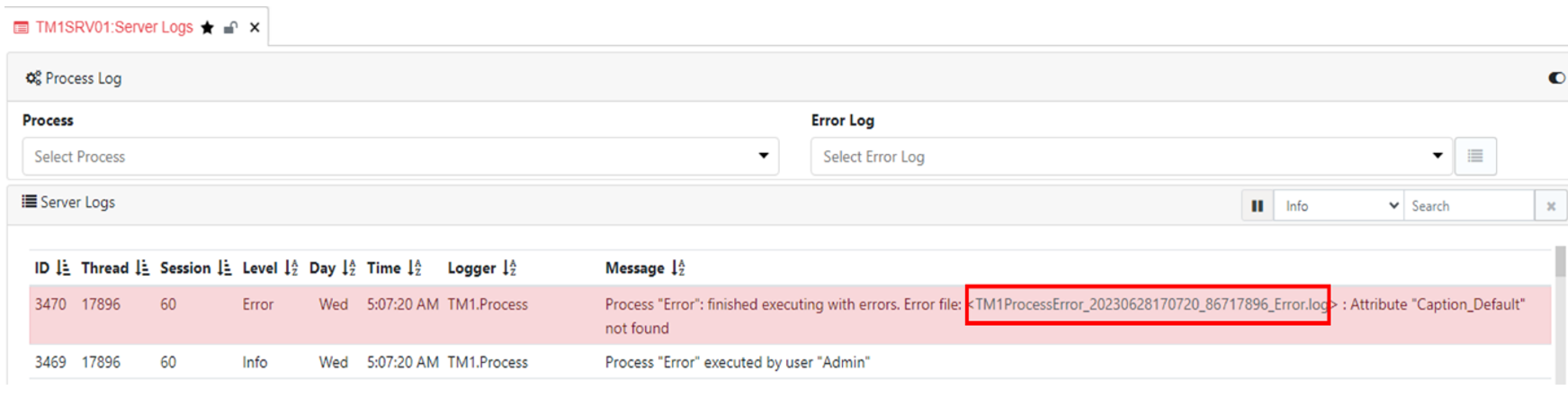
In the Server Logs, you should be able to see an Error level message. For each error, Arc will give you a link to the log file, just click on the link as below:
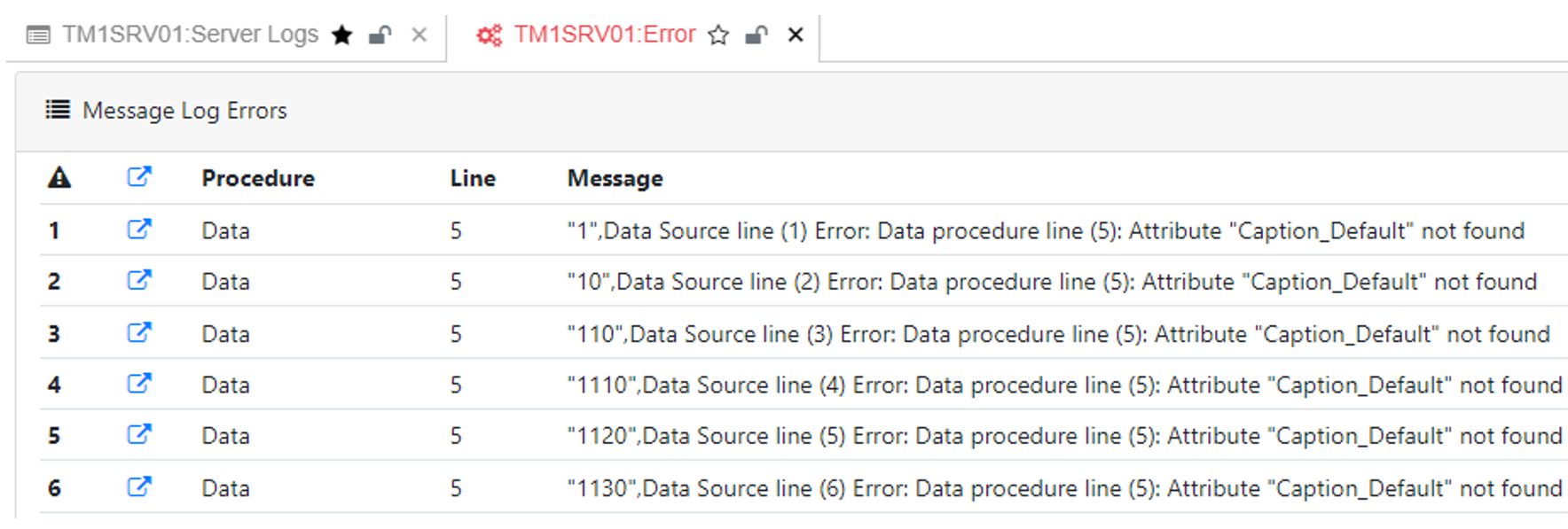
After clicking on the link, a new Arc tab will open with the content of the Error message:
If you want to see all errors for a specific process, you can select the process from the process dropdown as below and then select the log message you want to see: