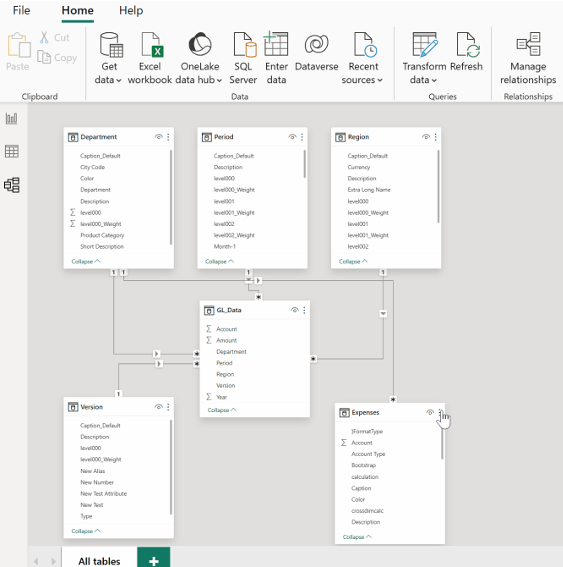
Model View
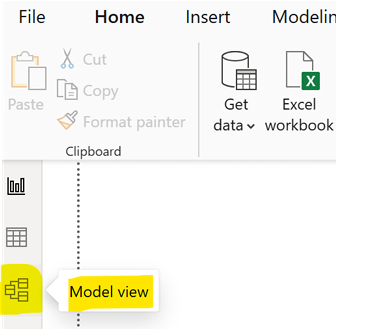
The Model View in Power BI Desktop provides a visual interface to manage relationships between data sets that helps understand and organize the data structure that we have loaded in the Power BI model. We will now recreate the data model relationships as per the TM1 sample model. Go to the Model View which is on the lefthand side panel as shown below:
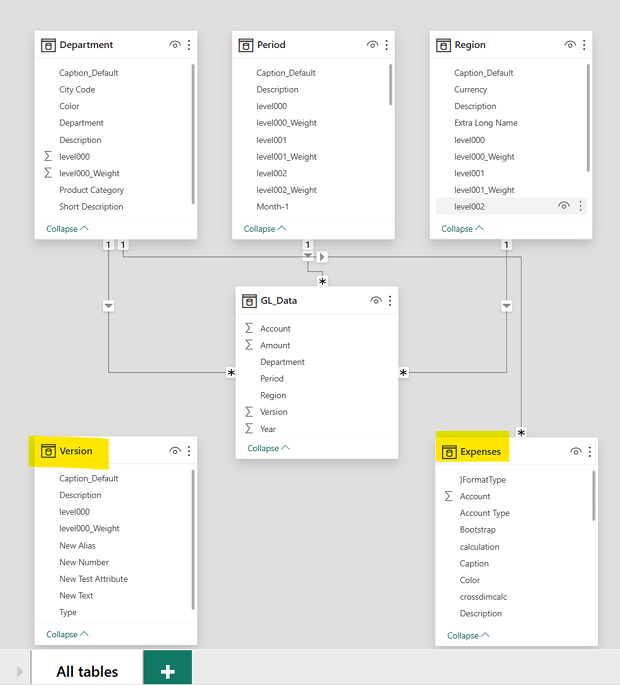
Feel free to rearrange the data/metadata blocks as shown below, take a look at the relationships that have been automatically defined when we loaded the data and metadata from the TM1 model. You will note that the relationship for the Version dimension is missing and that the relationship for the Expense accounts has been incorrectly defined.
Let’s defined the relationship for the version dimension and any other dimension/set that was not automatically defined when loaded, follow the steps as shown below:
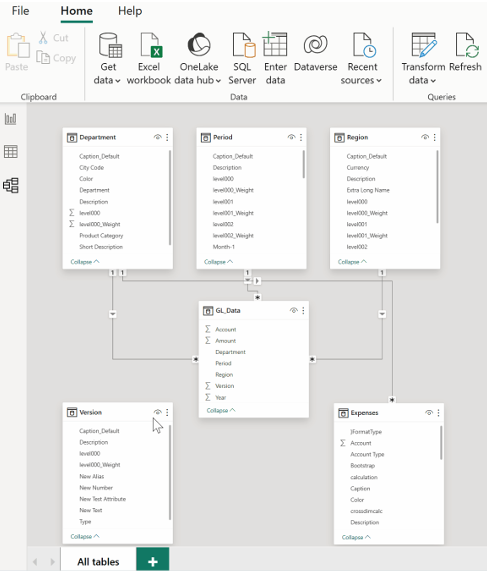
You can also edit the relationships, for example, let’s edit the relationship for the Expense account as shown below: