Working with TM1 Hierarchies in Power BI
TM1 dimensions are naturally hierarchical — elements roll up through multiple levels (for example, individual cost centres rolling into departments, then divisions, then the whole company). Power BI doesn't represent hierarchies the same way, so a few extra steps are needed to make them roll up correctly in your reports — without double-counted totals and without blank rows.
About the examples on this page: we use a dimension called Region whose alias attribute is called Description, with a three-level hierarchy (level000–level002), loaded from a subset called All Countries. When following along, replace these with your own names: Region → your dimension's key column, Description → your alias/caption column, and the level list → however many levels your hierarchy has.
Ragged, the name we give the null-fill step created in Step 2. Substitute whatever your own steps are called.
As a tip: On your subsets, better use {[Dimension].[Hierarchy].Members} than {TM1SUBSETALL([Dimension].[Hierarchy])}. Using .Members keeps your subset better structured for Power BI.
About the examples on this page: we use a dimension called Region whose alias attribute is called Description, with a three-level hierarchy (level000–level002), loaded from a subset called All Countries. When following along, replace these with your own names: Region → your dimension's key column, Description → your alias/caption column, and the level list → however many levels your hierarchy has.
Ragged, the name we give the null-fill step created in Step 2. Substitute whatever your own steps are called.
As a tip: On your subsets, better use {[Dimension].[Hierarchy].Members} than {TM1SUBSETALL([Dimension].[Hierarchy])}. Using .Members keeps your subset better structured for Power BI.
The short version
PowerConnect imports a TM1 subset into Power BI as a flat table with level columns (level000, level001, level002, and so on). Each row represents an element; the level columns trace that element's consolidation path.
To turn this into a working hierarchy in a Power BI visual, you typically:
Load two tables — one with the full hierarchy (your dimension table) and one with leaf-level values only (your fact table).
Fill in the blank level columns — so elements that sit higher up the tree don't show as empty rows.
Swap element codes for their descriptions — so your report shows a friendly name like "Total Europe" instead of an element code like "1".
Package the levels into a hierarchy — bundle the level columns, plus the element itself as the deepest level, into one field you can drag onto a visual in a single step.
Relate the two tables and build your visual — drop the hierarchy onto a Matrix and the numbers roll up correctly.
Each step is explained below.
Step 1 — Load two tables
You build two queries and relate them on the leaf-level key (in our example, the Region column):
Hierarchy (dimension) table — load a subset that includes the full consolidation hierarchy. PowerConnect flattens this into level columns that trace each element's consolidation (ancestor) path:
level000is the top consolidation, and each deeper column is the next parent down. The element's own key stays in theRegioncolumn — that matters later (Step 4), because a hierarchy built from the level columns alone stops at the parents. This table provides the structure for your visual.Fact table — load a TM1 view with leaf (level 0) members only for the dimension you're building the hierarchy on. Don't include its consolidations here.
Step 2 — Fill in the blank level columns
If your hierarchy is "ragged" — some elements sit closer to the top than others — the deeper level columns are left empty for those rows, which shows up as blank rows in your Matrix.
The fix takes one formula in Transform Data: select the last applied step, click the fx button next to the formula bar, and add (here #"All Countries1" is the step that loaded the subset — use your own previous step name):
This goes through the listed level columns and replaces every empty cell with that row's element name, so the element simply "carries down" to the deeper levels and the Matrix stays clean. Once it's added, rename the step to Ragged (right-click the step in Applied Steps → Rename) — Step 3 refers back to it by that name.
Step 3 — Show descriptions instead of element codes
The level columns contain the elements' principal names. If your TM1 element names are codes rather than readable names (in our example they're just 1, 2, 3, …), the hierarchy becomes a tree of meaningless numbers. The good news: your hierarchy table already contains each element's alias attribute (in our example a column called Description), so you can translate all the level columns in one go — no per-level lookup formulas needed.
In the Advanced Editor, add these steps after the Ragged fill step from Step 2. The last step (Add Leaf Name) builds an aliased copy of the leaf in a new column called RegionName, which Step 4 puts at the bottom of the hierarchy:
…and make sure the query ends with:
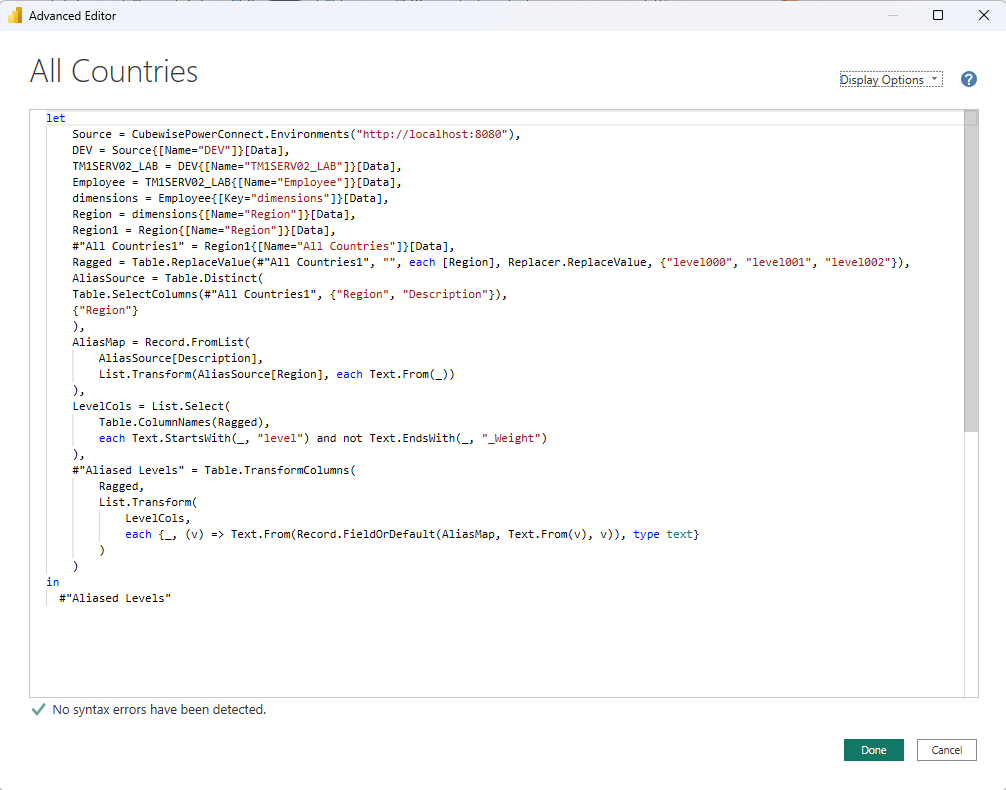
In plain terms:
AliasSourcebuilds a simple two-column lookup list (element code → description). Removing duplicates matters: an element that appears under more than one parent shows up more than once in the flattened subset.AliasMapturns that list into a lookup, e.g."1" → "Total Europe","2" → "UK".LevelColsfinds all your level columns automatically — however many levels you have — while skipping thelevelNNN_Weightcolumns.Aliased Levelsswaps every code for its description in one pass. If a code has no description, it's kept as-is rather than causing an error.Add Leaf Nameadds a new columnRegionName— the row's ownRegionkey run through the same map — so the element itself can be shown with a friendly name.Regionis left untouched so it can still serve as the relationship key (Step 5).
Step 4 — Package the levels into a hierarchy
Rather than dragging the level columns onto every visual one at a time, bundle them into a single named hierarchy field — then you place the whole thing in one step.
In the Data pane, right-click the top level column (
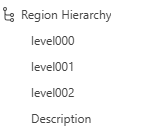
level000) and choose Create hierarchy. Power BI creates a new field namedlevel000 Hierarchy— rename it to something meaningful likeRegion Hierarchy.Add the remaining levels in order: right-click each one (
level001,level002, …) and choose Add to hierarchy → Region Hierarchy. You can also drag the columns onto the hierarchy field.Add the element itself as the deepest level. The level columns only trace each element's parents, so a hierarchy made of levels alone stops at the parents — and the deepest members (for example, the children of a consolidation that goes one level deeper than the rest) collapse into their parent node and seem to vanish. Add your aliased column (in our case it’s
Description) to the bottom of the hierarchy, below the last level.
Step 5 — Relate the tables and build your visual
In the Model view, relate the hierarchy table (one row per leaf element) to the fact table on the common leaf key (in our example, Region — the untouched ID column, not the aliased RegionName) — a one-to-many relationship. Then put the hierarchy (or the level columns plus RegionName) on the rows of a Matrix visual, drop your measure in, and the values roll up through the hierarchy correctly.
Using the hierarchy in charts
The Matrix above is just one example — the same hierarchy drives any visual with a category axis.
Use the named hierarchy field you created in Step 4 (e.g. Region Hierarchy). Because it already carries all the levels in order, you drag it on in a single step.
Then, for a bar chart:
Y-axis — drag the hierarchy on. That's it — all the levels come with it.
X-axis — add your measure from the fact table (e.g.
Amount)
(For a column chart it's the other way around: hierarchy on the X-axis, measure on the Y-axis.)
Power BI then shows drill controls in the corner of the visual: turn on drill mode and click a bar to drill into that branch, or use the "expand all down one level" arrow to show the whole next level at once. Everything from the earlier steps carries over — totals roll up from leaf values only (no double counting), shallow leaves show their own name instead of a blank bar, and the bars are labelled with descriptions rather than element codes.
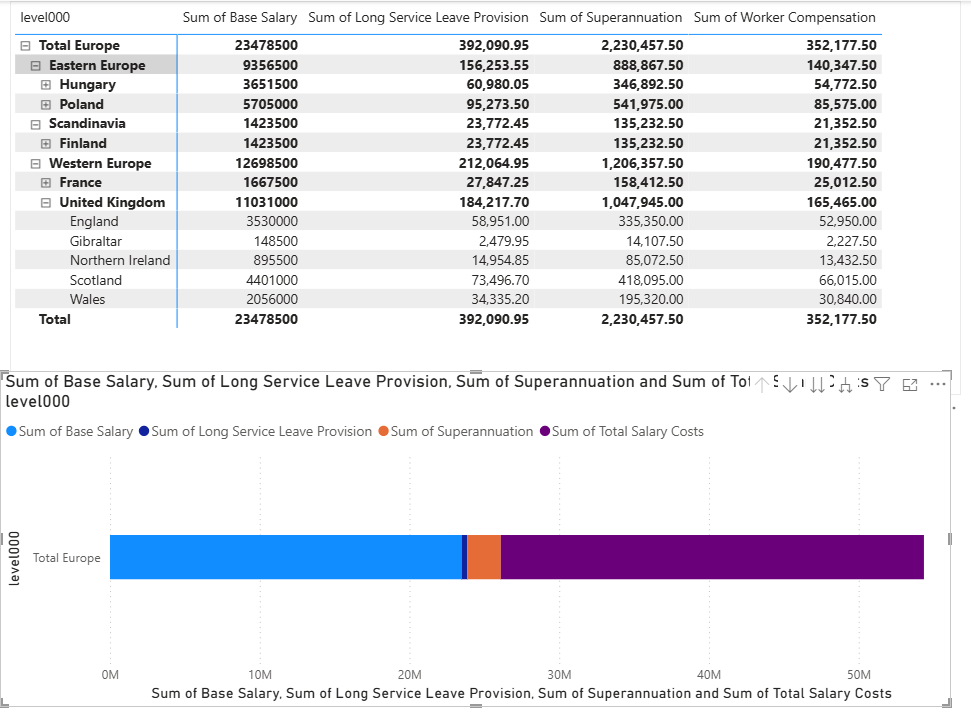
You can also use the Legend well to split each bar by another field (for example version or year — this is what makes a stacked bar chart), and Tooltips to show extra fields on hover.
See also
Prefer building the hierarchy with DAX instead? See Leveraging Hierarchies with DAX for a complete, screenshot-driven walkthrough using LOOKUPVALUE description columns and a Power BI hierarchy on the chart axis.